EasyManua.ls Logo

Yealink MVC300 - User Manual

Yealink MVC300
16 pages
Print Icon
To Next Page IconTo Next Page
Loading...
Yealink Network Technology CO., LTD
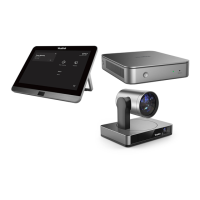
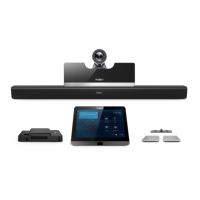
Yealink MVC800&MVC500&MVC300 for Microsoft Teams Rooms System
Quick Start Guide(V1.5)
V32.35
English | 简体中文

Other manuals for Yealink MVC300

Questions and Answers

  • K
    kenneth59Aug 11, 2025
    What to do if there is no content displayed on the second display with Yealink MVC300 Conference System?
    • M
      Michael RhodesAug 11, 2025
      If you are not seeing content on the second display, first make sure that both displays are securely connected to the HDMI ports on the back of the MCore/Mini-PC. Also, verify that the Dual Monitor mode is enabled. If the issue persists, try restarting the device; after restarting, it will automatically launch the Teams Room Systems app.
  • P
    pwalkerAug 17, 2025
    Why I cannot control the camera on my Yealink MVC300?
    • C
      Craig ValdezAug 17, 2025
      If you cannot control the camera of your Yealink Conference System, it might be because the tracking mode is enabled. To regain manual control, enable the manual control mode. Refer to 'Enabling Manual Control Mode' for instructions.
  • L
    Lynn SpencerAug 22, 2025
    How to fix the issue when the System Camera of Yealink MVC300/MVC300 is not available?
    • T
      Trevor RobinsonAug 22, 2025
      If the system camera of your Yealink MVC300/MVC300 is not available, check whether you have set the UVC30 camera as the content camera.
  • T
    Tonya SotoAug 28, 2025
    Why is the room not enabled for Teams meetings on my Yealink MVC300?
    • K
      Kathryn GonzalezAug 28, 2025
      To use Teams meetings on your Yealink Conference System, you must first enable Teams meeting mode on your system.
  • B
    Bobby FoleySep 4, 2025
    What to do if there is no content displayed on the second display of my Yealink Conference System?
    • D
      Douglas JonesSep 4, 2025
      If no content appears on the second display, verify that both displays are securely connected to the HDMI ports located on the rear of the MCore. Also, make sure that the Dual Monitor mode is activated within the Device settings. If the issue persists, try restarting the device.

Yealink MVC300 Specifications

General IconGeneral
Supported ProtocolsSIP, H.323
Frame Rate30fps
Camera4K Ultra HD
Video Resolution4K UHD
Connection TypeWi-Fi, Ethernet
CompatibilityMicrosoft Teams, Zoom
Operating SystemMicrosoft Teams Rooms
Content SharingYes
ConnectivityWi-Fi, Ethernet
Display10.1 inch
Video CodecH.264, H.265
Audio CodecOpus, G.722
Power Supply100-240V AC
Operating Temperature0°C to 40°C
Storage Temperature-20°C to 60°C
Humidity10% to 90%

Related product manuals