EasyManua.ls Logo

Yealink T57 - User Manual

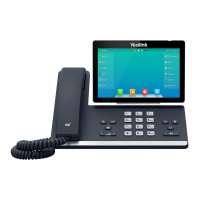
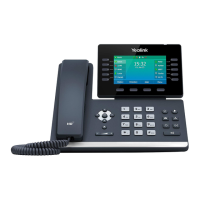
Yealink T57
2 pages
Print Icon
To Next Page IconTo Next Page
Loading...
Smart Choice Communications | (800) 217-3096 | www.smartchoiceus.com | techsupport@smartchoiceus.com
© 2021 Smart Choice Communications, LLC
YEALINK T57
USER GUIDE
Using Basic Call Functions
Placing a Call
Using the handset:
1. Pick up the handset.
2. Enterthe number, and then tap Send.
Using the speakerphone:
.1. With the handset on-hook, press
2. Enterthe number, and then tap Send.
Using the headset:
to activate the headset mode.1. With the headset connected, press
2. Enterthe number, and then tap Send.
Note: During a call, you can alternate between the headset, hands-free
speakerphone and handset modes by pressing the HEADSET key, the
Speakerphone key or by picking up the handset. Headset mode requires a
connected headset.
Answering a Call
Using the handset:
Pick up the handset.
Using the speakerphone:
Press .
Using the headset:
Press .
Note: You can reject an incoming call by tapping Reject.
Ending a Call
Using the handset:
Hang up the handset or tap End Call.
Using the speakerphone:
Press or End Call.
Using the headset:
Tap End Call.
Redialing a Call
Press to enter the Placed Calls list, and then tap the desired entry.
Press twice when the phone is idle to dial out the last dialed number.
Muting and Un-muting a Call
Press
Press
to mute the microphone during a call.
again to un-mute the call.
Holding and Resuming a Call
To Hold a call:
Press or Hold during an active call.
To Resume the call, do one of the following:
If there is only one call on hold, press or Resume.
or Resume. If there is more than one call on hold, select the desired call, and then press
Transferring a Call
You can transfer a call in the following ways:
Performing a Blind Transfer
1. Press or Transfer during an active call. The call is placed on hold.
2. Enterthe number you want to transfer to.
3. Press or B Transfer.
Performing a Semi-Attended Transfer
1. Press or Transfer during an active call. The call is placed on hold.
2. Enterthe number you want to transfer to, and then press Send .
3. Press or Transfer when you hear the ring-back tone.
Performing a Attended Transfer
1. Press or Transfer during an active call. The call is placed on hold.
2. Enterthe number you want to transfer to, and then press Send .
3. Press or Transfer when the second party answers.
Forwarding a Call
To enable call forward:
1. Navigate to Menu->Features->Call Forward.
2. Select the desired forward type:
Always Forward----Incoming calls are forwarded unconditionally.
Busy Forward----Incoming calls are forwarded when the phone is busy.
No Answer Forward----Incoming calls are forwarded if not answered after a
period of time.
3. Enter the number you want to forward to. For No Answer Forward, select the
desired ring time to wait before forwarding from the After Ring Time field.
4. Tap Save to accept the change.
Initiating a Conference Call
1. Tap Conference during an active call. The call is placed on hold.
2. Enter the number of the second party, and then tap Conference.
3. Tap Conference again when the second party answers. Three parties are now joined in
the conference.
Note: You can split the conference call into two individual calls by tapping Split.
Configuring and Using Speed Dial
To configure a speed dial key:
1. Navigate to Menu->Features->Dsskey.
2. Select the desired DSS key.
3. Select SpeedDial from the Type field, select the desired line from the Account ID field,
enter a label in the Label field and then enter the number in the Value field.
4. Tap Save to accept the change.
To use the speed dial key:
Press the speed dial key to dial out the preset number.

Other manuals for Yealink T57

Question and Answer IconNeed help?

Do you have a question about the Yealink T57 and is the answer not in the manual?

Summary

Using Basic Call Functions

Placing a Call

Instructions for initiating calls via handset, speakerphone, or headset.

Answering a Call

Procedures for responding to incoming calls using handset, speakerphone, or headset.

Ending a Call

Methods to terminate an active call using handset, speakerphone, or headset.

Redialing a Call

How to redial the last dialed number or select from call history.

Muting and Un-muting a Call

Procedures for muting and un-muting the microphone during a call.

Holding and Resuming a Call

Steps to place a call on hold and resume it.

Transferring a Call

Explains blind, semi-attended, and attended call transfer methods.

Forwarding a Call

How to configure unconditional, busy, or no-answer call forwarding.

Initiating a Conference Call

Guide to setting up and managing conference calls with multiple parties.

Configuring and Using Speed Dial

Instructions for setting up and using speed dial keys.

Listening to Voice Mails

To listen to voice mails

Steps to access and listen to voicemail messages.

Customizing Your Phone

Managing Call History

How to view, edit, delete, or add entries from the call history.

Managing Contact Directory

Steps to add, edit, and delete contacts in the phone directory.

Adjusting the Volume

How to adjust the phone's audio volume.

Setting Ring Tones

Guide to selecting and configuring ring tones for the phone.

Overview

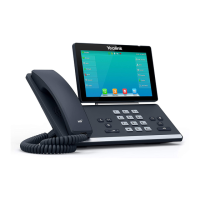
The Yealink T57 is a sophisticated IP phone designed for efficient communication in a professional environment. It offers a comprehensive suite of features for managing calls, customizing settings, and maintaining contact information, all accessible through an intuitive interface.

Function Description

The primary function of the Yealink T57 is to facilitate voice communication over an IP network. It supports standard call operations such as placing, answering, and ending calls, along with advanced features like call transfer, call forwarding, and conference calling. The phone integrates a handset, speakerphone, and headset options, allowing users to choose their preferred method of communication. It also includes a voicemail system to ensure no important messages are missed. The device is designed to be user-friendly, with clear on-screen prompts and easily identifiable buttons for various functions.

Usage Features

Basic Call Management:

  • Placing a Call: Users can initiate calls using the handset, speakerphone, or a connected headset. The process involves picking up the handset, pressing the speakerphone button, or activating headset mode, then entering the number and tapping "Send."
  • Answering a Call: Incoming calls can be answered by picking up the handset, pressing the speakerphone button, or pressing the headset button if a headset is in use. Calls can also be rejected by tapping "Reject."
  • Ending a Call: Calls are ended by hanging up the handset, pressing the speakerphone button, or tapping "End Call" on the screen.
  • Redialing: The phone keeps a record of recently dialed numbers. Users can access the "Placed Calls" list by pressing the redial button and selecting an entry, or by pressing the redial button twice when the phone is idle to redial the last number.
  • Muting/Un-muting: During a call, the microphone can be muted by pressing the mute button, preventing the other party from hearing the user. Pressing it again un-mutes the microphone.
  • Holding/Resuming a Call: An active call can be put on hold by pressing the "Hold" button. If there's only one call on hold, it can be resumed by pressing "Resume." If multiple calls are on hold, the user selects the desired call and then presses "Resume."
  • Transferring a Call: The Yealink T57 supports three types of call transfers:
    • Blind Transfer: The call is transferred directly to another number without prior consultation.
    • Semi-Attended Transfer: The call is transferred after the user hears the ring-back tone from the recipient.
    • Attended Transfer: The call is transferred after the user has spoken with the recipient and confirmed they are ready to take the call.
  • Forwarding a Call: Calls can be forwarded based on different conditions:
    • Always Forward: All incoming calls are forwarded unconditionally.
    • Busy Forward: Calls are forwarded when the phone is busy.
    • No Answer Forward: Calls are forwarded if not answered within a specified period.
    • Users configure the forwarding number and, for "No Answer Forward," the desired ring time before forwarding.
  • Conference Calling: The phone allows users to initiate a three-party conference call. During an active call, the user taps "Conference," dials the second party, and then taps "Conference" again when the second party answers. The conference can also be split into two individual calls.

Voicemail and Messaging:

  • Listening to Voicemails: The phone indicates new voicemail messages through a message waiting indicator on the idle screen and a slowly flashing red power indicator LED. Users can access their voicemails by pressing the voicemail button or "Connect" and following the voice prompts.

Customizing Your Phone:

  • Managing Call History: The phone stores a history of calls. Users can view this history, select entries, and perform actions such as calling back, deleting entries, editing numbers before calling, adding numbers to the local directory, or blacklisting numbers.
  • Managing Contact Directory:
    • Adding a Contact: Users can add new contacts to the directory by entering a unique name and corresponding phone numbers.
    • Editing a Contact: Existing contact information can be modified.
    • Deleting a Contact: Contacts can be removed from the directory.
  • Adjusting Volume: The volume for calls and ringtones can be adjusted using dedicated volume buttons.
  • Setting Ring Tones: Users can customize their ringtones by navigating through the phone's menu and selecting from available options for common calls or specific accounts.
  • Configuring Speed Dial: Speed dial keys can be programmed to quickly dial preset numbers. Users assign a type (Speed Dial), select an account, enter a label, and the desired number. Once configured, pressing the speed dial key will dial the associated number.

Maintenance Features

While the manual primarily focuses on usage, some aspects touch upon maintenance implicitly through configuration:

  • Software Updates: Although not explicitly detailed in this excerpt, IP phones like the Yealink T57 typically receive firmware updates to improve performance, add features, and address security vulnerabilities. These updates are usually managed by the system administrator.
  • Cleaning: The physical device can be cleaned with a soft, dry cloth to remove dust and smudges, ensuring clear visibility of the screen and buttons. Avoid using harsh chemicals or abrasive materials.
  • Troubleshooting: The manual provides solutions for common issues, such as how to reject a call, which can be seen as a basic troubleshooting step for unwanted interruptions. For more complex issues, the contact information for Smart Choice Communications is provided for technical support.
  • Configuration Backup/Restore: Advanced IP phones often allow administrators to back up and restore configurations, which is crucial for maintaining settings and quickly deploying new devices. This ensures that customized settings, such as speed dials and call forwarding rules, are preserved.
  • Network Connectivity: Maintaining a stable network connection is vital for the phone's operation. Ensuring proper Ethernet cable connections and network settings (typically managed by IT) is a key aspect of its ongoing maintenance.
  • Headset Compatibility: The phone supports headsets, and ensuring the headset is properly connected and compatible is part of maintaining optimal audio quality and hands-free operation.

The Yealink T57 is designed to be a reliable and adaptable communication tool, offering a rich set of features that cater to the diverse needs of modern business communication. Its user-friendly interface and comprehensive functionalities make it an effective choice for daily use.

Yealink T57 Specifications

General IconGeneral
Display7-inch
Resolution800 x 480 pixels
Connectivity2xRJ45 10/100/1000M Ethernet ports
BluetoothYes
USB Port2 x USB 2.0 ports
Power over Ethernet (PoE)Yes, IEEE 802.3af
Audio CodecsG.722, G.711, G.729, G.726, iLBC, Opus
Network FeaturesIPv6, QoS, VLAN
Call FeaturesHold, transfer, forward, conference, mute, DND
Network Interfaces10/100/1000 Mbps Ethernet
Supported ProtocolsSIP
Headset PortRJ9

Related product manuals