EasyManua.ls Logo

Yealink T53W - User Manual

Yealink T53W
9 pages
Print Icon
To Next Page IconTo Next Page
Loading...
Yealink T53W
User Guide
Table of Contents
Dialing .............................................................................................................2
Dial phone number or extension ......................................................... 2
Your Phone Calling Features.....................................................................2
Basics ..........................................................................................................2
Change Views ......................................................................................2
End Calls ................................................................................................ 2
Hold Calls ..............................................................................................2
Transfer Calls ........................................................................................ 2
Transfer Call Direct to Voicemail .....................................................2
Conference Calls ................................................................................. 3
Forward Calls ........................................................................................3
Intercom .................................................................................................3
Do Not Disturb .....................................................................................3
Menu .......................................................................................................3
Redial ...................................................................................................... 3
Park and Unpark Calls (If Enabled) .................................................4
Broadcast Paging and Intercom Features ......................................... 4
Broadcast Paging ................................................................................4
Intercom ................................................................................................. 4
Viewing Recent Calls .............................................................................. 4
View Recent Calls List ........................................................................ 4
Directory .....................................................................................................4
View Organization Directory ............................................................4
Busy Lamp Field (BLF) ............................................................................4
View Phone Status .............................................................................. 4
Speed Dial .............................................................................................4
Intercept Call Ringing to BLF ............................................................4
Transfer Call to BLF .............................................................................4
Speed Dial Keys ...................................................................................5
Line Appearances ...............................................................................5
Contact Center Call Queues ................................................................. 5
Log In to a Call Queue .......................................................................5
Log Out of a Call Queue ....................................................................5
Change Your Agent State to Unavailable While Logged In ......5
After Ending a Call ..............................................................................5
Hoteling ...................................................................................................... 5
Log In to an Open Desk Phone .......................................................5
Log Out of an Open Desk Phone ................................................... 5
Additional Phone Features ....................................................................6
Muting the Microphone......................................................................6
Change Volume ...................................................................................6
Change Ringtone ................................................................................6
Access Voice Messages .................................................................... 6
Call Forwarding ........................................................................................6
Activate Call Forwarding ...................................................................6
Deactivate Call Forwarding ..............................................................6
Call Waiting ................................................................................................ 7
Activate Call Waiting for All Calls .................................................... 7
Deactivate Call Waiting for All Calls ............................................... 7
Cancel Call Waiting for a Single Call .............................................. 7
Speed Dial 8 (1-digit codes) ................................................................... 7
Set Up/Update Speed Dial 8 (1-Digit Codes) ................................ 7
Place Call Using Speed Dial 8 ......................................................... 7
Speed Dial 100 (If Enabled) ................................................................... 7
Set Up/Update Speed Dial 100 (2-Digit Codes) .......................... 7
Place Call Using Speed Dial 100 ..................................................... 7
Initial Voicemail Set Up...........................................................................8
Access Voicemail and Voice Portal .....................................................8
From Your Own Phone ....................................................................... 8
From Another Phone Within Your Group .......................................8
From a Phone Outside of Your Group ............................................8
Voice Messaging Main Menu ....................................................................9
“Play Message” options .........................................................................9
Voice Portal Main Menu .............................................................................9
Yealink-T53W-220314-UGTelNet Worldwide, Inc. • telnetww.com • (800) 508-1254


Other manuals for Yealink T53W

Question and Answer IconNeed help?

Do you have a question about the Yealink T53W and is the answer not in the manual?

Summary

Dialing

Dial Phone Number or Extension

Instructions for dialing local, international, and internal phone numbers or extensions.

Phone Calling Features

Transferring Calls

Details attended, blind, and direct to voicemail call transfers.

Conference and Forwarding Calls

Configure Call Forwarding

Setting up call forwarding for busy, no answer, or always.

Advanced Features and Hoteling

Contact Center Call Queues

Logging into and out of call queues, managing agent state.

Hoteling Desk Phone Usage

Logging into and out of open desk phones.

Phone Features and Quick Dial

Accessing Voice Messages

Methods for accessing voicemail and voice portal messages.

Call Waiting and Speed Dial Codes

Speed Dial 8 and 100 Setup

Configuring and using 1-digit and 2-digit speed dial codes.

Voicemail and Voice Portal Access

Initial Voicemail Setup

First-time setup for voicemail passcode and name recording.

Voice Messaging and Portal Menus

Overview

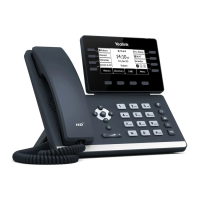
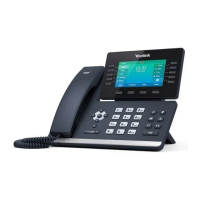
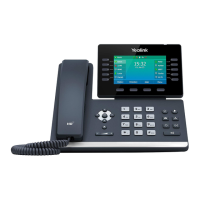
The Yealink T53W is an advanced IP phone designed for comprehensive communication, offering a wide array of features for both basic and complex calling needs, as well as integration with contact center environments. It is a robust device suitable for various professional settings, providing intuitive controls and customizable options to enhance user productivity.

Function Description

The primary function of the Yealink T53W is to facilitate voice communication over an IP network. It supports standard dialing capabilities, allowing users to make local, long-distance, international, and internal extension calls. Beyond basic calling, the phone integrates numerous advanced features to manage calls efficiently, including call holding, transferring, conferencing, and forwarding. It also supports specialized functions like intercom, Do Not Disturb (DND), and call parking, which are essential for collaborative work environments.

The device is equipped with a Busy Lamp Field (BLF) feature, enabling users to monitor the status of other lines within their organization, facilitating quick speed dialing and call interception. For contact center agents, the T53W offers dedicated functionalities for logging in and out of call queues and managing agent states (available/unavailable), ensuring seamless integration with call routing systems.

Voicemail and Voice Portal access are central to the T53W's functionality, allowing users to manage messages, greetings, and personal settings directly from the phone. This includes initial voicemail setup, accessing messages from various locations (own phone, another phone within the group, or outside the group), and navigating through comprehensive voicemail and voice portal menus.

Usage Features

The Yealink T53W is designed for ease of use with a clear phone screen, LED indicators, and a combination of physical and soft keys.

Dialing and Call Management:

  • Dialing: Users can dial numbers by lifting the handset and using the keypad, or by dialing on-hook and pressing the "Call" softkey. The phone supports various dialing formats for different call types.
  • Changing Views: The phone allows users to manage multiple calls simultaneously. Answering a ringing call can be done by picking up the handset or pressing the "Answer" softkey. For a second incoming call, pressing the blinking line key automatically places the first call on hold, allowing users to toggle between active and held calls.
  • Ending Calls: Calls can be ended by pressing the "End Call" softkey, replacing the handset, or pressing the dedicated end call button. For multiple calls, users can end the active call and then resume a held call.
  • Holding Calls: During an active call, pressing the "Hold" softkey places the call on hold. The "Resume" softkey or the blinking line key can be used to retrieve the held call.
  • Transferring Calls: The T53W supports both attended and blind transfers. For an attended transfer, users press "Transfer," dial the other party, wait for an answer, and then press "Transfer" again. For a blind transfer, users press "Transfer," dial the other party, and then press "B Transfer." Calls can also be transferred directly to voicemail using the "VM Transfer" line key.
  • Conference Calls: Initiating a conference call involves making or receiving a call, pressing "Conference," dialing the third party, and then pressing "Conference" again once the third party answers. The "Split" softkey allows users to remove a party from the conference.
  • Call Forwarding: The phone offers various call forwarding options: "Always Forward," "Busy Forward," and "No Answer Forward." These can be configured via the phone's menu or using quick dial codes. Users can specify a forwarding number or direct calls to voicemail.
  • Intercom: To connect directly to a co-worker's speakerphone, users press "Intercom," dial the extension, and then press "#" or "Call." Incoming intercom calls are signaled by a beep, and the caller automatically connects to the speakerphone.
  • Do Not Disturb (DND): Pressing the "DND" softkey disables ringing and directs incoming calls to voicemail. Pressing "DND" again re-enables ringing.
  • Redial: The last call placed can be redialed by pressing the "Redial Key" once or twice. The down navigation key also allows users to select a number from a list to redial.
  • Call Parking: This feature allows users to place a call on public hold, making it retrievable from any other phone. Users press "GPark," listen for the parked extension, and notify the recipient. To unpark, the recipient presses the corresponding blinking "Unpark" line key or uses the "Cancel Key (X)" and enters the parked extension.
  • Broadcast Paging: Users can page all phones on the local network by pressing the "Paging" line key and speaking. Phones not on active calls will be alerted with an audible beep and receive the page via speakerphone.

Directory and Recent Calls:

  • Viewing Recent Calls: The down navigation arrow allows users to view a list of all recent calls, with options to filter by missed, placed, or received calls. Calls can be dialed directly from this list.
  • Organization Directory: The up navigation arrow provides access to the organization directory, where users can view contacts and dial them directly.

Speed Dial and BLF:

  • Speed Dial Keys: Unused line keys can be configured as speed dials. Users press and hold an unused line key, change the type to "Speed Dial," enter the desired phone number, and save. A label can be added for easy identification.
  • Speed Dial 8 (1-digit codes) & Speed Dial 100 (2-digit codes): These features allow users to set up and use quick codes for frequently dialed numbers, configured via specific dial codes (*74 for 1-digit, *75# for 2-digit).
  • Busy Lamp Field (BLF): BLF keys monitor other users' phone statuses (idle/on a call). Users can press a BLF key to speed dial that person or intercept an incoming call ringing on a monitored BLF. Calls can also be transferred to a BLF.

Contact Center Features:

  • Call Queue Login/Logout: Agents can log in to a call queue by pressing the "Login" softkey, indicated by a green checkmark when available. Logging out is done via the "Logout" softkey, showing a blue arrow.
  • Agent State Management: Agents can change their state to "Unavailable" by pressing the "Unavail" softkey and entering a code. A red "X" and "Unavailable" status will appear on the screen.
  • Wrap-up and Disposition Codes: After ending a call, the phone automatically enters a wrap-up state (if configured). Agents can then enter a disposition code using the "DispCode" softkey.

Hoteling:

  • Login/Logout: Hoteling allows users to log in to an open desk phone (host phone) using their personal credentials (User ID and password), temporarily taking over the phone's identity, voicemail, and call history. Logging out is done via the "GuestOut" softkey.

Voicemail and Voice Portal:

  • Access: Voicemail can be accessed by pressing the voicemail button followed by "Connect," or by dialing *86 and "Call."
  • Initial Setup: First-time users are guided through setting a 6-digit passcode (not their phone number, not sequential or repeating digits) and recording their name.
  • Voice Messaging Main Menu: Provides options to listen to messages, manage greetings (busy, no answer, extended away), compose messages, delete all messages, and access message deposit settings.
  • "Play Message" Options: While listening to messages, users can skip back/forward, pause/resume, jump to beginning/end, access envelope info, play next message, callback caller, and access additional options like replying or forwarding messages.
  • Voice Portal Main Menu: Offers access to the voice mailbox, greetings menu, hoteling settings, and passcode changes.

Maintenance Features

The Yealink T53W is designed for reliable operation with minimal direct user maintenance. However, certain aspects contribute to its longevity and performance:

  • Surge Protection: The manual explicitly recommends using a surge protector with the phone to safeguard against electrical fluctuations, which is a key preventative measure for hardware longevity.
  • Software Updates: While not directly user-controlled, the phone's IP-based nature allows for remote software updates by administrators, ensuring the device remains secure and up-to-date with the latest features and bug fixes.
  • Configuration Management: Many advanced features, such as BLF keys, line appearances, and contact center settings, are managed by the phone system administrator. This centralized management ensures consistent and optimal performance across the organization's phone system.
  • Troubleshooting Information: The manual provides quick dial codes for various functions, which can aid in troubleshooting or quickly activating/deactivating features without navigating through menus. For example, checking "Not Reachable Status" (63) can help diagnose connectivity issues.
  • E911 Advisory: The manual includes an important note about E911 service limitations with VoIP, directing users to an advisory document. This is a crucial "maintenance" of user awareness regarding emergency services in a VoIP environment.
  • Volume and Ringtone Adjustment: Users can adjust call and ringer volumes, and change the incoming call ringtone through the "Menu" > "Settings" > "Basic Settings" > "Sound" > "Ring Tones" options. This allows for personalization and ensures audio settings are appropriate for the user's environment.

Yealink T53W Specifications

General IconGeneral
SIP Accounts12 SIP accounts
Opus CodecYes
Resolution360 x 160 pixels
BluetoothYes
Wi-FiYes
USB Ports1 x USB 2.0
Ethernet Ports2
PoEYes (IEEE 802.3af Class 2)
Audio FeaturesHD Voice, Full-duplex speakerphone
Expansion Module SupportSupports up to 3 EXP50 expansion modules
Headset PortRJ9

Related product manuals