EasyManua.ls Logo

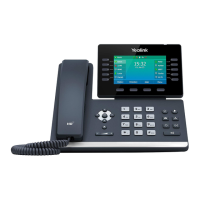
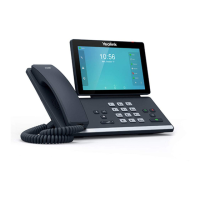
Yealink T57W - User Manual

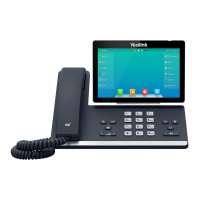
Yealink T57W
102 pages
Print Icon
To Next Page IconTo Next Page
Loading...
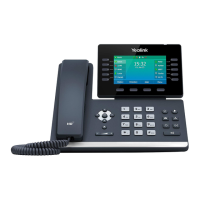
MetroNet - Yealink Desk Phones T54W & T57W User Guide
Version 1.0
10.25.2021 1
Hosted PBX
USER GUIDE:
Yealink Desk Phones T54W & T57W

Table of Contents

Other manuals for Yealink T57W

Questions and Answers

  • C
    Catherine CantuAug 18, 2025
    Why doesn't my Yealink Telephone get an IP address?
    • L
      Linda ChaseAug 18, 2025
      If your Yealink Telephone isn't getting an IP address, check the following: * Ensure the Ethernet cable is securely plugged into the internet port and is not loose. * Verify the Ethernet cable is not damaged. * Confirm that the IP address and related network parameters are set correctly. * Make sure your network switch or hub is working. * Ensure the Wi-Fi feature is disabled.
  • B
    Benjamin ShahAug 20, 2025
    Why does my Yealink Telephone display “No Service”?
    • K
      Katrina CurtisAug 20, 2025
      If your Yealink Telephone displays “No Service”, ensure that an account is actively registered on the IP phone at Menu->Status->More->Accounts.
  • D
    Danielle HartAug 22, 2025
    Why does my Yealink Telephone have no power?
    • K
      kim62Aug 23, 2025
      If your Yealink Telephone has no power: * Reboot your IP phone. * Replace the power adapter.
  • T
    Tonya GrantAug 26, 2025
    What to do if the LCD screen is blank on my Yealink Telephone?
    • R
      Robert RichardAug 26, 2025
      If the LCD screen on your Yealink Telephone is blank, verify the following: * Ensure the phone is properly plugged into a functional AC outlet. * Confirm the phone is plugged into a socket controlled by a switch that is on. * If plugged into a power strip, try plugging it directly into a wall outlet. * If your phone is PoE powered, ensure you are using a PoE-compliant switch or hub.
  • C
    colemandavidAug 27, 2025
    How to solve IP conflict problem on Yealink Telephone?
    • L
      louisconleyAug 28, 2025
      To resolve an IP conflict on your Yealink Telephone, you can: * Reset another available IP address for the IP phone. * Check network configuration via the phone's user interface at Menu->Settings->Advanced Settings (default password: admin)->Network->WAN Port->IPv4 (or IPv6). If Static IP is selected, choose DHCP instead.
  • A
    April BallardAug 30, 2025
    Why doesn’t my Yealink Telephone upgrade firmware successfully?
    • S
      Shawn OsborneAug 30, 2025
      If your Yealink Telephone isn’t upgrading firmware successfully, check the following: * Ensure that the target firmware is not the same as the current firmware. * Ensure that the target firmware is applicable to the IP phone model. * Ensure that the current or the target firmware is not protected. * Ensure that the power is on and the network is available during the upgrade. * Ensure that the web browser is not closed or refreshed when upgrading firmware via the web user interface.
  • D
    Daniel TaylorSep 1, 2025
    Why do I get poor sound quality during a call on my Yealink Telephone?
    • J
      James McdonaldSep 2, 2025
      Poor sound quality during a call on your Yealink Telephone can be due to several factors: * Users being too far from the microphone or too close to sensitive microphones. * Packet loss and jitter due to network congestion. * Noisy equipment causing interference. Turn off any noisy equipment. * Line issues. Try disconnecting the old line and redialing to see if another line provides a better connection.
  • E
    Elizabeth GomezSep 4, 2025
    Why doesn’t my Yealink Telephone display time and date correctly?
    • M
      Megan VaughnSep 4, 2025
      If your Yealink Telephone doesn’t display the correct time and date: * Check if the IP phone is configured to obtain the time and date from the NTP server automatically. * If your phone is unable to access the NTP server, configure the time and date manually.
  • A
    Alex MooreSep 7, 2025
    Why doesn’t my Yealink Telephone update the configuration?
    • L
      Leon WebsterSep 7, 2025
      If your Yealink Telephone isn’t updating its configuration: * Ensure that the configuration is set correctly. * Reboot the phone, as some configurations require a reboot to take effect. * Ensure that the configuration is applicable to the IP phone model. * Be aware that the configuration may depend on support from a server.
  • A
    Abigail LeeSep 9, 2025
    Why does the Bluetooth headset affect Yealink Telephone’s voice quality?
    • J
      Jose MitchellSep 9, 2025
      Your Yealink Telephone's voice quality may be affected if you use a Bluetooth headset while the 2.4 GHz band is enabled or in an environment with many other Bluetooth devices.

Summary

Getting Started

Hardware Overview

Familiarize yourself with the phone's physical components and indicators for optimal feature usage.

Call Features

Call Placement and Handling

Learn to place, answer, hold, and end calls, and switch audio modes.

Call Control and Management

Manage call waiting, DND, silencing/rejecting calls, and automatic redial features.

Call Redirection and Transfer

Forward incoming calls and perform various types of call transfers (Blind, Attended).

Conference and Recording

Set up and manage conference calls, and record calls using a USB flash drive.

Advanced Call Features

Call Completion and Pickup

Utilize Busy Redial and Call Pickup features to efficiently manage calls and colleagues' lines.

Call Park and Retrieve

Park calls to a shared lot and retrieve them later, using dedicated keys or modes.

Line Monitoring and Shared Lines

Monitor line status via BLF keys and manage calls on Shared Lines (SCA/BLA).

Directory Management

Local and Favorites Directories

Manage local contacts and groups, and add frequently used contacts to Favorites.

Customizing Your Phone

Audio Settings

Bluetooth Connectivity

Yealink T57W Specifications

General IconGeneral
Adjustable ScreenYes
ConnectivityDual-port Gigabit Ethernet
USB Ports2
USB Port TypeUSB 2.0
Power over Ethernet (PoE)Yes
SIP Accounts16
Expansion Module SupportYes
PoE StandardIEEE 802.3af
Headset SupportYes, RJ9, Bluetooth
Supported CodecsG.711, G.722, G.729, iLBC, Opus
Display Resolution800 x 480
Weight1.26 kg

Videos

How to Set Up Voicemail Yealink T54W/T57W

How to Access Voicemail Yealink T54W/T57W

How to Add a New Contact Yealink T54W/T57W

Related product manuals