2. Manual Connection
Method A: Binding the Remote Control to the Aircraft
Launch Yuneec Pilot app, and follow on screen instructions to connect controller to the aircraft.
Method B: Binding the Smart Phone to the Aircraft
Launch Yuneec Pilot app, and follow on screen instructions to connect smart phone to the aircraft.
NOTICE:
When the smart phone is connected to the aircraft by following the App instructions, the smart phone
with iOS system should support version 11.0 and above.
11
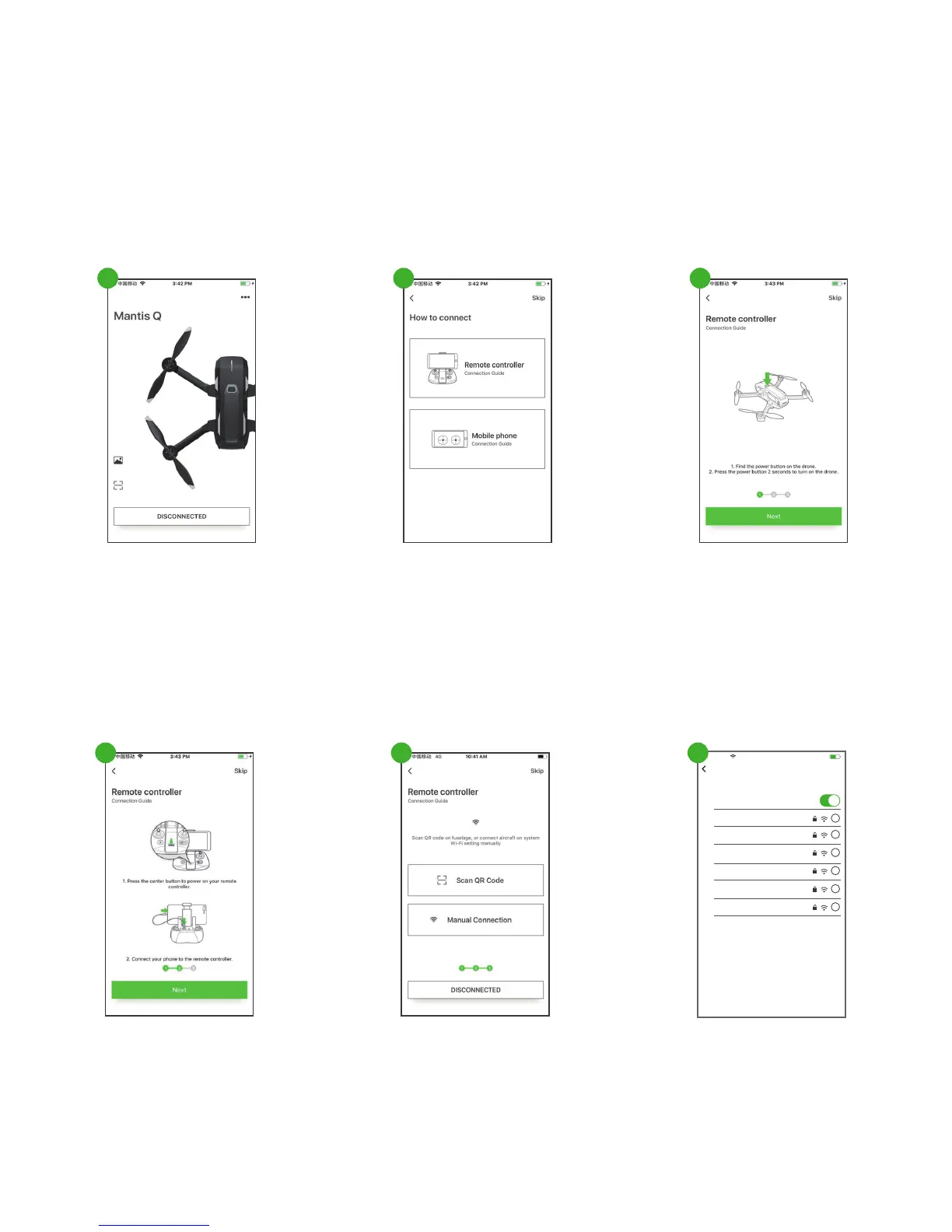
Step 1:
Press the “DISCONNECTED” button.
Step 2:
Select the “Remote Controller” option.
Step 3:
Follow instructions on the app, and tap the “Next” button.
Step 4:
Follow instructions on the app, and tap the “Next” button again.
Step 5:
Tap “Manual Connection” option, and the system will jump to the next page.
Step 6:
Then wait for the Wi-Fi of the aircraft appears on the screen (the Wi-Fi name starts with "Mantis"). Tap
the corresponding Wi-Fi and input the password to complete the connection (The password can be found on
the aircraft QR Code Sticker). Wait for a few seconds till you hear the aircraft emit the acknowledge tone, which
indicates the binding is successful.
2 31
54
CHOOSE A NETWORK...
Mantis-xxxxxxx
i
1-xxxxxxx
i
2-xxxxxxx
i
3-xxxxxxx
i
4-xxxxxxx
i
i
8:00 AM
XXXX
Settings WLAN
WLAN
6


 To Next Page