THE FUNCTION (fn) KEY
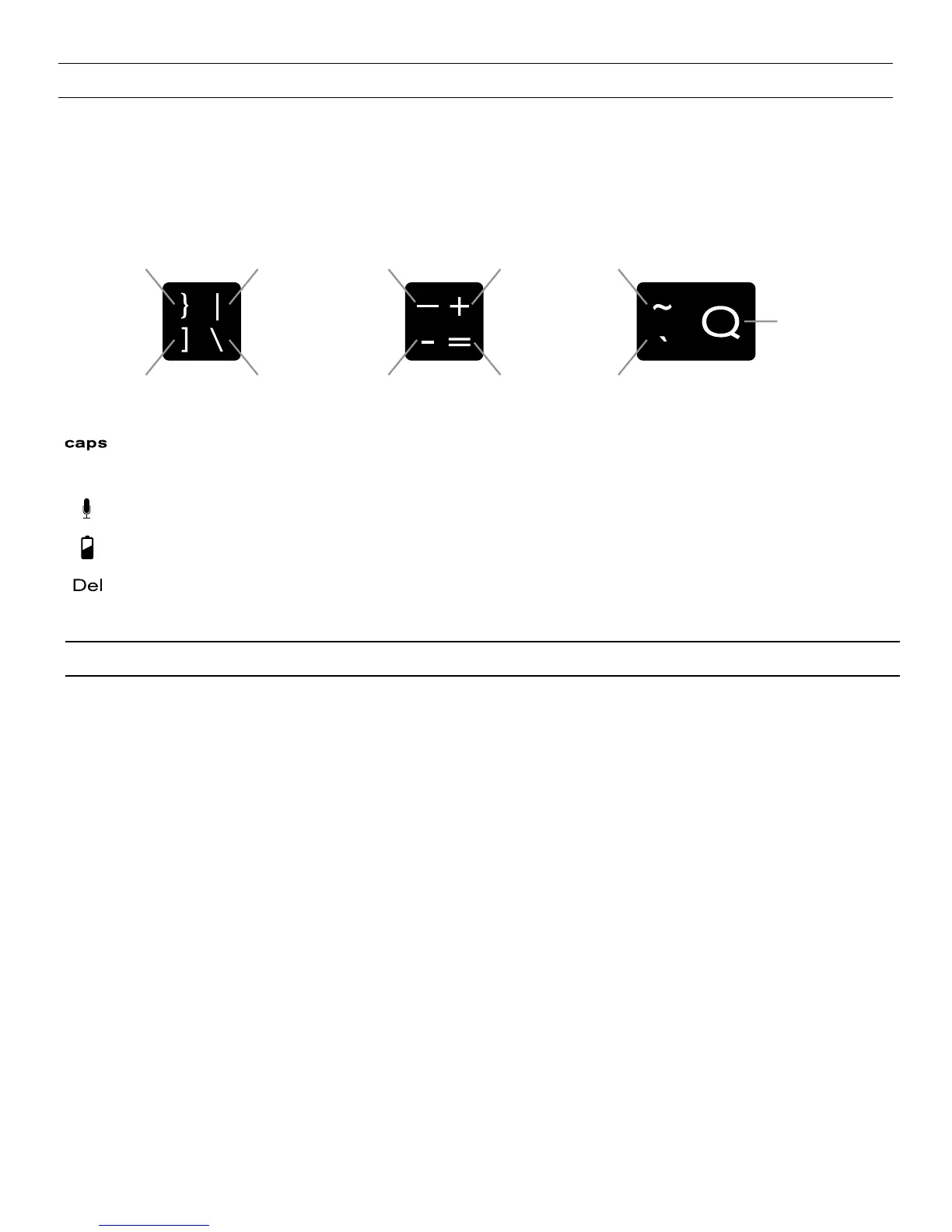
CAPS – Activates the Caps Lock feature. To turn Caps Lock o, simply hold the fn
key and press caps again.
VOICE –
Activates your tablet’s voice feature.
BATTERY SYMBOL –
Indicates remaining battery life.
FN + DELETE –
Forward delete.
4
The fn key operates many of the functions that appear at the top of a
key that features two symbols. To activate these functions, hold the fn
key down and press the desired key. A list of special fn keys and their
operations is listed below.
shift
fn
shift
fn fn
TROUBLESHOOTING
If your G Pad does not respond to your Keyboard Case there may be a
simple explanation such as a dead battery or an unsuccessful pairing.
Please use the following to help troubleshoot your situation. If none of the
following solve your issue, then please contact ZAGG’s customer service
and one of our trained professionals will be happy to assist you.
1. Restart your tablet and follow the pairing instructions again.
2. Turn your Keyboard Case o and back on. You should see the LED
above the Power button illuminate briefly, if not, charge your Keyboard
Case.
3. After charging, turn your Keyboard Case on. If the LED above the
Power button does not illuminate, and your keyboard doesn’t operate
correctly, please contact ZAGG’s customer service.
fn + shift fn + shift fn + shift
default
default default


 To Next Page