EasyManua.ls Logo

ZeeVee ZvSync-NA - User Manual

ZeeVee ZvSync-NA
32 pages
Print Icon
To Next Page IconTo Next Page
Loading...
User’s Manual
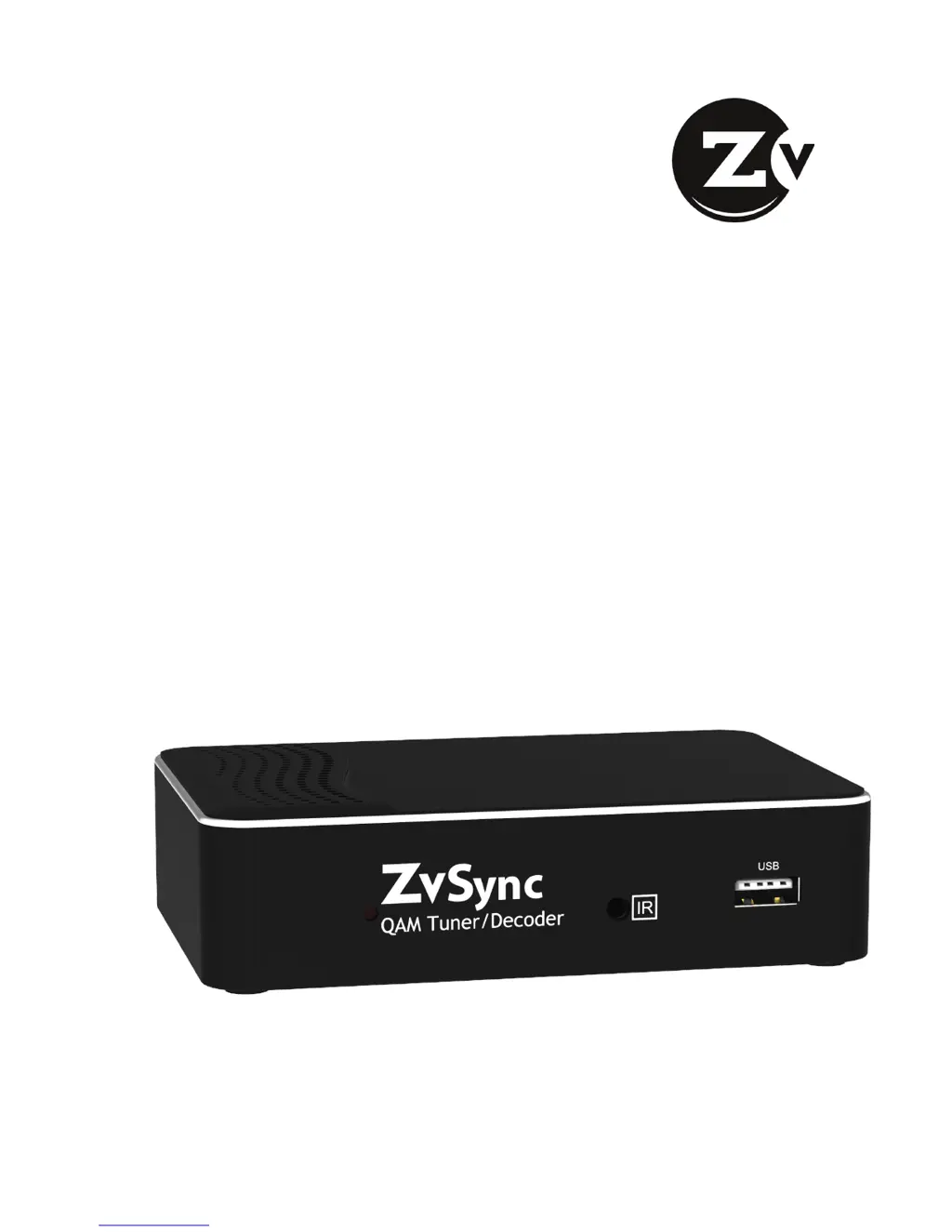
ZvSync - NA
HD Digital Tuner/Decoder
US QAM

Questions and Answers

  • K
    Kristin HillAug 15, 2025
    Why is my ZeeVee Tuner remote control not working?
    • C
      Cynthia MillerAug 15, 2025
      If your ZeeVee Tuner remote control isn't working, there are a couple of things to check: * The batteries might be dead. Try replacing them. * Make sure the remote control is pointed at the ZvSync IR detector and that the detector is properly connected to the front of the unit. Try reorienting both.
  • M
    Michele HornAug 18, 2025
    What to do if my ZeeVee Tuner screen shows 'No Signal'?
    • J
      Jessica SmithAug 19, 2025
      If your ZeeVee Tuner screen displays a 'No Signal' message, it indicates a problem with the signal source. Here's what you can do: * Check the power cable connection to ensure it's properly connected. * Inspect the aerial cable and its connections for any faults.
  • M
    Mackenzie CisnerosAug 21, 2025
    Why is there no sound from my ZeeVee Tuner speaker?
    • C
      Cody RogersAug 21, 2025
      If you're not getting any sound from your ZeeVee Tuner, here are a couple of things to investigate: * Check the audio cable connections to ensure they are correctly and securely connected. * See if the sound is muted. If so, unmute it using the remote.
  • C
    Cynthia DennisAug 25, 2025
    What to do if ZeeVee ZvSync-NA Tuner has only sound, but no image on screen?
    • D
      Daniel DawsonAug 25, 2025
      If your ZeeVee Tuner is producing sound but no image, consider these possibilities: * First, check the A/V cable connections to make sure they are properly connected. * The program you're tuned to might be an audio-only program. * The digital audio settings might be incorrect. Try setting a different audio type in World Options.
  • M
    mary59Aug 27, 2025
    What to do if my ZeeVee Tuner remote control is not working?
    • R
      rodriguezjosephAug 27, 2025
      If your ZeeVee Tuner remote control isn't working, first, replace the batteries, as they might be exhausted. If that doesn't solve the issue, make sure the remote control is pointed towards and visible to the ZvSync sense window. Try reorienting both the ZvSync sense window and the remote control.
  • A
    Alyssa ShermanAug 30, 2025
    What to do if my ZeeVee ZvSync-NA screen shows “No Signal”?
    • M
      Matthew TurnerAug 30, 2025
      If your ZeeVee Tuner shows a “No Signal” message, first, examine the cable feed to ensure it's properly connected. If the connection is secure, inspect the aerial cable for any faults and check all connections related to it.
  • S
    stacyjohnsonSep 2, 2025
    How to fix a ZeeVee Tuner with no picture?
    • J
      Jessica MunozSep 3, 2025
      If you're not getting any picture on your ZeeVee Tuner, start by checking if the power supply is correctly connected and that the wall source is working. Also, verify that the power to the ZvSync is switched on.
  • R
    Rebekah ChavezSep 6, 2025
    Why is the picture breaking up on my ZeeVee ZvSync-NA Tuner?
    • J
      Joel PriceSep 6, 2025
      If you are experiencing a broken or distorted picture on your ZeeVee Tuner, it might be due to a weak input signal. Check the aerial cable and its connections to ensure they are properly set up.
  • J
    Joshua MorrisSep 8, 2025
    What to do if there is only sound and no image on my ZeeVee Tuner screen?
    • A
      andrea88Sep 9, 2025
      If you're getting sound but no image on your ZeeVee Tuner, check the A/V cable connections to ensure they are correctly set. Additionally, the program being tuned may be audio only. Finally, verify that the digital audio setting is correct in World Options; try setting a different audio type.
  • J
    jenniferewingSep 12, 2025
    How to troubleshoot no sound from the speaker on my ZeeVee ZvSync-NA?
    • V
      vanessa67Sep 12, 2025
      If you're experiencing no sound from the speaker on your ZeeVee Tuner, ensure that the audio cables are correctly connected. Also, check if the sound is muted and, if so, unmute it using the remote.

Summary

1 Before Using the Product

Front Panel Overview

Details the front panel components and indicators of the ZvSync unit.

Rear Panel Connections

Describes the various output and input ports on the rear of the ZvSync unit.

Remote Control Operation

Covers the ZvSync remote control, its buttons, and programmability features.

2 Setup and Connectivity

Connecting to Aerial or Cable Feed

Explains how to connect the ZvSync to an antenna or cable feed for signal reception.

Connecting to Television

Details connecting the ZvSync to a TV via HDMI or RCA cables.

Infrared Remote Receiver

Covers the external IR receiver, its connection, and usable angles for optimal operation.

Power Supply Connection

Details how to connect the ZvSync unit to the AC wall mount power supply.

4 Basic Operation

Program Management

Explains how to manage program preferences like lock, skip, favorite, move, or delete.

Picture Settings

Allows adjustment of aspect ratio, resolution, TV format, and video output.

Channel Search

Guides through rescanning for channels and changing reception settings.

Time Setting

Covers setting time offset, country region, time zone, sleep, and power on/off schedules.

World Option Settings

Allows configuration of OSD language, closed caption, and audio language.

System Settings

Provides access to parental guidance, password, factory reset, and software updates.

USB & Multimedia

Details support for USB devices for PVR functions and media playback.

ZeeVee ZvSync-NA Specifications

General IconGeneral
Frequency Range54-1002 MHz
Operating Temperature0°C to 40°C
RegionNorth America
Input Impedance75 Ohms
Output Impedance75 Ohms
Input ConnectorF-female
Output ConnectorF-female
Supported StandardsATSC
Power Supply12VDC
Power Consumption5W
Storage Temperature-20°C to 60°C
Humidity0% to 90% non-condensing

Related product manuals