OPERATION MENUS
PAGE 18
Customize the
way your
picture
looks using
the Video
menu.
Video Menu
3/6
1
2/5
4
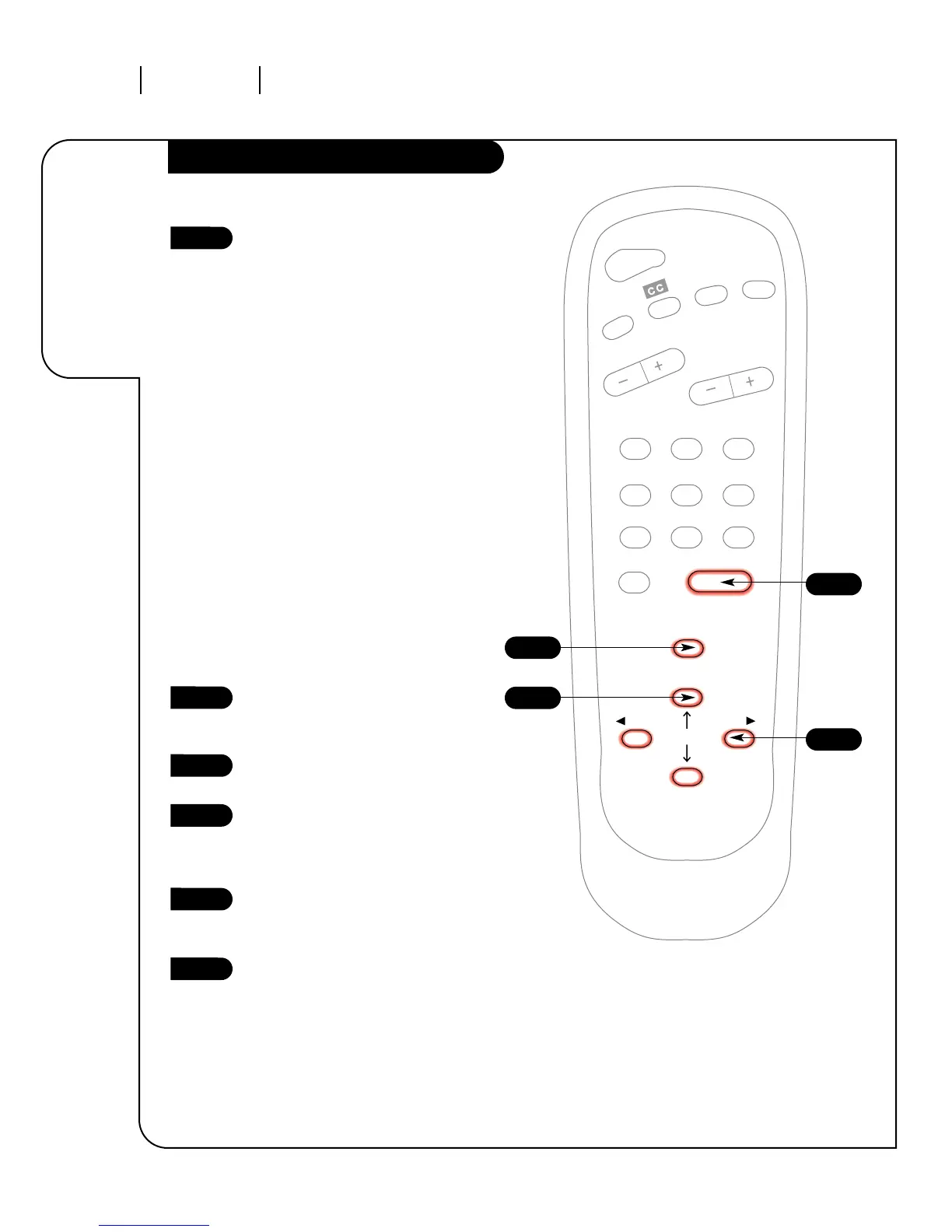
Press the MENU key twice and the Video
menu will appear. Your options are:
• Contrast: Adjusts the level of differ-
ence between white and black in the
TV picture. The more contrast, the
brighter the picture appears.
• Brightness: Increases or decreases
amount of white in the TV picture.
• Color: Adjusts levels of all colors in
the TV picture.
• Tint: Balance between amount of red
and green in the TV picture.
• Sharpness: Raise or lower the
definition of the TV picture. The lower
the level, the softer the images will
appear.
• Picture Preference:Choose either
Custom or Preset. Custom allows you
to set the picture the way you want.
Preset moves all the above options
back to their original, factory-set lev-
els.
Using the UP/DOWN arrows on the
remote control, select Contrast on your
screen.
Using the RIGHT/LEFT arrows, adjust the
contrast level to your preference.
Press ENTER, QUIT or MENU one more
time to return to TV viewing, or
repeat from step four to set the other
menu options.
Using the Up/Down arrow, select Picture
Pref. on your screen.
Using the RIGHT/LEFT arrows, choose
either the original settings with Preset,
or use your own settings with Custom.
1
2
3
4
5
6



 To Next Page