CM151 2-1 CA - INSTALLER MENUS
SERVICE MENU ADJUSTMENTS
Accessing the Service Menu can only be accomplished
by using the remote control. Press and hold the MENU
key until the User Menu display disappears, then press
9876, and then ENTER to access the Service Menu.
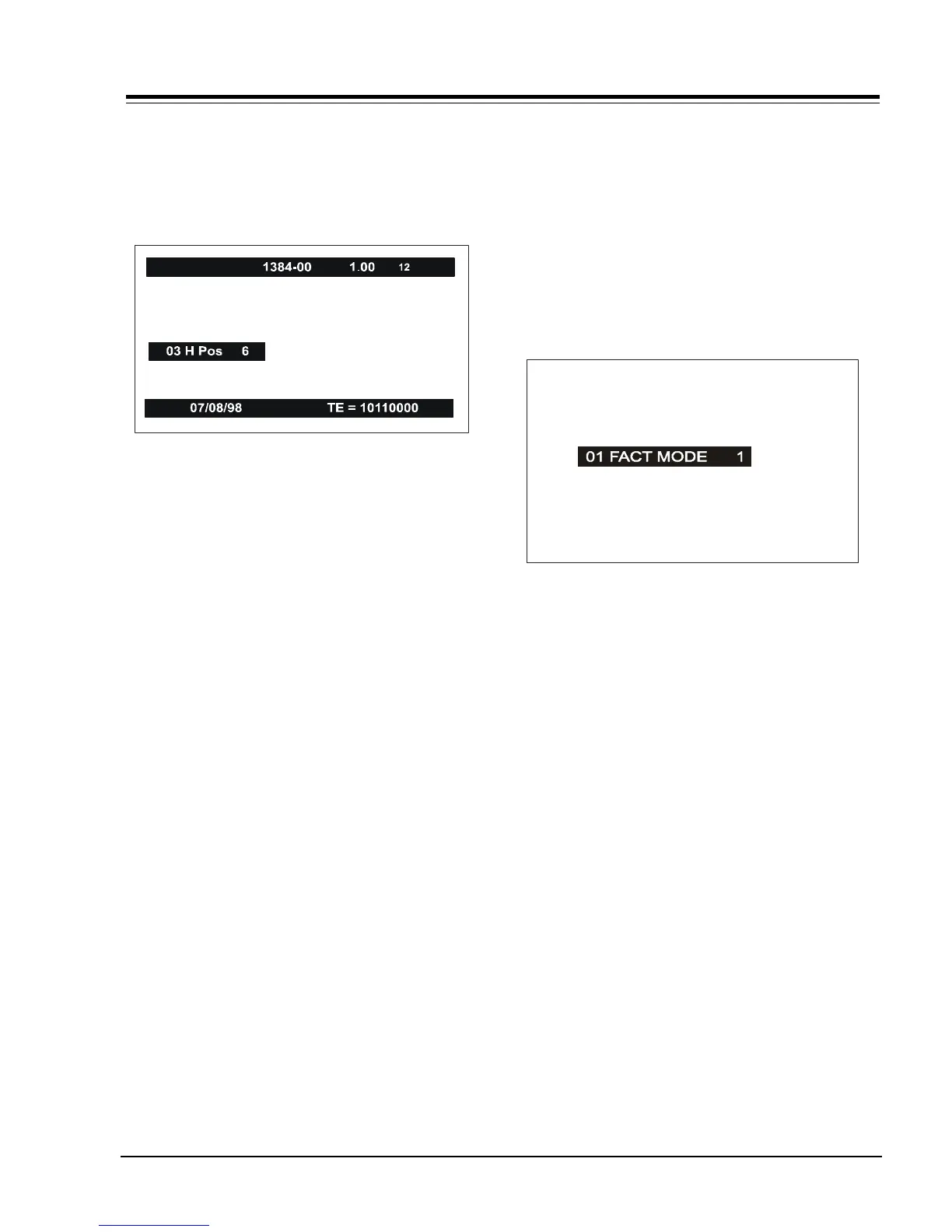
The black bar near the top of the screen indicates the
part number of the software in the TV set. To the right
is a number indicating that the module has been tested.
The date on the black bar near the bottom of the screen
indicates the date the module went through the factory.
When the Service menu appears, it displays the fifth
Service Menu item: HORIZ POS. Use the SELECT UP/DOWN
keys to toggle through all of the adjustments. Use
ADJUST to make a change to the selected item.
00 F MODE: (Factory Mode) Use SELECT UP and DOWN
Keys to select item #01, the first item in the Service
Menu: Factory Mode. This item number is used by the
Factory when the module is being tested. It has three
positions: 0, 1 and 2. In the field, this item should
always be left “Off”. Zero is “Off”.
When the Factory Mode is off, only the first twenty items
in the Service Menu can be accessed. They appear one
at a time near the middle left of the screen. When the
Factory Mode is set to 1, 46 menu items are available.
In the Factory Mode 2 position, all 49 menu items are
available.
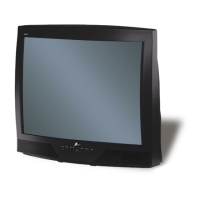
In Factory Mode 1 or 2, only the selected menu item is
displayed, near the top of the screen, as shown in the
figure.
When the Factory Mode is “On”, the AC Power -On feature
is always enabled regardless of the setting of “AC ON” in
the Service Menu. The TV set will automatically come
on when AC is applied.
Use the remote to reenter the Service Menu to turn
Factory Mode off. The Factory Mode may also be turned
off by setting the clock, or running the Auto Program
feature in the customer Set Up menu.
INSTALLERS MENU
SECTION 2



 To Next Page