CONTROLS AND DISPLAYS PAGE 15
VCR Status Displays
On-Screen displays tell you the status of the tape inserted and VCR functions.
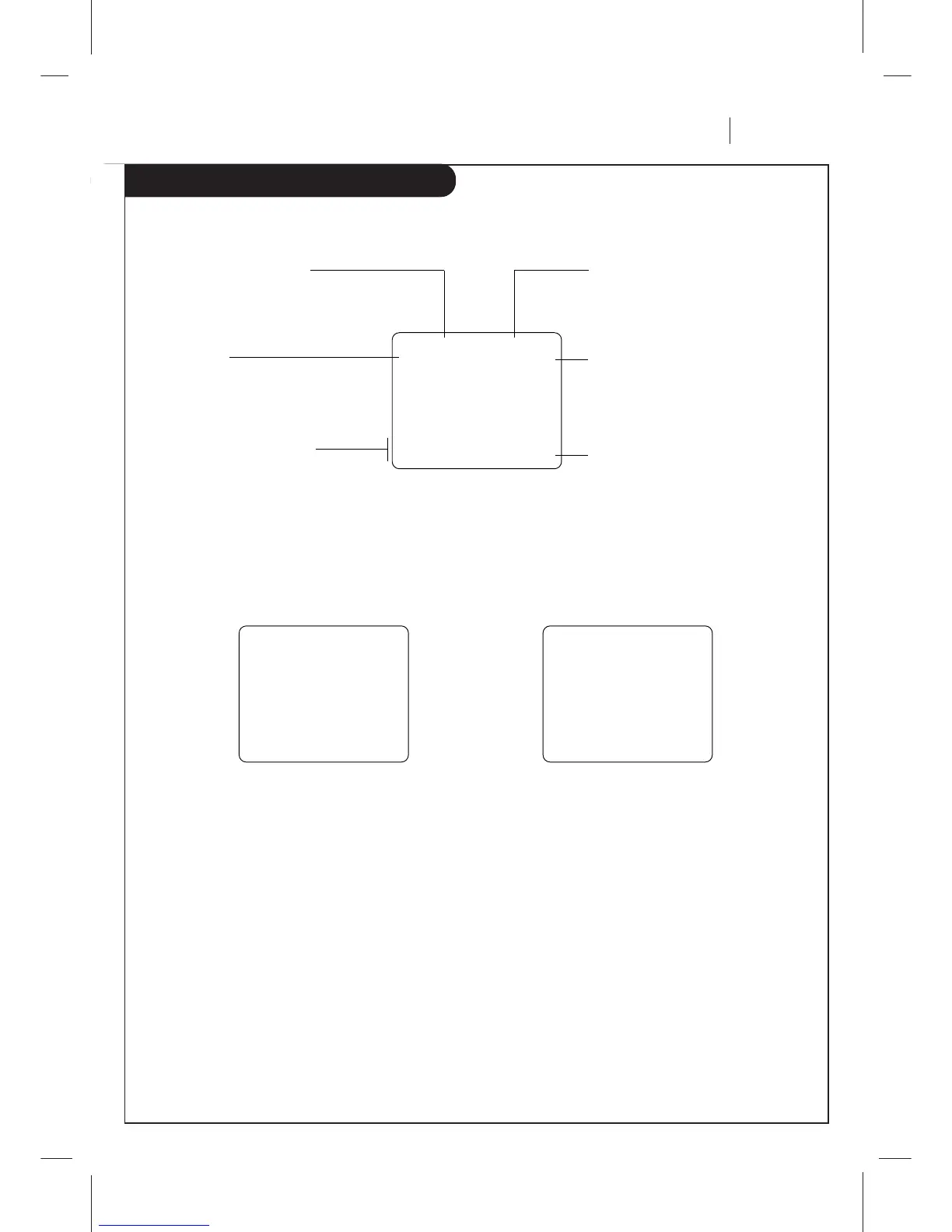
VCR Status Display
The VCR Status Display appears on the TV when a VCR
function starts, like when you change a channel or select a
different VCR mode. For example, pressing STOP while the
VCR is in PLAY mode shows STOP in the display. Press ENTER
on the remote at any time (except Special Effects Playback
mode; SLOW, STILL etc.) to see the Status Display.
Note:
If the VCR Status Display does not appear on the TV screen,
check the ON-SCREEN DISPLAY option on the SETUP menu.
Select ON to see the display. See “Setup Menu” section for
details.
VCR Status Display Options
When the Status Display appears, press ENTER repeatedly to
see abbreviated displays, as follows:
1. Press ENTER to see Status Display.
2. Press ENTER a second time to show only the tape
counter position.
3. Press ENTER a third time to show only the tape time
remaining.
4. Press ENTER repeatedly until all displays are removed.
PLAY HI-FI VCR CH 11
SP ST/SAP
15 MON
7:17 AM M-1:35:45
M-1:35:45 REM 1:35
Current mode of operation
(STOP, PAUSE, RECORD, PLAY, etc.)
and audio format of tape, where
Play=HI-FI or NORMAL(No display)
Tape Speed
EP=Extended Play
LP=Long Play
SP=Standard Play
Current date, day, and time
Current CH (Channel) selected by
using tuner in VCR
Audio format of signal received by
VCR tuner:
STEREO, MONO or ST/SAP
Real-time tape counter
M = Counter Memory is active
– = Tape is rewound past index
mark.
1:35:45 = Length of tape (in time)
1 = 1 hour
35 = 35 minutes
45 = 45 seconds
Typical VCR Status Display on TV
Tape Counter Position
Tape Time Remaining


 To Next Page