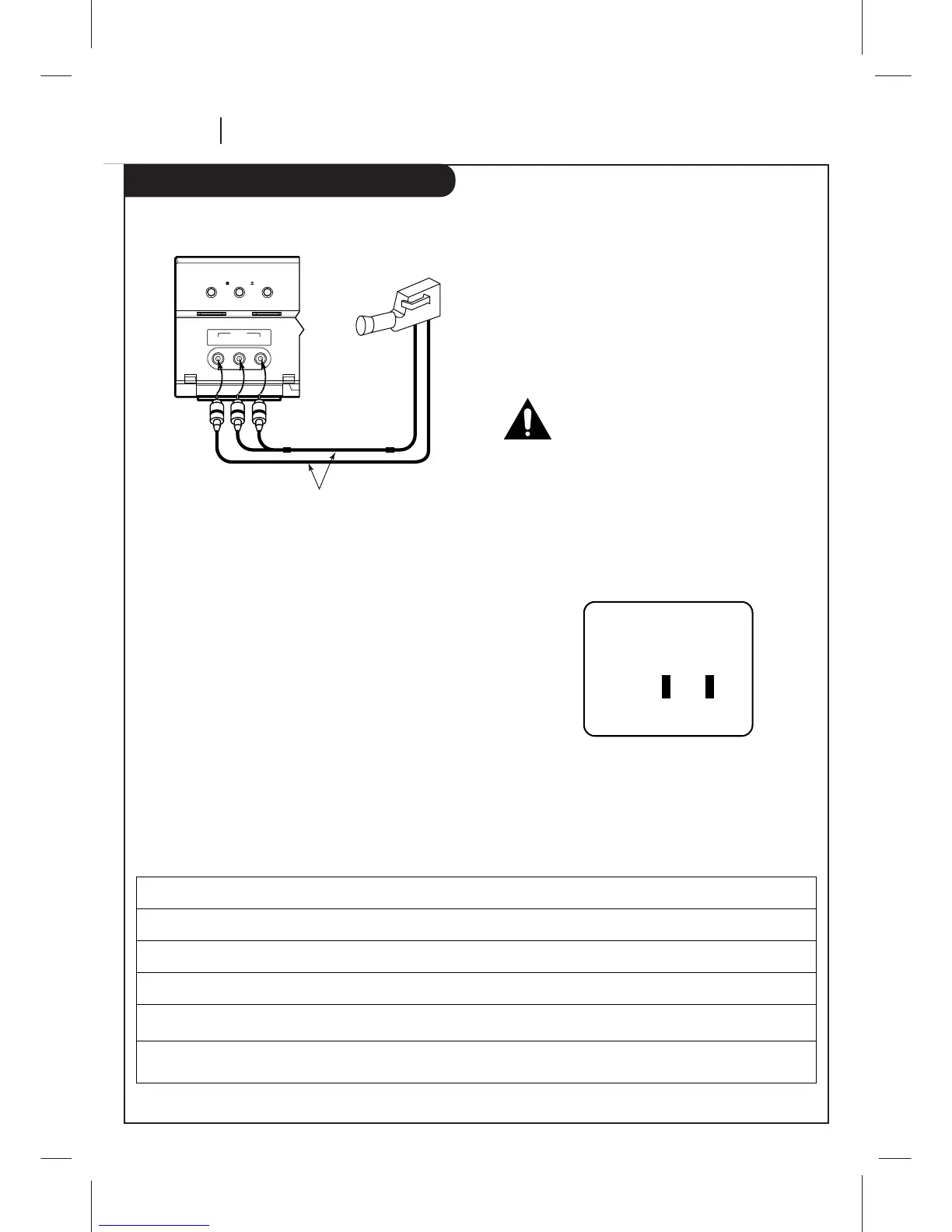
Select AUX for Viewing an Audio/Video source like a
Camcorder
1. With TV and VCR on, place VCR in VCR mode by pressing the
TV/VCR button on the remote (and repeat) until the VCR
indicator light appears in the VCR’s front panel.
2. Select channel 3 (or 4) on the TV. Note: If your TV has A/V
jacks, you may get a better picture if you connect your VCR
there. (Then, select the A/V source on the TV.)
3. At the VCR, Channel Down lower than the lowest channel (or
Channel Up above the highest) to select “AUX2”.
You can also choose the SETUP menu as described below.
Press MENU to see main menu.
Press 3 to see the SETUP menu.
Press 3 for the SETUP menu’s SOURCE item.
Press 4 for AUX2, then ENTER. (Press QUIT to exit.)
Items in the Menu
Turn off power or unplug VCR
before making any connections.
Press 4 to select AUX2
SOURCE Shows the program source—TV, CATV, or AUX—selected for the VCR to receive.
TUNER The VCR is using its Tuner to receive programs from an antenna or cable.
TV Selects programs for the VCR from a rooftop-type antenna.
CATV Selects programs for the VCR from Cable TV.
AUX1 Selects programs for the VCR from the rear R-AUDIO-L—VIDEO IN jacks (where you may have connected your
camcorder).
AUX2 Selects programs for the VCR from the front R-AUDIO-L—VIDEO IN jacks (where you may have connected your
camcorder).


 To Next Page