EasyManua.ls Logo

Zennox D3941 - Configuring Windows Vista USB Converter

Default Icon
28 pages
Print Icon
To Next Page IconTo Next Page
To Previous Page IconTo Previous Page
Loading...
4
4 Insert the CD that came with your converter into your computer’s CD drive.
5 A window will pop up automatically. Click on the [INSTALL] icon next to “Audacity”.
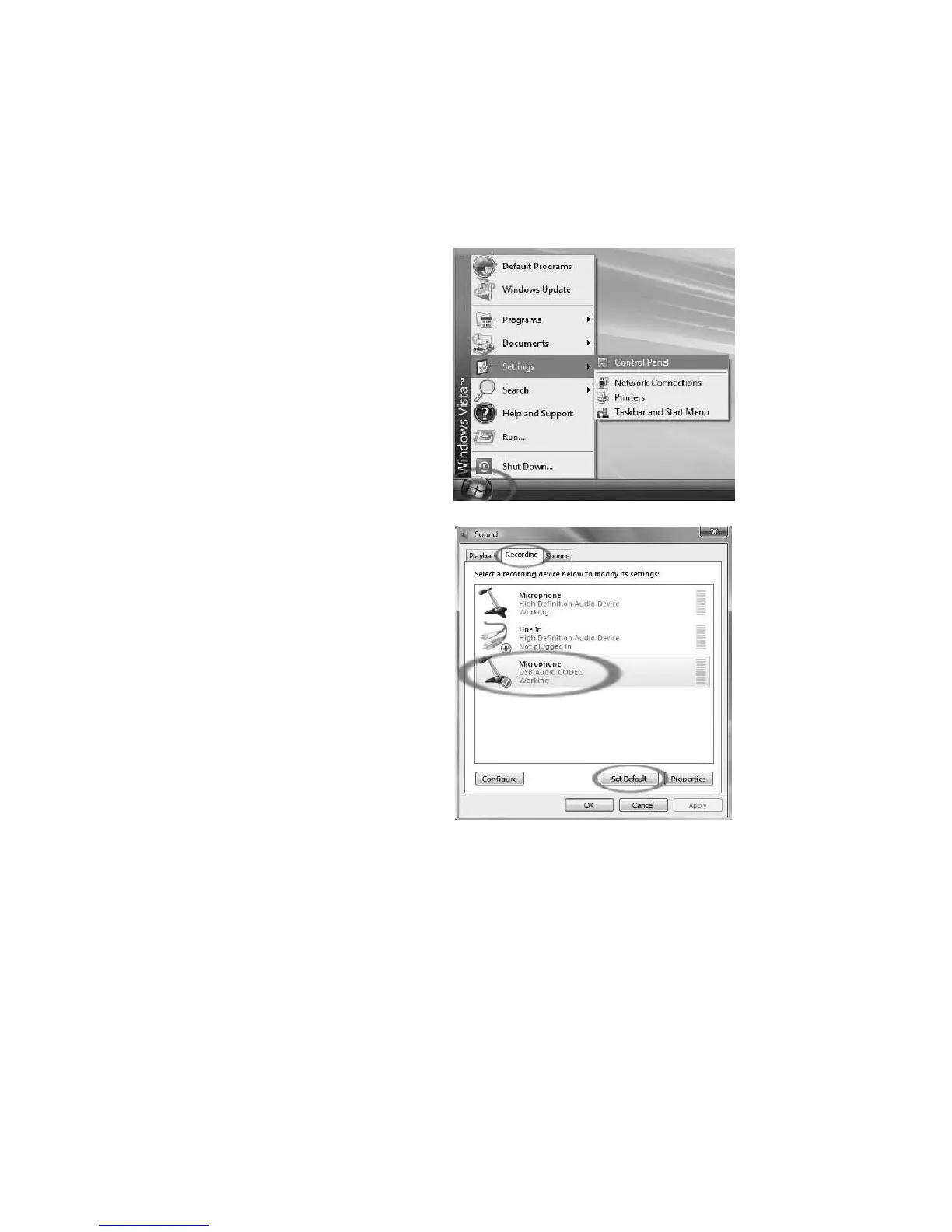
CONFIGURING MICROSOFT WINDOWS VISTA TO WORK WITH THE USB
CONVERTER
4. In the window that
opens, find and
double-click the Sound
control panel. (If you
don’t see a choice called
“Sound”, choose the
Switch to Classic View
option in the panel on the
left of the window, and
the Sound Control Panel
should become available
on the right.)
5. Select the Recording tab
at the top of the Sound
Control Panel.
6. Under the Recording
tab, choose Microphone
SSS USB Audio
Device as the default
device. The SSS USB
Audio Device
represents your
Converter. Note the name
SSS USB Audio
Device” may vary.
7. Click on the Set Default
button to confirm your
choice.
1. Close all programs that
are open on your
computer.
2. On the bottom left of your
screen, select the start
menu
3. Select settings then
control panel