5
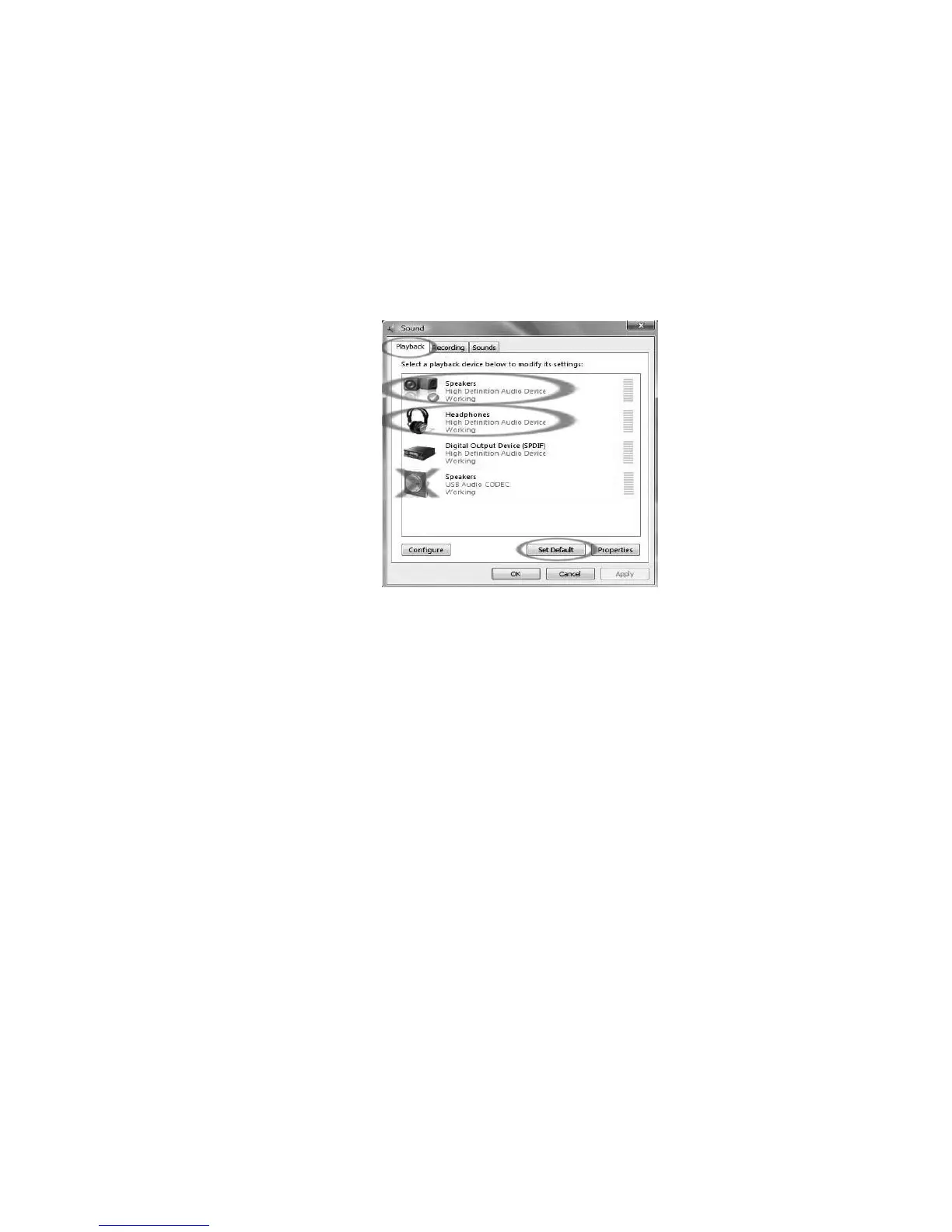
8. Now select the Playback tab at the top of the Sound control panel.
Click on the device that best matches your desired audio setup and click Set Default to confirm your selection.
Note: Do NOT choose “Speakers - SSS USB Audio Device” as your playback device. SSS USB Audio Device
represents your converter, and can only be used as recording input, not a playback output.
10. Click Set Default to confirm your choice.
11. Click Apply if possible, and then click OK to close the Control Panel.
12. Click Apply (if possible), and then click OK.
13. Make sure that your computer’s speakers (if not built-in) are plugged into your computer’s audio output and turned
on so you can hear your recording. If your computer has a headphone output, you can use headphones in-place
of speakers.
9. Under the Playback tab,
choose the device that you
would like your computer’s
audio to come out of.
Your computer’s audio
outputs may appear as:
Speakers-High
Definition Audio Device or
Headphones-High
Definition Audio Device
Or both, depending on the
hardware installed in your
computer



 To Next Page