EasyManua.ls Logo

ZK S900 - User Manual

ZK S900
36 pages
Print Icon
To Next Page IconTo Next Page
Loading...
505, 8
th
Avenue, 10
th
Floor, New York, NY 10018. Tel: 212-9910090 email: support@zk-usa.com
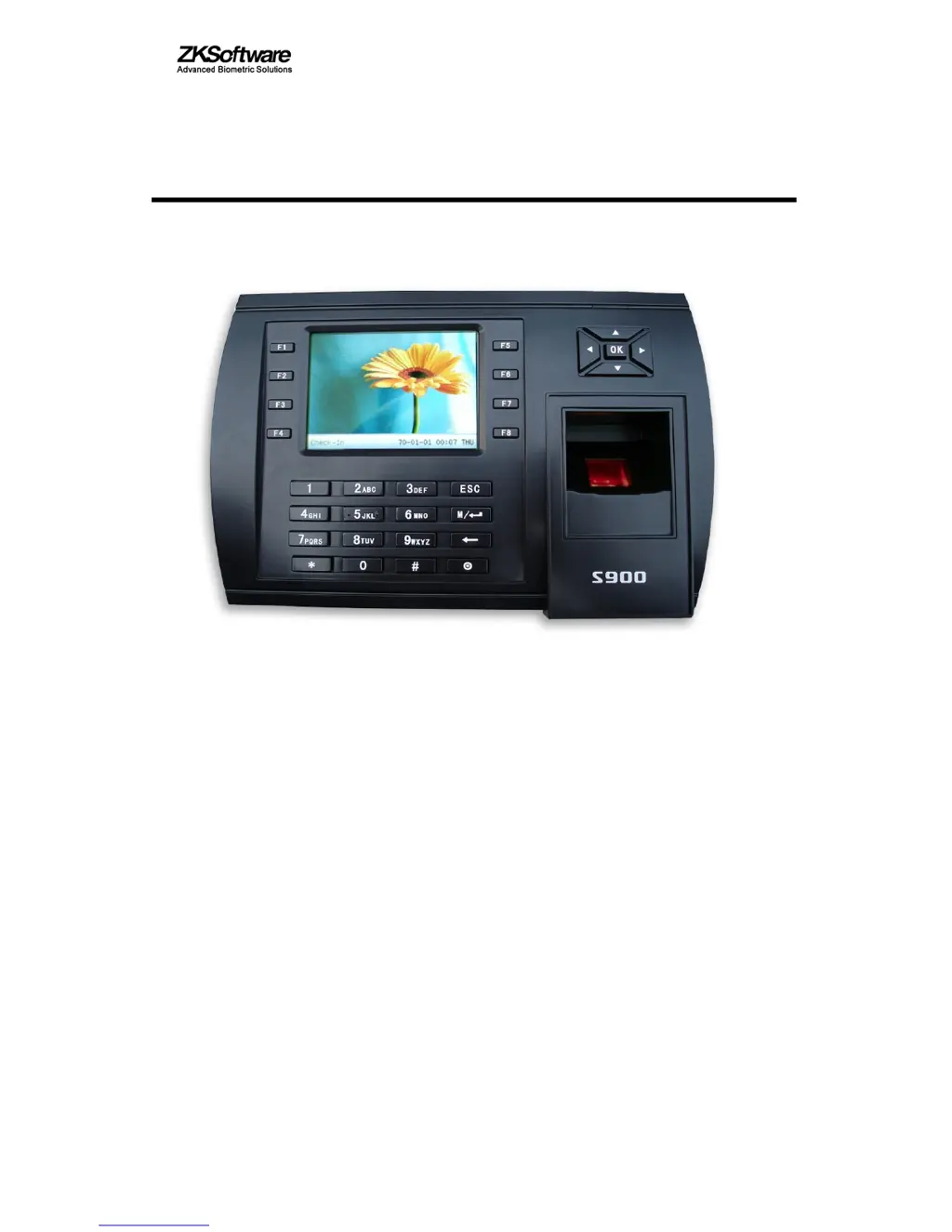
S900
Time & Attendance and Access Control Terminal
Installation Instructions
Revised March 2008

Questions and Answers

  • P
    Patricia WilsonAug 12, 2025
    What to do if LCD displays “Please try again” on ZK S900?
    • L
      Lisa WardAug 12, 2025
      If the LCD on your ZK Touch terminal displays “Please try again”, it could be due to a dirty or scratched fingerprint sensor, preventing a clear image. Clean the sensor with a moist tissue. Alternatively, the fingerprint sensor cable might be loose, or the sensor may need repair or replacement.
  • W
    Wendy WheelerAug 16, 2025
    Why some users’ fingerprints sometimes can’t be verified on ZK Touch terminals?
    • A
      adam87Aug 16, 2025
      If some users' fingerprints are not verified on ZK Touch terminals, the fingerprint quality may be poor. Try enrolling a different finger. You can also reduce the fingerprint “threshold” setting. If the fingerprints are completely unreadable, assign the user a PIN number instead.
  • C
    Charles RamosAug 20, 2025
    How to fix ZK S900 Touch terminal unable to connect with PC?
    • V
      vasquezrhondaAug 20, 2025
      If your ZK S900 Touch terminal can't connect to your PC, the connection may be loose. Check that the RS232/RS485 or Ethernet connections are secure. Also, ensure that network or firewall settings are not blocking communication to the S900.
  • R
    Regina DrakeAug 23, 2025
    What to do if the fingerprint sensor light is off on ZK S900 Touch terminals?
    • C
      Calvin AlvaradoAug 23, 2025
      If the fingerprint sensor light is off on your ZK Touch terminal, the fingerprint sensor or flat connection cable may be loose or broken. Unplug the cable from the fingerprint sensor and plug it back in again.
  • L
    Laura PettyAug 27, 2025
    What to do if ZK S900 Touch terminal starts up, but cannot enter menu system?
    • S
      steve66Aug 27, 2025
      If your ZK S900 Touch terminal starts up but cannot enter the menu system, the fingerprint sensor cable might be loose, the fingerprint sensor might be broken, or the circuit board might be broken. Remove the fingerprint sensor cable and plug it back in.
  • A
    Allison DuffyAug 31, 2025
    How to fix time continually displays “00:00” after restarting ZK Touch terminals?
    • L
      Leon NixonAug 31, 2025
      If the time continually displays “00:00” after restarting your ZK Touch terminal, the clock battery is likely drained. Replace the battery.
  • B
    Bernard ReedSep 3, 2025
    How to fix pressing buttons no longer makes sound on ZK S900 Touch terminals?
    • A
      andersoncatherineSep 4, 2025
      If pressing buttons no longer makes a sound on your ZK Touch terminal, there may be trouble in the buzzer, loudspeaker, or circuit board. Replace the buzzer and loudspeaker.
  • A
    Ashley TownsendSep 7, 2025
    How to troubleshoot Power LED is off on ZK S900 Touch terminals?
    • N
      Nicholas RogersSep 8, 2025
      If the Power LED is off on your ZK Touch terminal, it indicates no power or a lack of voltage. Check and examine the power and ground connections. Also, ensure 12V DC power.

Summary

S900 Installation Instructions

Before Installation Safety and Preparation

System Configuration Overview

System Configuration Diagram

Diagram illustrating the S900 device and its connections to peripherals.

S900 Communication Options

Details on connecting the S900 via RS232, RS485, or Ethernet networks.

Device Installation Procedures

S900 Wall Mounting Guide

Instructions for securely mounting the S900 device on a wall.

Peripheral Equipment Connections

Guides for connecting door sensors, locks, alarms, and network interfaces.

Device Reset and Miscellaneous Features

Device Reset Procedure

How to reset the S900 device using the reset button.

Security and Data Features

Tamper-Proof Button Functionality

Explains the alarm signal triggered by the tamper switch.

Using USB Flash Drive for Data

How to use the USB port for data upload and download.

Optional Proximity Card Reader

Details on using the optional built-in proximity card reader.

Optional MIFARE Card Reader

Information on using the optional MIFARE card reader for templates.

Optional Card Readers and WiFi

Optional HID Card Reader

Details on using the optional HID card reader with 125KHz cards.

Optional WiFi Connectivity

Overview of the S900's Wi-Fi capability for network communication.

Troubleshooting Guide

Appendix: Wi-Fi Configuration

Configure S900 Wi-Fi Function

Step-by-step guide for setting up the S900's wireless network connection.

ZK S900 Specifications

General IconGeneral
BrandZK
ModelS900
CategoryTouch terminals
LanguageEnglish