Need help?
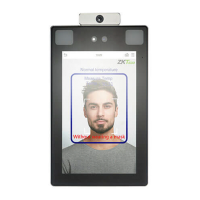
Do you have a question about the ZKTeco Green Label ProFace X and is the answer not in the manual?
Guidelines for user posture, facial expression, and distance for accurate facial image capture.
Instructions for correctly placing the palm on the device for registration and verification.
Guidelines for correct face capture, including distance, expression, and avoiding obstructions.
Description of the device's default screen and initial navigation options upon power-up.
Explanation of the on-screen keyboard for inputting text, numbers, and symbols.
Details various user verification modes like Palm, Password, Face, and Combined methods.
Steps to add a new user, including ID, name, role, and biometric data registration.
How to search for existing users in the system by entering keywords like ID or name.
Process for modifying existing user information, with User ID being unmodifiable after initial registration.
Instructions on how to remove users and their associated data from the device.
Configuration of IP address, subnet mask, and gateway for Ethernet network connectivity.
Setting up a secure communication key (Comm Key) for connecting the device to PC software.
Configuration for connecting the device to an ADMS server, including server address and port.
Setting Wiegand input and output parameters for integration with access control systems.
How to set and manage the device's date and time, including format and 24-hour options.
Configuration for camera mode, user photo display, and warning settings for access log entries.
Adjusting parameters for face recognition accuracy, like match threshold, angle tolerance, and image quality.
Tuning parameters for palm recognition, covering matching thresholds for 1:1 and 1:N verification modes.
Restoring device communication and system settings to factory defaults, while preserving user data.
Configuring temperature thresholds for self-heating or shutdown to protect the terminal from extremes.
Enabling temperature screening, mask detection, and setting alarm thresholds for alerts.
Customizing the device's display style, wallpaper, language, and screen timeout settings.
Configuring voice prompts, touch prompts, and adjusting the device's volume.
Setting up scheduled bells, including status, time, repeat cycle, and specific ring tones.
Selecting modes for punch state key functionality like Off, Manual, Auto, and Fixed modes.
Defining custom shortcuts for attendance status or functional keys for quick access on the main interface.
Options for selectively deleting data like access records, photos, or all user information.
Configuring parameters for door lock control, sensor delays, and supported verification modes.
Defining time rules and time zones for granting access based on specific daily and holiday schedules.
Setting up special access times for holidays that apply to all employees, simplifying management.
Configuring multiple verification methods to enhance security through combined authentication.
Enabling anti-passback to prevent unauthorized entry and ensure check-in/check-out record matching.
Configuring duress password and alarm delay settings for enhanced security during coercion.
Configuring device IP, gateway, server address, and port for software connection.
Steps to search for and add the device to the ZKBioAccess EP software interface.
Process for adding user details, biometric data, and role information into the ZKBioAccess EP software.
Viewing real-time events and statistics, such as abnormal temperatures, within the ZKBioAccess EP software.
Guidelines for capturing high-quality facial images for registration, focusing on lighting and pose.
Specifications for digital facial photos, including clarity, pose, accessories, and data format requirements.
Information regarding privacy protection for biometric data, user rights, and ZKTeco's responsibilities.
 General
| Model | Green Label ProFace X |
|---|---|
| Category | IP Access Controllers |
| Camera | Dual-lens Camera |
| Transaction/Logs Capacity | 1, 000, 000 |
| Communication | TCP/IP, Wi-Fi, USB |
| Operating System | Linux |
| Operating Humidity | 20% to 80% |
| Face Capacity | 30, 000 |
| Card Capacity | 30, 000 |
| Access Control Interface | Wiegand, RS485 |
| Power Supply | 12V |
| Processor | 1.2GHz Dual-Core CPU |

 To Next Page