6 Wireless Modem User’s Manual
2
Typical Computer Installation
This chapter is for users with Windows desktop or notebook
computers. If you have a PDA, go to page 14.
There are a few basic steps associated with setting up your
Bluetooth wireless modem and establishing a dial-up
connection to the Internet.
• Connect the hardware.
• Install any necessary software (if not already installed).
• Pair the Bluetooth modem with your computer and enter
the modem’s PIN.
• Set up Dial-Up Networking (DUN).
• Enable faxing (optional).
Connect the Modem Hardware
1
11
1
On the back of the modem, make sure the selectable switch is
all the way to the left, the side marked BT (for Bluetooth).
2
Plug one end of the supplied phone cord into the modem’s
Line port, and plug the other end into a telephone wall jack.
3
Plug one end of the included power adapter into the modem
and the other end into a wall outlet or power strip.
Set Up Your Bluetooth Connection
To set up a wireless dial-up connection to the Internet with your
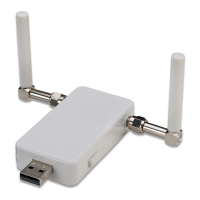
Bluetooth modem, you must have a Bluetooth adapter. Some
computers have built-in adapters; if your computer doesn’t, you
will have to purchase one separately. You can check by right-
clicking on your computer’s My Computer icon, selecting
Properties, and then clicking the Hardware tab (Windows
2000/XP users only) and then the Device Manager tab. If



 To Next Page