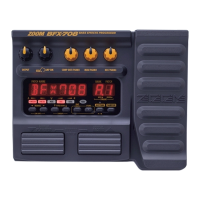
ZOOM BFX-708
Input Gain/Amp Simulator Setting
8
Input Gain/Amp Simulator Setting
1
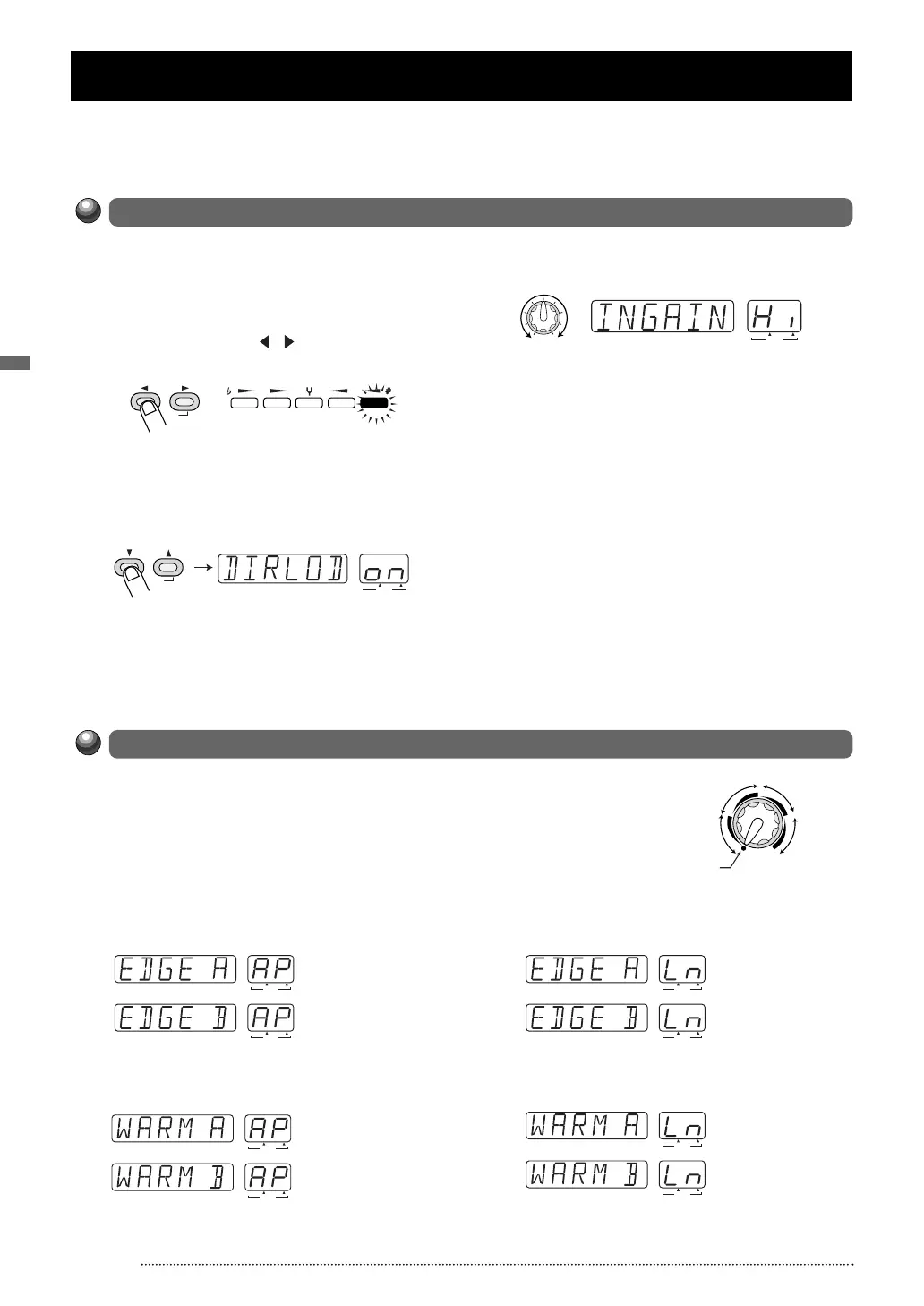
In play mode, press the EDIT (CANCEL) key.
2 Press the MODULE / keys repeatedly,
until the TOTAL module LED is lit.
3 Press the TYPE (BANK) ▼/▲ keys
repeatedly, until the indication "DIRLOD"
appears on the display.appears on the
display.
4 Turn parameter knob 3.
As soon as you turn parameter knob 3, the
display indication changes to "INGAIN". This is
the parameter for setting the input gain.
The BANK/PATCH indicator shows the input
gain setting (Hi or Lo).
5 Continue to use parameter knob 3 to
select the input gain that matches the
characteristics of your bass guitar and the
playback system.
• For use with a passive bass ... Hi
• For use with an active bass (if overload
occurs) ... Lo
6 Press the EDIT (CANCEL) key once more.
The unit returns to the play mode. The INGAIN
parameter setting applies to all patches and is
stored automatically.
This section explains how to adjust the input gain and set up the amp simulator. To get the best out of the BFX-708,
we strongly recommend to make these settings in order to match the unit to the instrument and other equipment.
These settings apply to all patches.
TYPE
(BANK)
(
GROUP
)
BANK PATCH
(
VALUE
)
BOTH EDITED
PATCH NAME
PATCH NAME BANK PATCH
(
VALUE
)
BOTH EDITED
PARM3 knob
MODULE
(
ON/OFF
)
COMP•DIST
ZNR/EQ
MOD REV TOTAL
Input Gain Setting
Amp Simulator Setting
Turning the AMP SIM knob causes the name of the currently selected type
to appear on the display (EDGE A/B, WARM A/B). Select the desired type.
The BANK/PATCH indicator shows the characteristics of the currently
selected type. When the BFX-708 is connected to a bass amplifier, use the
"AP" (Amp) setting. When connected to a line-level device such as a mixer
or recorder, use the "Ln" (Line) setting.
• Connected to amplifier
Simulates an amplifier with a bright sound character.
The "B" position will result in a stronger cabinet sound.
Simulates an amplifier with a prominent midrange. The
"B" position will result in a stronger cabinet sound.
• Connected to line-level device
Simulates an amplifier with a bright sound character.
The "B" position will result in a stronger cabinet sound.
Simulates an amplifier with a prominent midrange. The
"B" position will result in a stronger cabinet sound.
AMP SIM
OFF
EDGE A, B
AP
WARM A, B
Ln
WARM A, B
AP
EDGE A, B
Ln
BANK PATCH
(
VALUE
)
BOTH EDITED
PATCH NAME
BANK PATCH
(
VALUE
)
BOTH EDITED
PATCH NAME
BANK PATCH
(
VALUE
)
BOTH EDITED
PATCH NAME
BANK PATCH
(
VALUE
)
BOTH EDITED
PATCH NAME
BANK PATCH
(
VALUE
)
BOTH EDITED
PATCH NAME
BANK PATCH
(
VALUE
)
BOTH EDITED
PATCH NAME
BANK PATCH
(
VALUE
)
BOTH EDITED
PATCH NAME
BANK PATCH
(
VALUE
)
BOTH EDITED
PATCH NAME
When using an active bass guitar or if the signal overloads the circuits of the BFX-708, adjust the
gain as follows. In the factory default condition, the unit is set up for use with a passive bass guitar.


 To Next Page