EasyManua.ls Logo

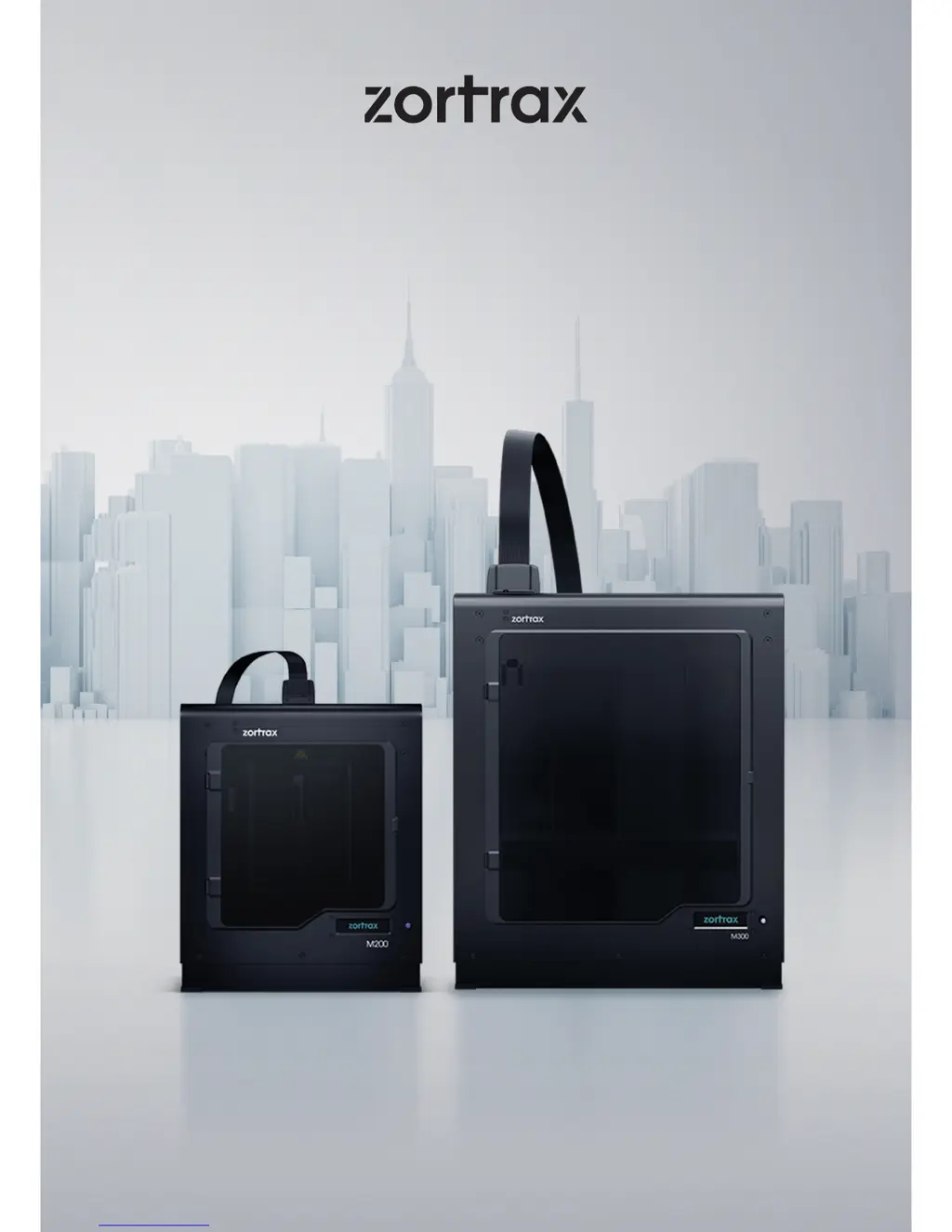
zortrax M200 - User Manual

zortrax M200
52 pages
Print Icon
To Next Page IconTo Next Page
Loading...
3D Printers User Guide
M Series

Other manuals for zortrax M200

Questions and Answers

  • L
    Lauren NguyenSep 9, 2025
    What to do when zortrax 3D Printers show error #011?
    • J
      john06Sep 9, 2025
      Error #011 means that the thermocouple has detected too high extruder temperature. The suggested solution is Heater and thermocouple / extruder PCB replacement / extruder cable.
  • A
    arthurjonesAug 23, 2025
    Why does my zortrax 3D Printer print crack and not adhere to the platform?
    • J
      jasminlewisAug 23, 2025
      Cracking and warping can occur if the print doesn't adhere to the platform. To address this, recalibrate the platform. Also, ensure that the side covers are installed and the model is correctly designed and arranged in the workspace. Adjusting print settings, like the level of infill, and ensuring proper room temperature can also help. Additionally, make sure the platform is clean before printing.
  • P
    parkertylerAug 25, 2025
    What to do if my zortrax 3D Printer doesn't load material into the extruder?
    • P
      patrick64Aug 25, 2025
      If your printer isn't loading material, first ensure that the material hasn't run out. If it has, replace the spool and restart the print. Also, check for tangles on the spool or blockages near the material guide inlet; if found, unload the material, cut off the problem area, reload, and restart. Verify the spool is correctly secured on the holder, allowing proper rotation. Ensure the material isn't faulty with swells. Clean the extruder and hotend of any material remains, especially the extruder motor rack and nozzle, using the provided tools. Finally, ensure the material end is cut at a right angle; cutting it at an acute angle can ease loading.
  • Z
    zwalkerAug 26, 2025
    How to fix error #002 SD card reading error on zortrax M200?
    • C
      Carla BurtonAug 26, 2025
      Error #002 indicates an issue with the SD card. To resolve this, save the file to the SD card again. If the problem persists, safely remove the card and try using a different one.
  • B
    Brittany GoodwinAug 27, 2025
    What to do if print stopped due to SD card timeout on zortrax 3D Printers?
    • B
      Bobby GarzaAug 27, 2025
      If your print stopped due to an SD card timeout, it suggests the card is unreadable or damaged. Try saving the file to the SD card again. If that doesn't work, safely remove the card and use a different one.
  • S
    Stacey TaylorAug 29, 2025
    Why am I getting error #003 file error on my zortrax 3D Printer?
    • D
      Donald FernandezAug 29, 2025
      Error #003 indicates the file cannot be read or the SD card is damaged. To fix this, save the file again to the SD card. If the issue continues, safely remove the card and try another one.
  • E
    Emily HerringSep 18, 2025
    Why does my zortrax M200 show error #033?
    • B
      Brian NixonSep 18, 2025
      Error #033 indicates a connection issue with the perforated plate. Check the heatbed cable for proper connection. The suggested solution is Perforated plate / heatbed cable replacement.
  • S
    Shirley LaneSep 18, 2025
    What does error #076 mean on zortrax M200 3D Printers?
    • K
      Kimberly ShawSep 18, 2025
      Error #076 indicates that the model has been prepared for a different printer model. To resolve this, choose the proper printer model while exporting the file in Z-SUITE.
  • B
    Benjamin MullinsSep 7, 2025
    What to do if I get error #034 on my zortrax 3D Printers?
    • S
      Sharon JohnsonSep 7, 2025
      Error #034 indicates a problem with the endstops. Check the endstops for proper connection. The suggested solution is to carry out X/Y axes maintenance.
  • J
    Juan MillerSep 4, 2025
    What does error #013 mean on zortrax M200?
    • C
      Casey BlackwellSep 4, 2025
      Error #013 indicates an unexpected extruder temperature drop, meaning the thermocouple detected a temperature decrease during printing. Make sure the heater and thermocouple are connected to the hotend. The suggested solution is Extruder cable / heater and thermocouple / extruder PCB replacement.

Summary

General Safety Information

Health and Safety at Work

Guidelines for safe operation and maintenance, emphasizing protective gear and workspace ventilation.

Electrical Safety Precautions

Ensures safe operation by detailing electrical requirements, grounding, and avoiding modifications.

Mechanical Safety Guidelines

Highlights safety measures regarding the printer's moving components to prevent injuries and damage.

Risk of Burns and Thermal Safety

Warns about high temperatures of printer components and necessary precautions.

Warning and Safety Labels Explained

Interprets various warning symbols found on Zortrax devices for user safety.

Whats in the Box

Main Components Overview

First Use Preparations

Unboxing and Initial Printer Removal

Instructions for safely removing the printer from its packaging and initial handling.

Platform Calibration and Side Cover Installation

Steps for calibrating the platform and installing side covers on compatible models.

Firmware Installation

Downloading and Installing Firmware Update

Instructions for downloading the latest firmware and installing it via an SD card.

Material Loading Procedure

Loading Filament into the Extruder

Step-by-step guide on how to load material into the printer's extruder.

Platform Calibration

Performing Automatic Platform Calibration

Initiates the automatic calibration process by heating the extruder and checking distances.

Adjusting Calibration Screws

Guidance on tightening or loosening calibration screws based on printer feedback.

Starting and Removing a Print

Initiating the Printing Process

Steps for selecting a model, heating the extruder, and starting the print job.

Safe Print Removal Procedure

Detailed steps for safely removing a completed print from the build platform.

Platform Return and Power Connection

Guidance on returning the platform and reconnecting cables after print removal.

Basic Maintenance and Service Work

Support and Troubleshooting

Material Loading and Extrusion Issues

Solutions for problems related to material not loading or extruding from the nozzle.

zortrax M200 Specifications

General IconGeneral
Build Volume200 x 200 x 180 mm
Layer Resolution90-400 microns
Filament Diameter1.75 mm
Nozzle Diameter0.4 mm
ConnectivitySD card
SoftwareZ-Suite
Operating SystemWindows, macOS
FrameAluminum
Printing Speedup to 100 mm/s
Heated BedYes
Bed Temperatureup to 110°C
Nozzle Temperatureup to 380°C
Power Consumption300 W
TechnologyFDM
Supported MaterialsZ-ABS, Z-ULTRAT, Z-HIPS, Z-GLASS, Z-PETG, Z-ESD
Power Supply100-240 V, 50/60 Hz
Dimensions345 x 360 x 430 mm
Weight13 kg

Related product manuals