EasyManua.ls Logo

Zte Avid 4 - User Manual

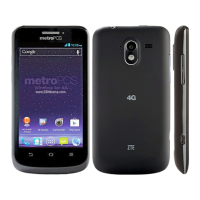
Zte Avid 4
118 pages
Print Icon
To Next Page IconTo Next Page
Loading...
1
Z855
User Manual and Safety Information

Table of Contents

Questions and Answers

  • E
    Emily DavisAug 16, 2025
    What to do if my Zte Avid 4 PIN code is blocked?
    • R
      Ronnie HallAug 16, 2025
      If your Zte Cell Phone's PIN code is blocked, it's likely because you've entered the wrong PIN three times consecutively. Contact your service provider for assistance. If they provide a PUK code, you can use it to unlock the nano-SIM card.
  • K
    kimberly03Aug 19, 2025
    How to fix a Zte Avid 4 nano-SIM card error?
    • D
      David RogersAug 19, 2025
      If your Zte Cell Phone displays a nano-SIM card error, the card may be malfunctioning or damaged; take it to your service provider for testing. Ensure the card is inserted correctly. Also, check for debris on the contacts and clean gently with a soft, dry cloth.
  • J
    Justin AllenAug 22, 2025
    Why is my Zte Cell Phone unable to connect to the network?
    • J
      joseph98Aug 22, 2025
      If your Zte Cell Phone can't connect to the network, it could be due to an invalid nano-SIM card, in which case you should contact your service provider. Alternatively, you might be outside the network's service area; check with your provider. A poor signal could also be the culprit; try moving to an open space or closer to a window if you're indoors.
  • A
    alfredcaseyAug 26, 2025
    Why does my Zte Avid 4 crash, reboot, or freeze?
    • D
      Deborah Edwards MDAug 26, 2025
      If your Zte Cell Phone is crashing, rebooting, freezing, or won't power on, it could be due to incompatible third-party software. Try uninstalling any recently installed software. You can also try to upgrade the phone software or reset the phone to factory status.
  • D
    Donna YatesAug 28, 2025
    Why does my Zte Cell Phone battery drain so fast?
    • C
      Crystal SextonAug 29, 2025
      A depleted battery in your Zte Cell Phone may be due to the battery being old. Contact the dealer to change a new battery. Also, if the phone struggles to connect to the network, it uses more power searching for a signal. Try moving to an area with better reception or temporarily turning off the phone.
  • D
    Denise WilliamsAug 31, 2025
    Why is there echo or noise during Zte Avid 4 Cell Phone calls?
    • J
      Jamie NguyenAug 31, 2025
      Echo or noise during calls on your Zte Cell Phone can be due to poor network link quality from your service provider or poor local telephone line quality. Try ending the call and dialing again to see if you get switched to a better connection.
  • J
    Jocelyn BellSep 3, 2025
    How to improve weak network signal on Zte Avid 4?
    • J
      Julie DuffySep 3, 2025
      If your Zte Cell Phone shows a weak network signal, it could be because you're in a location where wireless transmissions are obstructed, such as a basement or near a tall building. Move to a location where the network signal can be properly received.
  • I
    Isaac MartinezSep 6, 2025
    Why is the standby time shortened on my Zte Cell Phone?
    • R
      Robert DoyleSep 6, 2025
      Shortened standby time on your Zte Cell Phone is related to your service provider system configuration. If you are located in an area where signaling is weak, temporarily power off the phone.
  • J
    Joseph BellSep 9, 2025
    What to do if Zte Cell Phone shows network busy?
    • M
      Michele CollinsSep 9, 2025
      If you are experiencing a busy network on your Zte Cell Phone, it means that the network is currently experiencing high traffic. Avoid using the phone at such times, or try again after waiting a short time.
  • Z
    Zachary EdwardsSep 12, 2025
    What to do if I am unable to select certain features on my Zte Cell Phone?
    • J
      James NashSep 13, 2025
      Contact your service provider, if you are unable to select certain features on your Zte Cell Phone.

Summary

Getting Started

Getting to Know Your Phone

Identifies key components and parts of the phone, including cameras, keys, and ports.

Knowing the Keys

Explains the function of each physical key on the phone: Power, Volume, Home, Back, and Recent apps.

Installing SIM and Memory Cards

Guides on how to insert nano-SIM and microSDHC cards into the phone.

Charging the Battery

Details on how to charge the phone's battery using the provided adapter.

Extending Battery Life

Tips to conserve battery power by managing active apps, screen brightness, and connectivity.

Powering On and Off

Instructions on how to turn the phone on and off using the Power key.

Initial Setup

Steps for setting up the phone for the first time, including language and Wi-Fi.

Locking and Unlocking Screen

How to lock the phone screen and keys, and unlock it using various methods.

Using the Touch Screen

Explains various touch gestures like touch, touch and hold, swipe, and drag.

Understanding the Home Screen

Overview of the home screen layout, including status bar, widgets, and shortcuts.

Connecting to Networks and Devices

Mobile Network Settings

Manages mobile data, roaming, and preferred network types.

Wi-Fi Connectivity

Instructions for turning Wi-Fi on, connecting to networks, and managing Wi-Fi settings.

Wi-Fi Direct

Explains how to share files directly between devices using Wi-Fi Direct.

Bluetooth Device Connection

Guides on turning Bluetooth on/off, pairing devices, and sending/receiving data.

Connecting via USB

Steps to connect the phone to a computer using a USB cable for file transfer.

microSDHC Card Usage

How to set up, remove, erase, and format the microSDHC card.

Mobile Data Sharing

Methods to share phone's data connection via USB tethering or Wi-Fi hotspot.

Virtual Private Networks

Steps for adding, connecting to, and modifying VPN configurations.

Phone Calls

Placing and Ending Calls

Instructions on how to make, redial, and end phone calls.

Video Calling

Steps for placing and ending video calls.

Answering and Rejecting Calls

How to answer or reject incoming calls, including with text messages.

Call History Management

Viewing and managing the call history, including making calls from it.

Calling Contacts

How to initiate calls to contacts from the Contacts list.

Call Options

Features available during a call like hold, conference, mute, and speakerphone.

Multi-party Calls

Managing conference calls and switching between active calls.

Call Settings Adjustment

Customizing call settings like contact display, sound, vibration, and speed dials.

Contacts Management

Checking Contact Details

Viewing detailed information for saved contacts.

Adding New Contacts

Steps to add a new contact with name, numbers, and other details.

Setting Up Personal Profile

Creating and editing your own profile or contact card.

Importing, Exporting, and Sharing

Managing contacts by importing/exporting from SIM, storage, or sharing.

Favorite Contacts

Adding and removing contacts from the favorites list for quick access.

Working With Contact Groups

Creating, viewing, editing, and deleting contact groups.

Searching for Contacts

Finding contacts by entering names or related information.

Editing Contacts

Modifying existing contact details and setting custom ringtones.

Web Accounts and Sync

Adding and Removing Accounts

Managing Google, Exchange, and other accounts on the phone.

Configuring Account Synchronization

Setting up auto-sync or manual sync for account data.

Email Management

Setting Up Email Account

Steps to configure the first email account on the device.

Checking Emails

How the phone automatically or manually checks for new emails.

Responding to Emails

Replying, forwarding, marking, and deleting emails.

Writing and Sending Emails

Composing and sending new emails, including attachments.

Adding and Editing Email Accounts

Managing multiple email accounts on the device.

General Email Settings

Configuring general settings that apply to all email accounts.

Messaging Operations

Opening Messaging Screen

Accessing the messaging interface to create, search, or open threads.

Sending Messages

Steps to send text or multimedia messages, including attachments.

Replying to Messages

How to reply to existing message threads.

Forwarding Messages

Process for forwarding a received message to another contact.

Message Settings

Customizing message settings and preferences.

Chrome Browser Usage

Opening the Browser

Launching the Chrome web browser on the phone.

Managing Browser Tabs

Opening, switching between, and closing multiple browser tabs.

Downloading Files

How to download files and links from web pages.

Browser Settings

Customizing browser settings for privacy and browsing experience.

Camera Functions

Capturing Photos

Instructions for aiming, focusing, and taking photos with the camera.

Recording Videos

Steps for recording video clips, including focusing and playback controls.

Panorama Camera Mode

Using the camera to capture panoramic images by moving the phone.

Manual Camera Mode

Adjusting advanced camera settings like ISO, white balance, and exposure.

Camera;Camcorder Settings

Customizing photo and video settings like resolution, timer, and geo-tagging.

Gallery and Media

Opening the Gallery

Accessing the gallery to view albums of pictures and videos.

Working With Albums

Viewing, sharing, and deleting albums, pictures, and videos.

Working With Pictures

Viewing pictures in full screen, zooming, editing, and sharing.

Retouching Pictures

Editing photos using the Photo Editor for filters, cropping, and effects.

Playing Videos

How to play video files from the gallery.

Music Player

Copying Music Files

Methods to copy music files to the phone from computer or internet.

Viewing Music Library

Navigating and organizing the music library by songs, artists, and albums.

Setting Default Ringtone

Assigning a song from the library as the default ringtone.

Playing Music

Listening to music, controlling playback, and viewing player interface.

Managing Playlists

Creating, renaming, deleting, and managing playlists.

Video Player

Opening Video Library

Accessing the video library to view available video files.

Playing and Controlling Videos

Managing video playback, volume, brightness, and playback controls.

Managing Video Files

Deleting, sharing, renaming, and trimming video files.

More Apps and Features

Clock Application

Using the clock for alarms, world time, stopwatch, and countdown timer.

Downloads Management

Tracking and managing files downloaded via apps like Chrome or Email.

File Manager

Accessing and managing files stored on the phone's internal or external storage.

Calculator

Performing basic and advanced mathematical calculations.

Sound Recorder

Recording, playing, and editing voice memos.

Google Apps Overview

Introduction to Google services like Chrome, Drive, Gmail, Maps, and Play Store.

Google Play Store

Browsing and Searching Apps

Finding apps by category or search terms.

Downloading and Installing Apps

Steps to install free or paid applications from the Play Store.

Google Wallet Account

Creating and managing a Google Wallet account for purchases.

Managing Downloads

Viewing, rating, and uninstalling downloaded apps.

Settings

Wireless and Networks

Manages Wi-Fi, Bluetooth, Mobile networks, Data usage, and Airplane mode.

VPN and Hotspot Configuration

Setting up VPN connections and configuring Wi-Fi hotspot.

Network Settings Reset

Resets all network settings to default.

Device Settings

Manages Display, Notifications, Sound, Apps, Storage, Battery, Memory, Call, and PC connectivity.

Personal Settings

Location Services

Managing location services and selecting location sources (GPS, Wi-Fi, networks).

Security Options

Setting up screen lock, Smart Lock, and phone encryption.

Account Management

Managing web accounts and synchronization settings.

Google Services

Configuring settings for Google apps and services.

Languages and Input

Setting system language, input methods, and text-to-speech.

System Settings

Navigation Key Customization

Exchanging the positions of the Back and Recent apps keys.

Backup and Reset

Managing data backup, restoration, and factory data reset.

Date and Time Settings

Setting date, time, time zone, and time format.

Accessibility Features

Configuring accessibility options for users with disabilities.

Printing Settings

Managing cloud printing services.

Software Update

Checking for and installing system updates.

About Phone Information

Viewing important phone information and legal notices.

Troubleshooting

Poor Signal Reception

Resolving issues with weak network signals or busy networks.

Call Quality Issues

Troubleshooting echo or noise during calls.

Feature Selection Problems

Resolving issues when certain features cannot be selected.

Battery Charging Issues

Troubleshooting problems with charging the battery.

Shortened Standby Time

Addressing issues related to reduced standby time.

Phone Power Issues

Resolving problems with turning the phone on.

SIM Card Errors

Troubleshooting nano-SIM card malfunctions or improper insertion.

Network Connectivity Issues

Resolving problems connecting to the mobile network.

PIN Code Blockage

Unblocking the SIM card PIN code.

Software Compatibility Issues

Resolving issues caused by incompatible third-party software.

For Your Safety

General Safety Guidelines

Covers driving safety, avoiding certain environments, and proper handling.

Regulatory Compliance

Information on FCC SAR, regulations, and hearing aid compatibility.

Usage Precautions

Safety measures for distraction, product handling, children, demagnetization, ESD, and antenna.

Health and Ergonomics

Addresses driving distraction, seizures, repetitive strain injuries, and emergency calls.

Electrical and Environmental Safety

Covers electrical safety, RF interference, and explosive environments.

Zte Avid 4 Specifications

General IconGeneral
BrandZte
ModelAvid 4
CategoryCell Phone
LanguageEnglish

Related product manuals