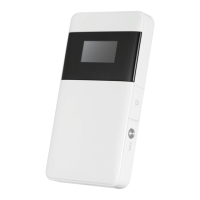
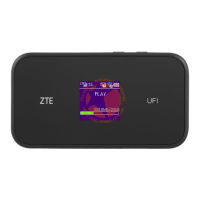
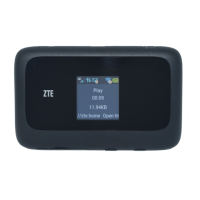
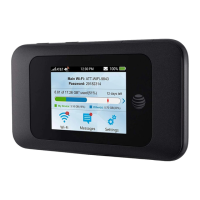
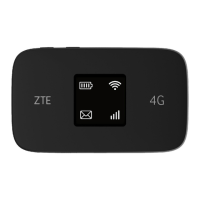
ZTE MF65+
Let’s go
Getting Started With Your Device
ZTE CORPORATION
NO. 55, Hi-tech Road South, ShenZhen, P.R.China
Postcode: 518057
LEGAL INFORMATION
Copyright © 2014 ZTE CORPORATION.
All rights reserved.
No part of this publication may be excerpted, reproduced,
translated or utilized in any form or by any means, elec-
tronic or mechanical, including photocopying and microlm,
without the prior written permission of ZTE Corporation.
The manual is published by ZTE Corporation. We reserve
the right to make modications on print errors or update
specications without prior notice.
Version No.: R1.0
Manual No.:079584506967
NOTE:
Do not use the device in an enclosed environment or where
heat dissipation is poor. Prolonged work in such space
may cause excessive heat and raise ambient temperature,
which may lead to automatic shutdown of the device for
your safety. In the case of such event, cool the device in a
well-ventilated place before turning on for normal use.
Getting to Know Your Device
Appearance
The following gure is for your reference only.
1. OLED screen
2. Power switch
3. WPS button
4. Micro USB port
5. microSDHC card slot
6. SIM (or USIM) card slot
NOTE:
The microSDHC™ logo is a trademark of SD-3C,
LLC.
Status icons
When the device is powered on, the following icons may
be displayed on the OLED screen. For a description of the
icons, refer to the following table.
Icon Description
Network signal strength.
2G/3G
Network type. 2G and 3G icons will ap-
pear on the OLED screen according to
the network being connected.
Connected to the network.
The user is in roaming status.
One or more new messages are received.
Wi-Fi status and the number of connected
users.
Battery power.
Connection Scenario
The device can access the Internet and allows multiple
clients to surf on the Internet at the same time. The follow-
ing gure is for your reference only.
A SIM or USIM card can be used to access the Internet.
Installing Your Device
1. Slide the back cover and remove it.
2. Install the SIM card.
IMPORTANT:
Your device does not support the micro-SIM card and
nano-SIM card or any other nonstandard SIM cards. To
avoid damaging the device, do not use those cards or any
card holders.
3. (Optional) Insert an SD card.
Install a microSDHC card to the microSDHC slot. The fol-
lowing picture shows the correct installation direction.
4. Install the battery.
5. Close the back cover.
Connecting Your Device
Using Wi-Fi
1. Power on your device.
2. Use the Wi-Fi application on a client to search for
available wireless networks.
NOTE:
Set the client to obtain an IP address automatically. For the
detailed procedure, refer to Conguring Your PC. The client
gets an IP address, for example, 192.168.0.101.
3. Select the SSID of your device, and then click
Connect.
NOTE:
You can nd the default SSID on the label of your device.
4. Enter the password, and then click Connect.
NOTE:
You may need to enter the password for the Wi-Fi con-
nection. You can view the label on your device to get the
default password.
5. Wait until the client is connected to your device suc-
cessfully.
Using a USB Cable
1. Connect a client to your device through a USB cable.
2. Power on your device. The operating system detects
and identifies new hardware, and automatically fin-
ishes the installation.
NOTE:
If the system does not automatically launch installation,
you can run the installation program in the My Computer/
ZTEMODEM path.
3. Wait until the client is connected to your device suc-
cessfully.


 To Next Page
 Need help?
 General