EasyManua.ls Logo

Zte MF612 - User Manual

Zte MF612
47 pages
Print Icon
To Next Page IconTo Next Page
Loading...
1
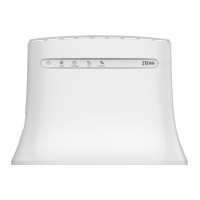
ZTE MF612
3.5G Wireless Router
User Manual

Questions and Answers

  • E
    evelyn74Aug 14, 2025
    Why are the download/upload speeds so slow on my Zte Wireless Router?
    • L
      laurarobbinsAug 14, 2025
      The download or upload speeds of your Zte Wireless Router depend on the signal strength. Check your signal strength and network type to improve the speed.
  • N
    Nicole SandersAug 17, 2025
    How to fix Zte Wireless Router when I cannot access the internet?
    • C
      Courtney SchneiderAug 17, 2025
      If you cannot access the internet with your Zte Wireless Router, check your configuration settings and service indicator LEDs. Also, wait 1–2 minutes for the router to initialize.
  • T
    Timothy HobbsAug 21, 2025
    What to do if the RSSI signal indicator is blinking on Zte Wireless Router?
    • D
      Daniel RobinsonAug 21, 2025
      If the RSSI signal indicator on your Zte Wireless Router is always blinking or does not light, it indicates poor reception. Try moving the router to another location near the window.
  • B
    brian43Aug 25, 2025
    How to fix no dial tone on Zte MF612?
    • L
      Louis BarnettAug 25, 2025
      If there is no dial tone on your Zte Wireless Router and the RSSI is blinking, it means you have no good RF reception. Wait 1–2 minutes after turning on the router and try changing its location.
  • D
    Dana OchoaAug 27, 2025
    What to do if I can’t make or receive calls when surfing the net on Zte MF612 Wireless Router?
    • J
      Jessica JimenezAug 28, 2025
      If you can’t make or receive calls on your Zte Wireless Router while surfing the net and you are connected using the 2G (GSM) network, disconnect the internet and wait 30 seconds to 1 minute before making a call.
  • J
    James NewmanAug 31, 2025
    Why is the phone line noisy when using Zte Wireless Router?
    • K
      Kelly DonaldsonAug 31, 2025
      If the line is noisy or distorted when you lift the phone off the hook on your Zte Wireless Router, the cable or phone set might be faulty. Remove any electrical appliance which is too close to the phone or router.
  • R
    Ryan HammondSep 3, 2025
    What to do if there is a prompt when I lift the phone using Zte Wireless Router?
    • H
      henry81Sep 3, 2025
      If you hear a prompt, phone alert, or announcement as soon as you lift the phone off the hook using your Zte Wireless Router, ensure your USIM card is inserted correctly and the PIN number has been entered. You will need to enter the PUK code when prompted if the PIN number has been entered incorrectly.
  • J
    jeffrey06Sep 6, 2025
    Why do I hear a rapid engaged tone on my Zte MF612 Wireless Router?
    • M
      msilvaSep 6, 2025
      If you hear a rapid engaged tone as soon as you lift the phone off the hook using your Zte Wireless Router, put the phone back on the hook and try again. If you are connected to the internet using the 2G (GSM) network, disconnect this first.
  • D
    Douglas MooreSep 9, 2025
    What to do if I hear silence after dialing on Zte Wireless Router?
    • L
      liudavidSep 9, 2025
      If you hear nothing (silence) after dialing the last digit on your Zte Wireless Router, wait 4-8 seconds to connect the call.

Summary

Welcome

Glossary

General Information

Safety Precautions

Essential guidelines for safe operation and handling of the wireless router to prevent hazards.

Declaration

Official declaration by ZTE Corporation regarding product compliance and user responsibilities.

Cleaning and Maintenance

Instructions on how to properly clean and maintain the router to ensure its longevity and performance.

Limited Warranty and Liability

Details the warranty terms and limitations of liability for the ZTE wireless router.

Emergency Call

Information on the router's capability and limitations for making emergency calls.

Power Supply Safety Instructions

Guidelines for the safe use and handling of the power adapter and its associated components.

Getting Started

Parts Supplied

Lists all the components included in the package with the 3G Wireless Router.

Router Appearance

Overview of the router's physical design, including top and side views.

LED Indicators

Description of the LED indicators on the router and their meanings for status indication.

Power Switch

Information on how to turn the router on and off using the power switch.

Interface and Installation

Details the various interfaces on the router and the steps for its physical installation.

Interface Description

Description of each physical port and connector on the rear of the router.

Installation Steps

Step-by-step guide for installing the USIM card and connecting cables to the router.

Power Supply

Information on connecting the router to the external power supply for operation.

About the USIM Card

Details regarding the USIM card, its handling, and requirements for network service.

Voice Functionality

Making a Call

Instructions on how to make a voice call using the connected telephone.

Making a Local Call

Procedure for making a standard local voice call, including area code.

Making an International Call

Steps for placing an international voice call, including access and country codes.

Answering a Call

How to answer incoming calls and manage call waiting.

Internet Access

Internet Access Preparation

Prerequisites and checks required before establishing an internet connection.

Internet Settings

Configuration options for setting up the internet connection on the router.

Login Process

Steps to access the router's web interface using username and password.

Quick Setup Guide

A wizard-based guide to quickly configure the router's essential settings.

PPP Profile Configuration

Configuring the PPP profile, including APN and Dial No. settings.

PPP Authentication Setup

Setting up the authentication mode (CHAP or PAP) and credentials.

SSID Configuration

Setting the Service Set Identifier (SSID) for the wireless network.

Security Configuration

Configuring wireless network security, including encryption modes.

Review Configuration

Reviewing and applying the configured settings during the quick setup process.

WAN Connection Modes

Configuring how the router connects to the Wide Area Network (WAN).

3 G Network Settings

Configuring 3G wireless information and network selection.

Wireless Information

Viewing detailed 3G wireless network parameters like RSSI and RSCP.

Network Selection

Selecting the network band (Automatic, WCDMA, GSM) for connection.

APN Settings Configuration

Configuring APN, Dial No., PDP Type, and authentication details.

Router Configuration

Settings related to the router's internal network configuration.

LAN Settings

Configuration for the router's Local Area Network (LAN) interface.

LAN Interface Setup

Setting IP address, subnet mask, and DHCP options for the LAN.

DHCP Clients

Viewing information about devices connected to the router via DHCP.

Wi-Fi Settings

Configuration options for the wireless network (Wi-Fi).

Station List

Viewing a list of wireless stations (devices) connected to the Wi-Fi network.

Basic Wi-Fi Settings

Basic configuration parameters for the wireless network.

Wi-Fi Frequency and Channel

Selecting the appropriate channel to optimize Wi-Fi performance and coverage.

WDS Mode Configuration

Configuring Wireless Distribution System (WDS) for router communication with other APs.

HT Physical Mode Parameters

Parameters related to High Throughput (HT) physical mode for Wi-Fi.

Advanced Wi-Fi Settings

Advanced configuration parameters for the wireless network.

Advanced Wireless Parameters

Detailed settings for Beacon Interval, DTIM, Fragment Threshold, RTS Threshold, and TX Power.

Wi-Fi Multimedia Settings

Enabling Wi-Fi Multimedia (WMM) and APSD for enhanced performance and power saving.

Wi-Fi Security Settings

Configuring security policies, modes, and encryption for the wireless network.

Wireless Security Modes

Explanation of available wireless security modes and their authentication types.

WPA Security Parameters

Details on WPA algorithms, pass phrases, and key renewal intervals.

Wireless MAC Filtering

Setting up MAC address filtering to control network access.

WPS Configuration

Configuring Wi-Fi Protected Setup (WPS) for easy device connection.

Firewall Settings

Configuring firewall rules to protect the network from malicious activity.

MAC;IP;Port Filtering

Setting up rules to filter network traffic based on MAC, IP addresses, and port numbers.

MAC;IP;Port Filtering Rules

Detailed explanation of parameters for MAC/IP/Port filtering rules.

URL Filtering

Configuring content filtering to restrict access to specific URLs.

Port Forwarding

Setting up virtual servers to provide services on the Internet.

Virtual Server Settings

Details on configuring IP address, port range, and protocol for virtual servers.

DMZ Configuration

Setting up a De-militarized Zone (DMZ) to separate internal network from the Internet.

DMZ IP Address Setup

Configuring the IP address for the DMZ zone.

System Security Settings

Configuring system firewall to protect the AP or router from attacks.

Advanced Settings

Accessing advanced configuration options for the router.

System Status Information

Viewing system information such as IMEI, software versions, and uptime.

System Statistics

Viewing data transmission statistics for the router.

Administrator Management

Managing administrator and user accounts and passwords.

Administrator Account Management

Changing administrator account details and passwords.

Firmware Upgrade

Instructions for upgrading the router's software version.

Factory Restore

Resetting router settings to factory default values.

Router Shutdown

Procedure for safely shutting down the router.

PIN Management

Managing the PIN status and changing the PIN for the USIM card.

PIN Modification

Steps to modify the PIN code for the USIM card.

Logout

Procedure for logging out of the router's web interface.

Disconnecting from Internet

How to terminate the active internet connection.

Troubleshooting

Voice Related Problems

Solutions for common issues encountered with voice call functionality.

Internet Related Problems

Solutions for common issues related to internet connectivity and performance.

Other Troubleshooting Issues

Solutions for miscellaneous problems not covered in other categories.

Technical Parameters

Zte MF612 Specifications

General IconGeneral
Device TypeWireless Router
ModelMF612
Wi-Fi Standard802.11b/g/n
Maximum Wi-Fi Speed150 Mbps
SIM Card SlotYes
BatteryNo
Network StandardsHSPA+/UMTS/EDGE/GPRS/GSM
Frequency Bands850/900/1800/1900 MHz
SecurityWPA/WPA2
Storage Temperature-20°C to 70°C
Operating Temperature-10°C ~ +45°C

Related product manuals