EasyManua.ls Logo

Zte MF63 - User Manual

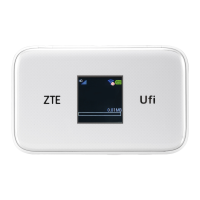
Zte MF63
24 pages
Print Icon
To Next Page IconTo Next Page
Loading...
1
ZTE MF63
Let’s go
Getting started with your device.

Other manuals for Zte MF63

Questions and Answers

  • L
    laurawoodAug 18, 2025
    What to do if the client connected to Zte MF63 cannot access the internet?
    • S
      Scott FisherAug 18, 2025
      If your client, connected to the Zte Wireless Router, can't access the Internet, ensure your SIM card is active. Also, try changing your location to improve the signal. Verify your WAN connection mode settings and confirm your APN settings with your service provider.
  • B
    Brenda MartinezAug 21, 2025
    Why can't my device connected to the Zte Wireless Router access the internet?
    • A
      Angela CastroAug 21, 2025
      If a client connected to the device cannot access the Internet, ensure your SIM card is active. Also, try changing your location to find a spot with a better signal. Check the WAN Connection mode setting. If problems persist, contact your service provider to confirm your APN settings.
  • A
    Anna NguyenAug 22, 2025
    How to find the password for my Zte MF63 Wireless Router?
    • A
      Adam RamosAug 23, 2025
      For the Wi-Fi connection password, check the label on the device. Alternatively, press the WPS button twice to display the SSID and Wi-Fi password on the screen. The default password for the webGUI configuration page is 'smartbro'. If you've changed the password and forgotten it, restore the device to its factory default settings.
  • K
    Kayla WilcoxAug 25, 2025
    Why can't I establish a Wi-Fi connection between my device and client using Zte Wireless Router?
    • D
      Daniel MartinAug 26, 2025
      If you can't establish a Wi-Fi connection between your device and client on your Zte Wireless Router, first ensure the Wi-Fi function is enabled by pressing the WPS button. Refresh the network list and select the correct SSID. Check the IP address settings to ensure your client obtains an IP address automatically in the Internet protocol (TCP/IP) properties. Finally, verify that you are typing the correct network key (Wi-Fi password).
  • T
    Tyler TorresAug 27, 2025
    How to find the password for Zte MF63?
    • J
      Jasmine SpearsAug 27, 2025
      To find the Wi-Fi connection password for your Zte Wireless Router, check the label on the device. Alternatively, press the WPS button twice to display the SSID and Wi-Fi password on the screen. The default password for the webGUI configuration page is 'admin'. If you've changed the password and forgotten it, you'll need to restore the device to its factory default settings.
  • H
    hclarkAug 30, 2025
    How to fix the Wi-Fi connection issues between my device and Zte MF63 client?
    • A
      Adam BrownAug 30, 2025
      To establish a Wi-Fi connection, refresh the network list and select the correct SSID. Also, ensure your client obtains an IP address automatically in the Internet protocol (TCP/IP) properties. Finally, verify that you're typing the correct network key (Wi-Fi password) when connecting to the device.
  • T
    toddstanleySep 1, 2025
    What to do if I can't visit the webGUI configuration page of my Zte MF63?
    • Q
      qellisonSep 1, 2025
      If you cannot access the webGUI configuration page, ensure you're entering the correct address, which is http://192.168.0.1 or http://ufi.home by default. Also, use only one network adapter in your PC and ensure you are not using any proxy server.
  • V
    Victoria McgeeSep 3, 2025
    What to do if Zte Wireless Router overheats and shuts down?
    • C
      charlesnormanSep 3, 2025
      If your Zte Wireless Router overheats and shuts down, cool it in a well-ventilated place before turning it on again for normal use. This is likely due to prolonged use in a confined space, causing excessive heat and a rise in ambient temperature.
  • R
    Robert KeithSep 6, 2025
    Why should I avoid touching the inner antenna area of my Zte MF63?
    • I
      isaiah33Sep 6, 2025
      Avoid touching the inner antenna area of your Zte Wireless Router unnecessarily, as it can negatively affect your device’s performance.
  • D
    Dustin DawsonSep 8, 2025
    What to do if I cannot establish a USB connection between my device and PC using Zte Wireless Router?
    • D
      Dale JamesSep 8, 2025
      If you can't establish a USB connection between your device and PC with your Zte Wireless Router, you may need to install the software by running the installation program located in My Computer > ZTEMODEM. If the device driver is abnormal, reinstall the software after uninstalling it first.

Summary

Getting Started with ZTE MF63

Initial Device Setup

Guide to begin using your ZTE MF63 device for the first time.

Legal and Disclaimer Information

Getting to Know Your Device

Device Appearance and Components

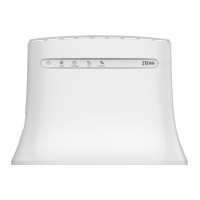
Details and visual representation of the ZTE MF63's physical parts and interfaces.

Understanding Device Indicators

Internet Connection Scenarios

3 G Mode Connection

How to connect to the internet using your device's SIM card.

AP Station Mode Connection

Connect your device to other WLAN devices via Wi-Fi for internet access.

Installing Your ZTE MF63 Device

SIM and Battery Installation

Step-by-step guide for inserting the SIM card, battery, and optional microSDHC card.

Connecting to Your ZTE MF63

Wi-Fi Connection Setup

Instructions on how to connect your client device to the ZTE MF63 using Wi-Fi.

USB Cable Connection Setup

Steps to connect your device to a PC using a USB cable for internet access.

Accessing the Internet with ZTE MF63

3 G Mode Internet Access

How to access the internet in Automatic or Manual mode via 3G.

AP Station Mode Internet Access

Steps to configure and connect to the Wi-Fi hotspot in AP Station mode.

Configuring Your PC for Wi-Fi

TCP;IP Settings Configuration

Guide to configure TCP/IP settings for Wi-Fi connection on your PC.

Safety, Warnings, and Usage Guidelines

Owner Safety and Device Handling

Precautions for owners regarding device usage, medical devices, and safe handling.

Battery Usage and Limited Warranty

Battery Care and Warranty Terms

Guidelines for battery care and understanding the product's limited warranty terms.

Limitation of Liability and Troubleshooting

Troubleshooting Common Issues

Solutions for common problems like connection issues, webGUI access, and password problems.

Zte MF63 Specifications

General IconGeneral
Wi-Fi Standard802.11b/g/n
Frequency Bands2.4 GHz
Maximum Wireless Speed150 Mbps
Max Download Speed21.6 Mbps
Max Upload Speed5.76 Mbps
SIM Card SlotYes
SecurityWEP, WPA, WPA2
BatteryYes
Operating TimeUp to 4 hours
Standby TimeUp to 100 hours
ModelMF63
Operating Temperature0°C to 40°C
Storage Temperature-20°C to 60°C

Related product manuals