EasyManua.ls Logo

Zte MF269 - User Manual

Zte MF269
24 pages
Print Icon
To Next Page IconTo Next Page
Loading...
MF269
Let’s go
Getting started with your device.
Question and Answer IconNeed help?

Do you have a question about the Zte MF269 and is the answer not in the manual?

Summary

Device Preparation

Connect to POE Adapter

Powering On the Device

Internet Access Methods

Device Settings Configuration

WPS Connection Function

Device Indicators and Interfaces

Device Indicators and Ports

Details on power, Wi-Fi, network status, WPS, USB, phone, LAN ports, and reset functionality.

Troubleshooting Guide

Internet Related Problems

Covers issues like inability to access the internet or connect to the configuration web page.

Password Issues

Addresses problems related to Wi-Fi and web page passwords, including recovery options.

Customer Support Information

Safety and Usage Warnings

Safety Precautions

Discusses electromagnetic interference, medical device interaction, and general safety advice.

Cleaning and Maintaining

Provides instructions on how to clean and maintain the device, including temperature and humidity ranges.

Product Warranty Information

Limitation of Liability

Limits ZTE's liability for indirect damages, lost profits, or downtime.

RF Exposure

States compliance with CE radiation exposure limits and installation guidelines.

Technical Specifications

CE Caution (Proper Use)

Advises on proper usage locations and avoiding antenna contact.

Appliance Disposal

EU Declaration of Conformity

Summary

Device Preparation

Connect to POE Adapter

Powering On the Device

Internet Access Methods

Device Settings Configuration

WPS Connection Function

Device Indicators and Interfaces

Device Indicators and Ports

Details on power, Wi-Fi, network status, WPS, USB, phone, LAN ports, and reset functionality.

Troubleshooting Guide

Internet Related Problems

Covers issues like inability to access the internet or connect to the configuration web page.

Password Issues

Addresses problems related to Wi-Fi and web page passwords, including recovery options.

Customer Support Information

Safety and Usage Warnings

Safety Precautions

Discusses electromagnetic interference, medical device interaction, and general safety advice.

Cleaning and Maintaining

Provides instructions on how to clean and maintain the device, including temperature and humidity ranges.

Product Warranty Information

Limitation of Liability

Limits ZTE's liability for indirect damages, lost profits, or downtime.

RF Exposure

States compliance with CE radiation exposure limits and installation guidelines.

Technical Specifications

CE Caution (Proper Use)

Advises on proper usage locations and avoiding antenna contact.

Appliance Disposal

EU Declaration of Conformity

Overview

This document serves as a user manual for the ZTE MF269 device, guiding users through its setup, operation, and maintenance. The device is designed to provide internet access, primarily for home use, and supports both Wi-Fi and wired connections.

Function Description

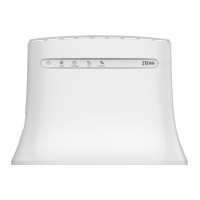
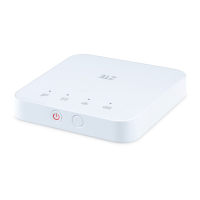
The ZTE MF269 is an internet access device that facilitates connectivity through both wireless (Wi-Fi) and wired (Ethernet) means. It functions by connecting to an installed Outdoor Unit (ODU) and a Power over Ethernet (POE) adapter, which powers the device and provides the initial network connection. Once powered on and connected, the device broadcasts a Wi-Fi signal, allowing mobile devices to connect wirelessly. It also features LAN ports for wired connections to computers or other network-enabled devices. The device includes a WPS (Wi-Fi Protected Setup) function for easy and secure wireless connections. It also supports shared storage via a USB port, though the specific functionality is not detailed. A reset hole is provided to restore the device to its factory settings.

Usage Features

Preparation and Connection: To begin using the MF269, users need a set of installed ODU and a network cable. The first step involves connecting the device to a POE adapter. This is done by linking the WAN/LAN1 port on the device to the LAN-IN network port on the POE adapter using a network cable. It's crucial to ensure the POE adapter is already connected to the ODU. Following this, the device is powered on by connecting the power adapter to the designated power port.

Internet Access: There are two primary ways to access the internet using the MF269:

  1. Using Wi-Fi: Users can find the default WLAN SSID (network name) and WLAN key (password) on the device's label. Mobile devices can then connect to this Wi-Fi network to access the internet.
  2. Using a Network Cable (RJ45): For wired connections, a computer can be connected to the LAN2 port on the device using a network cable to access the internet.

Device Settings: The device settings can be changed by logging into a configuration web page. The default Device Manager Website IP address and Website Password are found on the device's label. Users launch an internet browser, enter the IP address, input the Website Password, and click "Login." Once the web page is open, users can modify Wi-Fi SSID, password, and other settings.

WPS Function: The MF269 supports the WPS function for simplified client connections. To use this, users press the WPS button on the device to activate the function, then enable WPS on their client device, and follow system prompts to establish a connection.

Indicator Lights and Interfaces: The device features several indicator lights and interfaces to provide status information and connectivity options:

  • POWER (1): White on indicates normal power and external power supply operation. Off means power is off.
  • WIFI (2): White on indicates Wi-Fi is working normally. White blinking means WPS is activating. Off means Wi-Fi is off.
  • NETWORK (3): White solid indicates the device is connected to the Internet. Red solid means the device is not connected to the Internet. Off means the network cable is not connected.
  • WPS key (4): Used to activate the WPS function.
  • USB port (5): Supports shared storage.
  • PHONE port (6): This port is disabled and cannot be used.
  • LAN ports (7): WAN/LAN1 port connects to WAN via a network cable. LAN2 port connects to a PC via a network cable.
  • Power port (8): Connects to the power adapter.
  • Reset hole (9): Press and hold for about 3 seconds to restore factory settings.

Maintenance Features

Troubleshooting: The manual provides a troubleshooting section for common issues:

  • Cannot access the Internet: Check configuration settings, wait 1-2 minutes for device initialization, and check network indicators.
  • Cannot visit the configuration web page: Enter the correct IP address (found on the label), use only one network adapter in the PC, and do not use any proxy server.
  • Cannot establish Wi-Fi connection: Ensure Wi-Fi function is active, refresh the network list and select the correct SSID, check if the client can obtain an IP address automatically (TCP/IP properties), and type the correct Wi-Fi password.
  • Problems with passwords: For default Wi-Fi and web page passwords, check the device label. If passwords were changed and forgotten, the device needs to be restored to factory default settings using the reset hole.

Safety Precautions: To ensure safe operation and longevity of the device, several safety precautions are outlined:

  • Electromagnetic Interference: Keep the device away from TVs, radios, and other electronic equipment.
  • Medical Devices: The device may interfere with hearing aids and pacemakers; consult a physician or manufacturer.
  • Distance: Maintain at least 20 centimeters distance from the device.
  • Dangerous Environments: Do not use in areas with explosive gases or products (e.g., oil terminals, chemical factories).
  • Accessories: Use only original or ZTE-authorized accessories.
  • Dismantling: Do not attempt to dismantle the device as it has no user-serviceable parts.
  • Liquid/Moisture: Avoid contact with liquids or moisture; do not immerse the device.
  • Overheating: Do not place objects on top of the device.
  • Ventilation: Place the device in a well-ventilated environment.
  • Sunlight/Heat: Avoid direct sunlight or storage in hot areas, as high temperatures shorten device life.
  • Children: Do not allow children to play with the device or power adapter.
  • Indoor Use: The device is for indoor use only.
  • Accessibility: For pluggable equipment, the socket-outlet should be near and easily accessible.

Cleaning and Maintaining: Proper cleaning and maintenance are essential:

  • Cleaning: Use an antistatic cloth; avoid chemical or abrasive cleansers. Turn off the device before cleaning.
  • Temperature and Humidity: Operate within -20°C to +55°C and store within -40°C to +70°C. Maintain humidity between 5% and 95%.
  • Thunderstorms: Do not use during a thunderstorm; remove the power adapter from the wall socket.

Limited Warranty: The warranty does not cover defects or errors caused by reasonable abrasion, user failure to follow instructions, mishandling, unauthorized modifications, external events (power failures, fire, etc.), usage with third-party products causing defects, or any other cause beyond normal intended usage. Users have no right to reject or return the product or receive a refund under these situations. The warranty is the sole remedy for defective items.

RF Exposure: The equipment complies with CE radiation exposure limits for uncontrolled environments. It should be installed and operated with a minimum distance of 20 cm between the radiator and the user's body.

Disposal: The device features a crossed-out wheeled bin symbol, indicating it falls under European Directive 2012/19/EU. Electrical and electronic products should be disposed of separately from municipal waste via designated collection facilities to prevent negative environmental and health consequences. Recycling information can be obtained by emailing weee@zte.com.cn.

Zte MF269 Specifications

General IconGeneral
Device TypeWireless Router
ModelMF269
Maximum Download Speed150 Mbps
Maximum Upload Speed50 Mbps
Wi-Fi Standards802.11 b/g/n
Wi-Fi Frequency2.4 GHz
Ethernet Ports1
Phone Ports1
USB Ports1
Antenna Ports2
BatteryNo
Network StandardsLTE, GSM
SIM Card SlotYes

Related product manuals