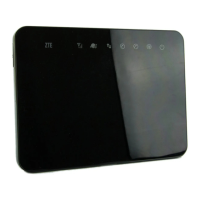
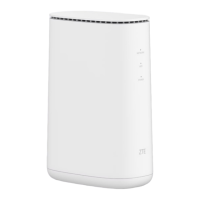
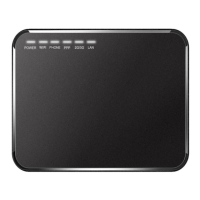
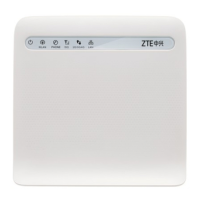
EasyManua.ls Logo

Zte MF29 - User Manual

Zte MF29
25 pages
Print Icon
To Next Page IconTo Next Page
Loading...
1
MF29
User Manual
MF29T User Manual V1.1-0703.indd 1 2012-7-3 16:46:28

Questions and Answers

  • C
    Christine AlexanderAug 15, 2025
    What to do if I cannot access the Internet at all with my Zte Wireless Router?
    • P
      Paige MorganAug 15, 2025
      If you cannot access the Internet at all, check your configuration settings. Allow 1-2 minutes for the router to initialize, and check your service indicator LEDs.
  • P
    Patricia HughesAug 19, 2025
    Why are my download or upload speeds so slow on my Zte Wireless Router?
    • R
      Raven BennettAug 19, 2025
      Slow download or upload speeds on your Zte Wireless Router can be due to signal strength. Check your signal strength and network type to improve your speed.
  • C
    Cody HodgesAug 22, 2025
    What to do if there is a prompt as soon as I lift the phone off the hook on my Zte MF29 Wireless Router?
    • R
      robertssheliaAug 22, 2025
      If you hear a prompt when you lift the phone, ensure your (U)SIM card is correctly inserted and the PIN number has been entered. If the PIN was entered incorrectly, you'll need to enter the PUK code when prompted.
  • K
    krystal01Aug 26, 2025
    What to do if I can’t make or receive a call when I am surfing on the net using my Zte MF29 Wireless Router?
    • Q
      qreidAug 26, 2025
      If you can't make or receive calls while using the internet, disconnect from the internet and wait 30 seconds to 1 minute before attempting to make a call.
  • L
    Lisa ClarkAug 28, 2025
    What to do if I hear a rapid engaged tone as soon as I lift the phone off the hook using Zte MF29 Wireless Router?
    • A
      Anthony MooreAug 28, 2025
      If you hear a rapid engaged tone, put the phone back on the hook and try again.
  • D
    Dr. Mary West PhDSep 1, 2025
    Why is the RSSI signal indicator always blinking or does not light on my Zte MF29?
    • H
      howardlisaSep 1, 2025
      If the RSSI signal indicator is blinking or not lit, it indicates poor reception. Try moving the router to another location near the window.
  • A
    aruizSep 4, 2025
    What to do if I have no dial tone on my Zte Wireless Router?
    • A
      Alicia HarrisSep 4, 2025
      If you have no dial tone and the network LED is blinking, it indicates poor RF reception. Wait 1-2 minutes after turning on the router, and then try changing the router's location.
  • V
    Valerie HernandezSep 8, 2025
    What to do if the line is noisy when I lift the phone off the hook on my Zte MF29 Wireless Router?
    • A
      Ashley SmithSep 8, 2025
      If the line is noisy or distorted, the cable or phone set might be faulty. Remove any electrical appliances that are too close to the phone or router.
  • M
    Michael ArnoldSep 12, 2025
    What to do if after dialing the last digit I hear nothing on my Zte Wireless Router?
    • R
      Ronald WongSep 12, 2025
      If you hear nothing after dialing the last digit, press the # key or wait 4-8 seconds to connect the call.

Summary

Welcome

General Information

Safety Precautions

Important safety guidelines for device usage and placement.

Cleaning and Maintaining

Limited Warranty

Limitation of Liability

Getting started

Appearance

Visual overview of the router's physical components.

LED Indicator

Explanation of the status lights on the router.

Interface Description

Installation

Inserting (U)SIM Card

Guide on how to insert the SIM card into the device.

Connecting to Phone

Connecting to Computer

Connecting to the Internet

Switching on Your Device

Voice

Making a Call

Instructions for making voice calls using the router.

Answering a Call

How to answer incoming voice calls on the router.

Internet Access

Preparation

Prerequisites for establishing an internet connection.

Establishing a connection between your device and the client

Steps to connect your device and client for internet access.

Accessing the WebGUI Configuration Page

Login

Procedure for logging into the router's web interface.

Accessing the Internet

Operation Mode

Setting the router's operational mode (e.g., 4G Gateway).

4 G Settings

Configuration options for 4G network connectivity.

Wireless Info

Network Select

APN Setting

WAN Connection

In Cable Broadband mode

WAN connection setup for cable broadband.

In 4 G Gateway mode

WAN connection setup for 4G gateway.

SMS Over IP

Sending new SMS

Steps to compose and send a new SMS message.

Operating Messages in native

Inbox

Outbox

Drafts

VoIP

Settings

Configuration parameters for VoIP functionality.

User Details

Details for VoIP user accounts and settings.

Advanced

Supplementary

Supplementary VoIP services like call forwarding.

Wi-Fi Settings

Station list

View connected wireless devices (stations).

Basic

Basic wireless network configuration parameters.

Wi-Fi On;Off

Network Name (SSID)

Broadcast Network Name (SSID)

AP Isolation

WDS Mode

HT physical Mode parameters

Advanced

Beacon Interval

Fragment Threshold

RTS Threshold

TX Power

Security

OPEN

Wireless security mode allowing open authentication.

SHARED

Wireless security mode using shared WEP keys.

WPA-PSK

WPA Pre-Shared Key security configuration.

WPA2-PSK

WPA2-PSK security configuration for enhanced safety.

Wireless MAC Filtering

WPS

Firewall

MAC;IP;Port Filtering

Filter network traffic based on MAC, IP, or port.

URL Filtering

Filter website access based on URLs.

Port Forwarding

Configure port forwarding for virtual servers.

DMZ

System Security

Status

View system status and information.

Management

Administrator settings and management options.

Restore

PIN Manage

Router

Upgrade Firmware

Usage of WPS

U-Disk Master

Logout

Troubleshooting

Voice Related Problems

Solutions for common voice call issues.

Internet Related Problems

Solutions for internet connectivity issues.

Others

How to get help

Technical Parameters

Network & Frequency Band

Specifications for LTE and UMTS frequency bands.

Power Adapter

Details of the router's power adapter specifications.

Data Service

Specifications for HSDPA and HSUPA data speeds.

HSUPA

LTE TDD

Glossary

Zte MF29 Specifications

General IconGeneral
Max Download Speed150 Mbps
Max Upload Speed50 Mbps
Wi-Fi Frequency2.4 GHz
BatteryNo
LTE CategoryLTE Cat 4
LTE BandsB1/B3/B7/B8/B20
Wi-Fi StandardsIEEE 802.11b/g/n

Related product manuals