EasyManua.ls Logo

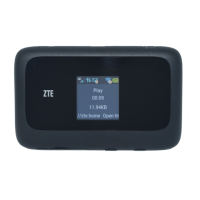
Zte MF91 - User Manual

Zte MF91
44 pages
Print Icon
To Next Page IconTo Next Page
Loading...
Confidential and Proprietary Information of ZTE CORPORATION 1
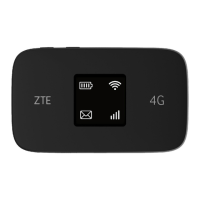
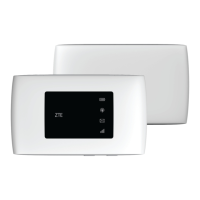
ZTE MF91
4G Mobile Hotspot
User Manual
ZTE CORPORATION
NO. 55, Hi-tech Road South, ShenZhen, P.R.China
Postcode: 518057
Tel: (86) 755 26779999
URL: http://www.zte.com.cn
E-mail: mobile@zte.com.cn

Questions and Answers

  • K
    kennethmartinAug 2, 2025
    Why can't my device access the internet when connected to the Zte Wireless Router?
    • S
      Stephanie RuizAug 3, 2025
      If your device can't access the internet when connected to the Zte Wireless Router, ensure your SIM card is working correctly. Also, try moving to a location with a better signal. Verify your WAN connection mode settings. If problems persist, contact your service provider to confirm your APN settings.
  • M
    Melinda WoodAug 8, 2025
    What to do if I can't establish a Wi-Fi connection between my device and Zte MF91?
    • A
      Alice SmithAug 9, 2025
      If you're having trouble establishing a Wi-Fi connection, first ensure that the Wi-Fi function is enabled. You can enable or disable Wi-Fi by pressing the WPS button. Next, refresh the Wi-Fi network list and select the correct SSID. Check the IP address settings to ensure your client obtains an IP address automatically in the Internet protocol (TCP/IP) properties. Finally, make sure you're typing the correct network key (Wi-Fi password).
  • R
    Rodney LongAug 14, 2025
    How to access the webGUI configuration page of my Zte MF91?
    • J
      Jennifer Madden DDSAug 14, 2025
      To access the webGUI configuration page, make sure you're entering the correct address, which is either http://192.168.0.1 or http://4glte.home. Ensure that only one network adapter is active on your PC and that you are not using any proxy server.
  • K
    Kathryn BruceAug 20, 2025
    What is the default password for Zte MF91 Wireless Router?
    • D
      David GibsonAug 20, 2025
      For the Wi-Fi connection password, check the label on the battery compartment of your device. The default password for the webGUI configuration page is 'password'. If you've changed the webGUI password and forgotten it, you'll need to restore the device to its factory default settings.
  • J
    Jacqueline AndersonAug 26, 2025
    How to fix USB connection issues between my device and PC with Zte MF91?
    • O
      ogutierrezAug 27, 2025
      To fix USB connection problems, first install the necessary software by running the installation program located in My Computer > 4G Pocket Wi-Fi. If the device driver is abnormal, uninstall the software from your PC and then reinstall it.

Summary

Getting Started

Hardware Installation

Guides the user through inserting SIM, battery, and microSD cards.

Working Mode

Operation and Function

Establish a connection between your device and the client

Outlines steps to connect the device to a client via USB or Wi-Fi.

Access the WebGUI Configuration Page

Explains how to access and use the device's web-based configuration interface.

Settings

Provides access to various device configurations like Quick Setup, DHCP, and Wi-Fi.

Usage of WPS

Warning and Notice

Troubleshooting

Technical Parameters

Zte MF91 Specifications

General IconGeneral
ModelMF91
Wi-Fi Standard802.11 b/g/n
Wi-Fi Frequency2.4 GHz
Maximum Wi-Fi Speed150 Mbps
Max. Wi-Fi connections10
Battery Capacity2000 mAh
SIM Card TypeMicro SIM
Device TypeMobile Wi-Fi Router
Network StandardsLTE
Maximum Data Rate50 Mbps
LTE CategoryCategory 4

Related product manuals