EasyManua.ls Logo

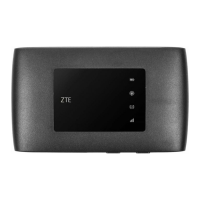
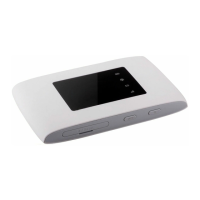
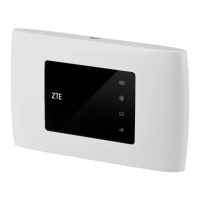
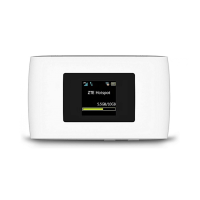
Zte MF920U - User Manual

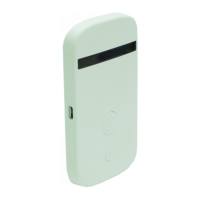
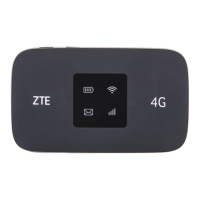
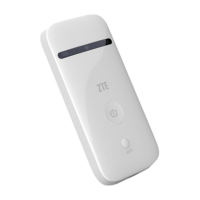
Zte MF920U
32 pages
Print Icon
To Next Page IconTo Next Page
Loading...
1
MF920U
Quick Start Guide

Other manuals for Zte MF920U

Questions and Answers

  • S
    shanesantosJul 27, 2025
    How to establish Wi-Fi connection between device and client on Zte MF920U Network Router?
    • M
      Michelle LambertJul 27, 2025
      To establish a Wi-Fi connection between your device and a client on your Zte Network Router: * Ensure that the Wi-Fi function is enabled. * Refresh the network list and select the correct SSID. * Check the IP address, and ensure that your client can automatically obtain an IP address. * Enter the correct network key (Wi-Fi password) when you connect the client to your device.
  • O
    orodriguezAug 1, 2025
    What to do if the client connected to Zte Wireless Router cannot access the Internet?
    • V
      victoriapatelAug 1, 2025
      If your client, connected to the Zte Wireless Router, can't access the internet, first verify that your micro-SIM card is active. If it is, try moving to a location with a stronger signal. You may also need to check your WAN connection mode settings or contact your service provider to confirm your APN settings.
  • D
    Diane CunninghamAug 5, 2025
    Why the connection between my device and a client through Wi-Fi cannot be established on Zte Wireless Router?
    • T
      Tracy MilesAug 5, 2025
      If you can't establish a Wi-Fi connection between your device and a client using your Zte Wireless Router, make sure the Wi-Fi function is enabled. Refresh the network list and select the correct SSID. Check that your client is set to automatically obtain an IP address, and that you're using the correct Wi-Fi password.
  • T
    Taylor CookAug 9, 2025
    How to fix the connection between my device and a PC through a USB cable on Zte Wireless Router?
    • C
      Carlos RobersonAug 9, 2025
      If a USB connection between your device and PC isn't working with your Zte Wireless Router, first install the software by running the installation program located in My Computer > ZTEMODEM. If the device driver is faulty, reinstall the software, remembering to uninstall it first.
  • S
    Sherry HillAug 13, 2025
    What to do if the client connected to Zte MF920U cannot access the Internet?
    • R
      Ronnie HubbardAug 13, 2025
      If a client connected to your Zte Network Router can't access the internet, make sure your micro-SIM card is working properly. Try moving to a location with a stronger signal. Also, verify the settings for the WAN connection mode. If problems persist, contact your service provider to confirm your APN settings.
  • B
    Bryce RyanAug 18, 2025
    How to access the 4G Mobile Hotspot configuration page on Zte Network Router?
    • M
      Mrs. Kara FrancoAug 18, 2025
      If you're having trouble accessing the 4G Mobile Hotspot configuration page on your Zte Network Router, first, make sure you're entering the correct address: the default address is http://192.168.0.1 or http://ufi.ztedevice.com. Also, ensure that you are using only one network adapter in your PC and that you are not using any proxy server.
  • A
    Andrew BarnesAug 21, 2025
    How to establish a USB connection between my device and PC with Zte MF920U?
    • V
      Victor Bush MDAug 21, 2025
      To establish a USB connection between your device and a PC: install the software by running the installation program located in My Computer > ZTEMODEM. If the driver is not working correctly, reinstall the software, remembering to uninstall it first.

Summary

Quick Start Guide

Installing Your Device

Installing the micro-SIM Card

Step-by-step guide for opening the slot, inserting the SIM card, and closing the cover.

Connecting to Your Device

Using Wi-Fi

Instructions on how to connect a client device to the device via Wi-Fi.

Logging in to the 4 G Mobile Hotspot Configuration Page

Changing the Wi-Fi SSID or Password

Accessing the Internet

Configuring Your PC

Warning and Notice

Battery Safety

Troubleshooting

Connection Issues

Solutions for problems establishing a PC or client connection via USB or Wi-Fi.

Zte MF920U Specifications

General IconGeneral
Ethernet WANNo
Device typeCellular network router
Product colorWhite
Built-in displayYes
Wi-Fi frequency2.4 GHz
Data networkLTE
USB port typeMicro-USB
Battery capacity2000 mAh
Power source typeBattery
Power consumption (typical)4 W
Weight and Dimensions IconWeight and Dimensions
Depth14.38 mm
Width105.6 mm
Height63.8 mm
Weight102 g

Related product manuals