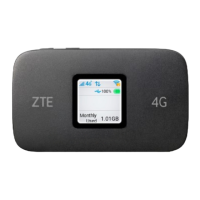
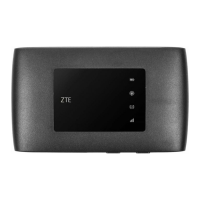
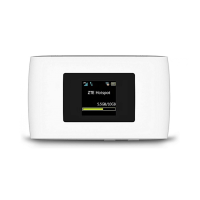
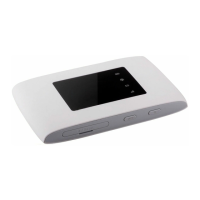
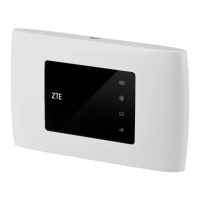
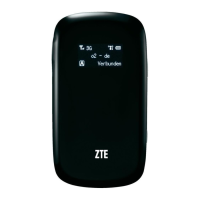
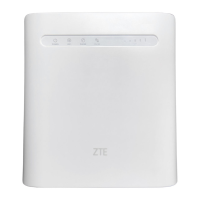
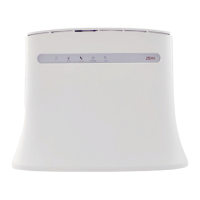
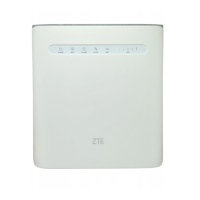
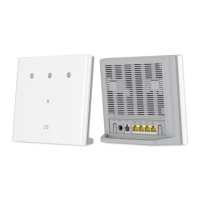
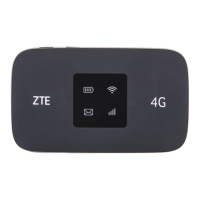
This document serves as a Quick Start Guide for the MF971R device, providing essential information for its setup, operation, and maintenance. The MF971R is a 4G Mobile Hotspot designed to allow multiple client devices to access the internet simultaneously via Wi-Fi or a USB cable connection.
Function Description
The MF971R functions primarily as a portable internet access point. It utilizes a micro-SIM card to connect to 2G, 3G, and 4G LTE mobile networks, enabling internet access for connected client devices. The device supports both Wi-Fi and USB cable connections, offering flexibility in how users can access the internet. It features a Power key for turning the device on/off and restarting, a WPS key for quick Wi-Fi Protected Setup, and various indicator lights to provide status updates on battery, Wi-Fi, SMS, and network connectivity.
Usage Features
Powering On/Off and Restarting:
To power on or off the device, press and hold the Power key for approximately 1.5 seconds. For a device restart, press and hold the Power key for about 8 seconds.
WPS Functionality:
The WPS key allows for easy and secure connection of Wi-Fi-enabled devices. Press and hold the WPS key for 1.5 seconds to activate the WPS function, simplifying the pairing process with compatible client devices.
Indicator Lights:
The device incorporates several indicator lights to keep users informed about its status:
- Battery Indicator: Displays red solid/blinking for low battery (requiring charge), green blinking for charging, green solid for middle or high battery level, and light off when powered off or not charging.
- Wi-Fi Indicator: Shows blue solid when Wi-Fi is active, blue blinking during WPS activation, and light off when Wi-Fi is off.
- SMS Indicator: Displays blue solid for unread messages, and blue blinking for new messages or when message storage is full.
- Network Indicator: Provides status on network connectivity. Light off indicates no unread/new messages. Red indicates an error status, such as not being registered to the mobile network, no micro-SIM card inserted, or no network service. Green solid signifies registration to 2G/3G mobile networks, while green blinking means connected to 2G/3G and data is being transferred. Blue solid indicates registration to the 4G LTE network, and blue blinking means connected to 4G LTE and data is being transferred.
Micro-SIM Card Installation:
The device requires a micro-SIM card for mobile network access. To install, open the micro-SIM card slot cover, insert the micro-SIM card into the slot, and then close the cover. It is crucial to use a standard micro-SIM card to prevent damage to the device.
Connecting to the Device:
Users can connect to the MF971R via Wi-Fi or a USB cable.
- Using Wi-Fi: Power on the device, ensure Wi-Fi is enabled on your client device, search for available wireless networks, select the device's Wi-Fi name (SSID), enter the Wi-Fi password (found on the device label), and wait for a successful connection.
- Using a USB Cable: Connect your computer to the device using a USB cable. Power on the device, and the operating system will automatically detect and install the necessary software. Wait for the computer to connect successfully.
Accessing the Internet:
Once a client device is connected, internet access can be established in either Automatic or Manual mode. In Automatic mode, the device connects to the internet automatically. In Manual mode, users need to log into the 4G Mobile Hotspot configuration page, navigate to network Settings > Connection Mode > Manual, and click Apply.
4G Mobile Hotspot Configuration Page:
To manage device settings, users can access the configuration page by launching an internet browser and entering http://192.168.0.1 or http://ufi.ztedevice.com in the address bar. The default password for logging in is found on the device label.
Changing Wi-Fi SSID and Password:
From the configuration page, users can change the Wi-Fi Network Name (SSID) and Password by navigating to Wi-Fi Settings, modifying the desired fields in the Main SSID area, and clicking Apply.
PC Configuration for Wi-Fi Connection (Windows):
For Windows users, configuring the Internet Protocol involves right-clicking Network, selecting Properties, then Change adapter settings. Right-click Wireless Network Connection, select Properties, then Internet Protocol Version 4 (TCP/IPv4), and click Properties. Finally, select "Obtain an IP address automatically" and "Obtain DNS server address automatically," then click OK.
Maintenance Features
General Handling and Environment:
- Avoid touching metallic parts when the device is operating to prevent burns.
- Use only original or authorized accessories to maintain device performance and comply with regulations.
- Do not use the device near or inside metallic constructions or establishments that emit electromagnetic waves, as this can affect signal reception.
- The device is not waterproof; keep it dry and store it in a cool, shady place.
- Avoid using the device immediately after sudden temperature changes to prevent dew formation. Wait until it dries.
- Handle the device carefully; do not drop, bend, or strike it to prevent damage.
- Only qualified personnel should dismantle or repair the device.
- Recommended humidity for operation is between 5% and 95%.
- Avoid using the device in enclosed environments or areas with poor heat dissipation to prevent overheating and automatic shutdown. If this occurs, cool the device in a well-ventilated place before resuming use.
- Keep the device out of reach of small children to prevent injury.
Battery Safety and Charging:
- The battery is not removable by the user; removal may cause fire or explosion.
- Using unapproved or incompatible batteries, chargers, or power adapters can damage the device, shorten its lifespan, or cause fire/explosion.
- Recommended operating temperatures are 0 °C to 35 °C, and storage temperatures are -20 °C to +45 °C. Extreme temperatures can damage the device and battery.
- The built-in rechargeable battery should only be changed or replaced by ZTE or an authorized service provider.
- Do not place the device or battery near heating equipment (microwave ovens, stoves, radiators) or in direct sunlight, as this can cause overheating, explosion, or fire.
- Do not disassemble, squeeze, or puncture the device to avoid explosion or fire.
- Do not throw the device into a fire.
- Disconnect the charger once the battery is fully charged to prevent overcharging, which can shorten battery life.
- For long-term storage, charge the battery to about half capacity and store it in a cool, dry place.
- If the battery shows signs of swelling or leakage, discontinue use immediately and contact ZTE or an authorized service provider for replacement.
- For pluggable equipment, ensure the socket-outlet is installed near the equipment and is easily accessible.
Troubleshooting:
The guide provides basic troubleshooting steps for common issues:
- Wi-Fi connection issues: Ensure Wi-Fi is enabled, refresh the network list and select the correct SSID, check IP address settings for automatic acquisition, and enter the correct Wi-Fi password.
- Client cannot access the Internet: Verify micro-SIM card availability, change location for better signal, check WAN connection mode settings, contact service provider for APN settings.
- Cannot visit 4G Mobile Hotspot configuration page: Enter the correct address (
http://192.168.0.1 or http://ufi.ztedevice.com), use only one network adapter on your PC, and do not use a proxy server.
Getting More Help:
For further assistance, users can send an email to mobile@zte.com.cn or visit www.ztedevices.com.


 To Next Page

 General