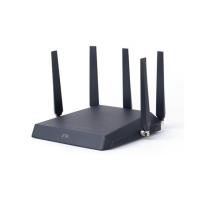
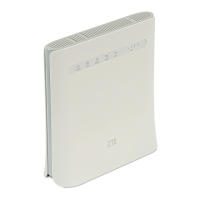
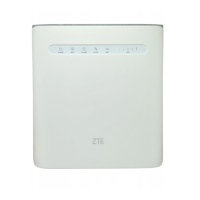
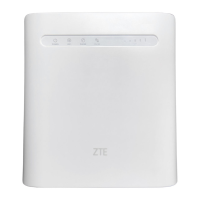
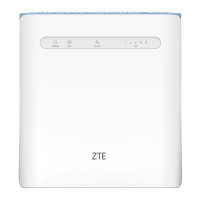
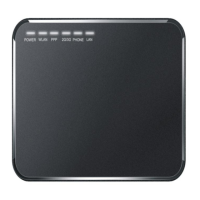
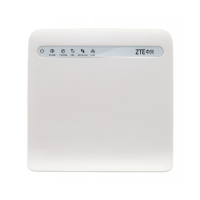
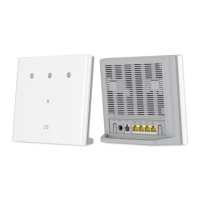
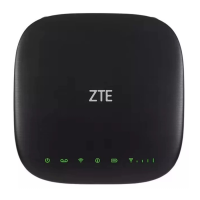
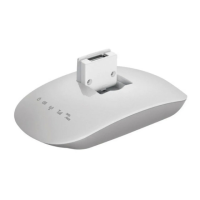
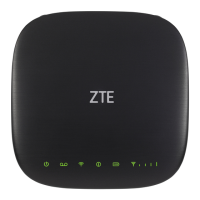
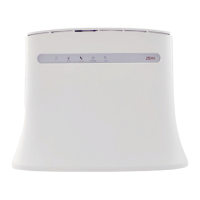
This document serves as a getting started guide for the MF283+ device, outlining its functions, usage, and basic troubleshooting.
The MF283+ is a multi-functional device designed to provide internet connectivity and voice services. It supports both 3G and 4G mobile networks for internet access and can also be connected via an Ethernet cable. The device offers Wi-Fi connectivity, allowing multiple clients to connect wirelessly. It also includes a phone port for connecting a traditional home phone, enabling voice calls over the mobile network.
Function Description
The MF283+ primarily functions as a wireless router (CPE - Customer Premises Equipment) that provides internet access through a (U)SIM card. It can operate in different modes:
- Wireless Broadband Mode: In this mode, the device uses the mobile network (3G/4G) to connect to the internet. This is ideal for situations where a fixed-line internet connection is not available or desired.
- Cable Broadband Mode: The device can also function as a traditional router, connecting to the internet via an Ethernet cable through its WAN port (LAN1/WAN). This mode supports various WAN connection types, including PPPoE, Static IP, and DHCP.
- Bridge Mode: In this mode, the device acts as a bridge, allowing clients to obtain an IP address directly from the WAN DHCP host, effectively passing through the internet connection.
In addition to internet connectivity, the MF283+ supports voice functions. Users can make and receive calls by connecting a standard telephone handset to the device's phone port. This feature relies on the mobile network signal.
The device also incorporates a WPS (Wi-Fi Protected Setup) function, simplifying the process of connecting Wi-Fi clients without manually entering network credentials.
Usage Features
Connecting Your Device:
To get started, users need to connect the device according to the chosen operation mode. For mobile network internet access or home phone usage, a (U)SIM card must be inserted. It's crucial to note that the device does not support Micro/Nano SIM cards or any other nonstandard SIM cards, nor does it support card holders, to prevent damage.
Indicators:
The MF283+ features several LED indicators to provide status information:
- POWER: Blue ON indicates power is on and the external power supply is working normally. OFF indicates power is off or the power supply is abnormal.
- WIFI: Blue ON indicates WLAN is working normally without data transmission. Blue Blinking indicates WLAN is working normally with data transmission. OFF indicates WLAN is abnormal or disabled.
- PHONE: OFF indicates the phone is not in use. Blue Blinking indicates the phone is ringing. Blue ON indicates a call is in progress.
- SIG: Blue ON indicates very good or good signal strength. Blue Blinking indicates weak signal strength. OFF indicates no signal.
- 3G/4G: Red indicates the device is on but not registered to the mobile network. Blue Blinking indicates connection to the LTE network with data transfer. Blue Solid indicates registration to the LTE network. Green Blinking indicates connection to the 3G network with data transfer. Green Solid indicates registration to the 3G network.
- LAN: Green ON indicates the LAN port is connected. Green Blinking indicates the LAN port is connected with data transmission. OFF indicates the network cable is not connected.
Configuring Your PC:
Before accessing the internet, users need to configure their PC's Internet Protocol (TCP/IP) settings. This typically involves right-clicking "My Network Places," selecting "Properties," then right-clicking the relevant connection (Wireless Network Connection for Wi-Fi or Local Area Connection for Ethernet), selecting "Properties," choosing "Internet Protocol (TCP/IP)," and finally selecting "Obtain an IP address automatically" and "Obtain DNS server address automatically."
Accessing the Internet:
- Log in to the 4G CPE Page: Launch a web browser and enter
http://192.168.0.1 in the address bar. The default password is admin.
- Change Operation Mode: On the 4G CPE page, view the current mode and click "Change" to select a desired operation mode (Bridge, Cable Broadband, or Wireless Broadband).
- Set Detail Parameters:
- For Bridge Mode: Connect the WAN to the LAN port via Ethernet and set clients to obtain IP addresses automatically.
- For Cable Broadband Mode: Connect the WAN to the LAN port (LAN1/WAN) via Ethernet. Navigate to "Settings > Network Settings" to change the WAN connection mode (PPPoE, Static, or DHCP) and set parameters provided by the service provider.
- For Wireless Broadband Mode: The default WAN Connection Mode is Automatic.
Voice Function:
- Making a Call: Pick up the handset, key in the number, and either press '#' or wait 4-8 seconds for automatic connection. If there's no SIG indication, the radio signal is unavailable, and the device's location may need adjustment.
- Answering a Call: Pick up the handset when the phone rings. If the phone has hands-free function, press the "Hands-free" button to answer and again to end the call.
WPS Function:
- Power on the device and enable Wi-Fi.
- Enable WPS in the 4G CPE page settings.
- Press the WPS button on the device.
- Enable WPS on the client device to respond.
- Follow system prompts to complete the connection.
Wireless Connection:
- Ensure WLAN is working normally by checking Wi-Fi settings on the 4G CPE page or the WIFI indicator.
- Use the client's Wi-Fi application to search for available wireless networks.
- Select the device's SSID (found on the device label) and click "Connect."
- Input the Wi-Fi password (found on the device label) and click "Connect."
- The client should connect successfully.
Maintenance Features
Cleaning and Maintaining:
- Use an antistatic cloth for cleaning; avoid chemical or abrasive cleansers.
- Turn off the router before cleaning.
- Operate the router within a temperature range of -10°C to +55°C and store it between -20°C and +60°C. Humidity should be 5%~95%.
- Avoid using the router during thunderstorms; remove the power pack from the wall socket.
- Do not remove the (U)SIM card unnecessarily to prevent loss or static damage.
Safety Precautions:
- Keep the router away from electronic devices like TVs and radios to avoid electromagnetic interference.
- The router may interfere with medical devices (hearing aids, pacemakers); consult a physician or manufacturer before use.
- Maintain a distance of at least 20 centimeters from the router.
- Do not use the router in dangerous environments with explosive gases or products.
- Use only original or ZTE-authorized accessories to avoid performance issues, damage, or danger.
- Do not dismantle the router; it has no user-serviceable parts.
- Prevent contact with liquid or moisture; do not immerse the router.
- Do not place objects on top of the router to prevent overheating.
- Ensure the device is placed in a well-ventilated environment.
- Avoid direct sunlight or hot areas to prolong the life of electronic components.
- Keep children away from the router and charger.
- Keep the phone cable length under 10 meters.
- The router is for indoor use only; do not use it outside or connect external telephone extensions, as this can lead to lightning damage.
Troubleshooting:
The manual provides solutions for common issues:
- No dial tone: Wait 1-2 minutes after power-on. If SIG LED blinks, reception is poor; change router location.
- Phone alert/announcement: Ensure (U)SIM card is correctly inserted and PIN is entered. If PIN is incorrect, PUK code may be needed.
- Noisy/distorted line: Remove nearby electrical appliances. Check if the cable or phone set is faulty.
- Rapid engaged tone: Hang up and try again. If connected to 2G (GSM) internet, disconnect first.
- No connection after dialing: Press '#' or wait 4-8 seconds.
- Cannot access Internet: Check configuration settings, wait 1-2 minutes for router initialization, and check service indicators.
- Slow download/upload speed: Speed depends on signal strength; check signal strength and network type.
- Cannot visit 4G CPE page: Enter correct address (http://192.168.0.1), use only one network adapter, and do not use a proxy server.
- Cannot establish Wi-Fi connection: Ensure Wi-Fi is active, refresh network list, select correct SSID, check IP address settings (obtain automatically), and enter correct network key (Wi-Fi password).
- 3G/4G signal indicator blinking/off: Indicates poor reception; move router closer to a window.
- Password issues: Wi-Fi password is on the device label. Default 4G CPE page password is 'admin'. If changed and forgotten, restore factory default settings.


 To Next Page
 General