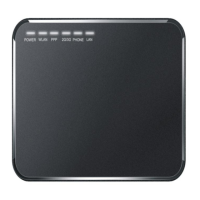
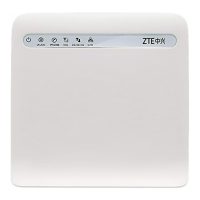
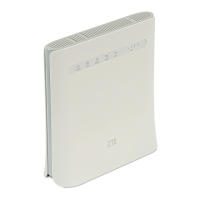
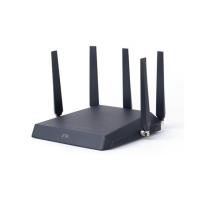
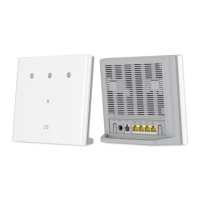
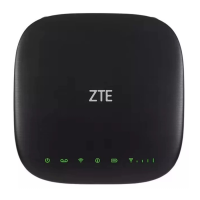
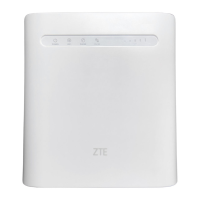
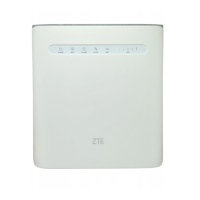
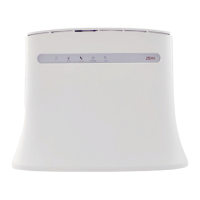
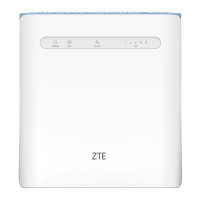
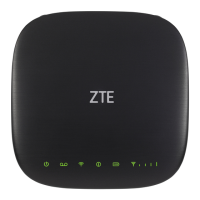
The MF253 is a versatile device designed to provide internet connectivity and voice communication capabilities. It serves as a 4G CPE (Customer Premises Equipment), allowing users to access the internet via mobile networks or traditional broadband connections, and also supports the use of a home phone.
Function Description
The primary function of the MF253 is to act as a gateway for internet access. It supports various WAN connection modes, including PPPoE, Static IP, DHCP, and Automatic, catering to different network setups. When configured for wireless broadband, it enables Wi-Fi connectivity for multiple client devices. For wired connections, it offers LAN ports to connect PCs or other network devices.
Beyond internet access, the MF253 integrates voice functionality, allowing users to make and receive calls using a standard home phone connected to the device, provided a (U)SIM card is inserted and the network supports phone services. This dual capability makes it a comprehensive solution for both data and voice communication in a home or small office environment.
The device also includes a USB port, transforming it into a storage server. By plugging in a USB storage device, users can manage and access files across their network, adding a convenient data-sharing feature.
Usage Features
Setting up the MF253 involves a straightforward process. Users first insert a (U)SIM card if they intend to use mobile network internet or the home phone function. It's crucial to note that the device does not support Micro/Nano SIM cards or non-standard SIM card holders to prevent damage. Once the SIM is in place, physical connections are made, such as connecting the device to a power source and optionally a home phone or PC.
The device's status is indicated by several LEDs:
- POWER: A blue light indicates the device is on and receiving normal external power. If off, power is either off or abnormal.
- WIFI: A blue light signifies normal WLAN operation without data transmission, while a blinking blue light indicates data transmission. If off, WLAN is abnormal or disabled.
- SIG: This indicator shows signal strength. Blue ON or blinking blue indicates good or weak signal, respectively. Red means no signal, and OFF means the device is on but not registered to the mobile network.
- 3G/4G: Blue blinking or solid blue indicates connection to the LTE network with or without data transfer, respectively. Green blinking or solid green indicates connection to the 3G network with or without data transfer.
- LAN: Green ON means the LAN port is connected, and green blinking indicates data transmission. If off, the network cable is not connected.
- PHONE: An OFF light means the phone is not in use. Blue blinking indicates an incoming call, and blue ON means a call is in progress.
Accessing the internet typically involves logging into the 4G CPE web interface (http://192.168.0.1) using the default password "admin." From there, users can select their desired operation mode (Bridge, Cable Broadband, or Wireless Broadband) and configure specific parameters. For Cable Broadband, options like PPPoE, Static, or DHCP are available, requiring credentials or settings from the service provider. For Wireless Broadband, the default WAN connection mode is Automatic.
The device supports WPS (Wi-Fi Protected Setup) for easy and secure Wi-Fi client connection. By pressing the WPS button on the device and enabling WPS on the client, a secure connection can be established without manually entering long passwords.
Voice calls are made by picking up the handset, dialing the number, and either pressing '#' or waiting a few seconds for automatic connection. Answering a call is as simple as picking up the handset or using the hands-free button if available.
Maintenance Features
The MF253 is designed for ease of maintenance and troubleshooting. A "Reset" button allows users to restore the device to factory default configurations by pressing it for 5 seconds, which is useful for resolving complex configuration issues or forgetting passwords.
For PC configuration, the manual provides detailed steps for Windows XP, guiding users to set their Internet Protocol (TCP/IP) properties to obtain IP and DNS server addresses automatically, ensuring seamless network integration.
Troubleshooting guidance is provided for common issues:
- No Dial Tone: Users are advised to wait 1-2 minutes after turning on the router and check the SIG LED for good RF reception.
- Noisy/Distorted Line: Suggests removing electrical appliances close to the device or checking the cable/phone set.
- Cannot Access Internet: Recommends checking configuration settings, waiting for initialization, and verifying service indicators.
- Slow Download/Upload Speed: Points to signal strength as a factor and advises checking signal strength and network type.
- Cannot Visit 4G CPE Page: Instructs users to enter the correct address (http://192.168.0.1), use only one network adapter, and avoid proxy servers.
- Wi-Fi Connection Issues: Advises ensuring Wi-Fi is active, refreshing the network list, selecting the correct SSID, checking IP address settings, and typing the correct Wi-Fi password.
- 3G/4G Signal Indicator Blinking/Off: Indicates poor reception and suggests moving the router to a location near a window.
- Password Issues: Reminds users that the default 4G CPE page password is "admin" and that Wi-Fi passwords are on the device label. If a changed password is forgotten, a factory reset is recommended.
For physical care, the device should be cleaned with an antistatic cloth, avoiding chemical or abrasive cleansers. It's important to turn off the router before cleaning. The device should be operated and stored within specified temperature and humidity ranges. During thunderstorms, it's recommended to remove the mains power pack from the wall socket. Users are also advised against unnecessary removal of the (U)SIM card to prevent loss or damage from static electricity.
The manual also includes important safety precautions, such as keeping the device away from other electronic equipment to avoid electromagnetic interference, maintaining a distance from medical devices, and avoiding dangerous environments. It emphasizes using original or authorized accessories and not attempting to dismantle the router. The device should be kept dry, placed in a ventilated environment, and protected from direct sunlight or hot areas. It is intended for indoor use only, and telephone extensions running outside the building should not be connected to prevent lightning damage.


 To Next Page
 General