EasyManua.ls Logo

Zte MF29A - User Manual

Zte MF29A
52 pages
Print Icon
To Next Page IconTo Next Page
Loading...
1
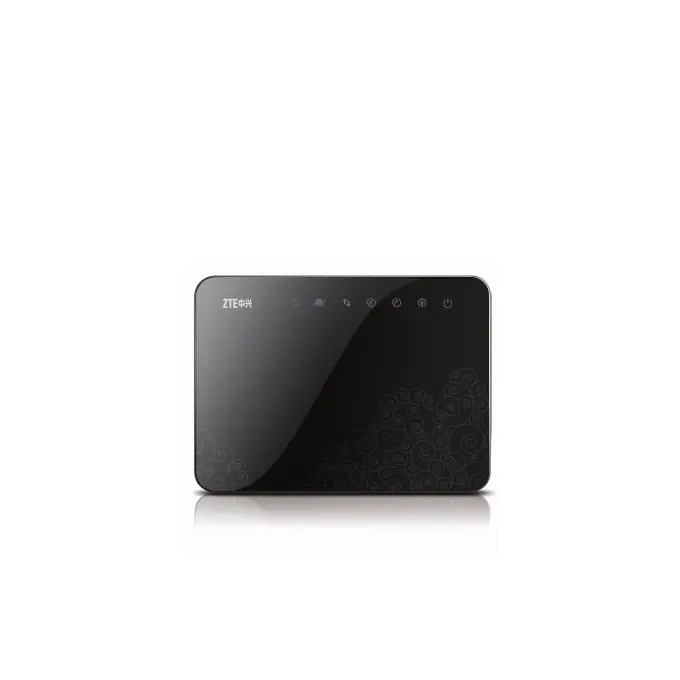
ZTE MF29A
Wireless Router
User Guide

Other manuals for Zte MF29A

Questions and Answers

  • A
    Anthony WhiteheadAug 20, 2025
    What to do if my Zte Network Router can not access the Internet at all?
    • T
      Taylor WilsonAug 20, 2025
      If your Zte Network Router can't access the internet, check your configuration settings and wait 1 to 2 minutes for the router to initialize. Also, check your service indicator LEDs.
  • J
    Jamie JohnsonAug 22, 2025
    What is the default password for Zte MF29A Network Router?
    • C
      Christine AguilarAug 22, 2025
      For the Wi-Fi connection password on your Zte Network Router, check the label on the device. The default password for the webGUI configuration page is 'admin'. If you have changed the password and forgot it, you need to restore the device to its factory default settings.
  • C
    Christopher JonesAug 25, 2025
    Why are the download or upload speeds very slow on my Zte MF29A Network Router?
    • J
      Jessica HarrisonAug 25, 2025
      If the download or upload speeds on your Zte Network Router are very slow, it might be due to the signal strength. Check your signal strength and network type.
  • G
    griffithchristopherAug 27, 2025
    Why can't I make or receive calls while surfing the Internet on my Zte Network Router?
    • M
      Michael WhiteAug 27, 2025
      If you cannot make or receive a call when surfing the Internet with your Zte Network Router, and you are connected using the 2G (GSM) network, you cannot surf the net and make a phone call simultaneously. Disconnect the internet and wait 30 seconds before making a call.
  • R
    rgalvanAug 28, 2025
    What to do if RSSI signal indicator is always blinking on Zte MF29A Network Router?
    • M
      michael55Aug 28, 2025
      If the RSSI signal indicator on your Zte Network Router is always blinking or does not light, this indicates poor reception. Try moving the router to another location near the window. Also, check the ANT button to see if you have pressed the ANT on but without connecting the external antenna.
  • R
    Rebecca WallsAug 30, 2025
    How to fix no dial tone on Zte Network Router?
    • D
      Denise StoutAug 30, 2025
      If there is no dial tone on your Zte Network Router, wait 1 to 2 minutes after turning on the router. If the 3G LED light is blinking, it indicates poor RF reception; try changing the router's location.
  • S
    staceymooreAug 31, 2025
    Why is the line noisy when I lift the phone off the hook on my Zte Network Router?
    • M
      Michael MaddenSep 1, 2025
      If the line is noisy or distorted when you lift the phone off the hook with your Zte Network Router, remove any electrical appliance that is too close to the phone or router. The cable or phone set might also be faulty.
  • W
    watsonvictoriaSep 2, 2025
    What to do if there is a prompt as soon as I lift the phone off the hook on my Zte MF29A?
    • A
      Andrew BrownSep 2, 2025
      If you hear a prompt, phone alert, or announcement as soon as you lift the phone off the hook on your Zte Network Router, ensure your (U)SIM card is inserted correctly and the PIN number has been entered. If the PIN number has been entered incorrectly, enter the PUK code when prompted.
  • K
    Kenneth WilliamsSep 4, 2025
    Why do I hear a rapid engaged tone as soon as I lift the phone off the hook on my Zte MF29A?
    • S
      Sally MurphySep 4, 2025
      If you hear a rapid engaged tone when you lift the phone on your Zte Network Router, put the phone back on the hook and try again. If you are connected to the Internet using the 2G (GSM) network, disconnect this first.
  • M
    meyermeganSep 6, 2025
    What to do if after dialing the last digit I hear nothing on Zte MF29A Network Router?
    • M
      Mary GibsonSep 6, 2025
      If you hear nothing or silence after dialing the last digit on your Zte Network Router, press the # key or wait 4-8 seconds to connect the call.

Summary

LEGAL INFORMATION

Getting Started

Appearance

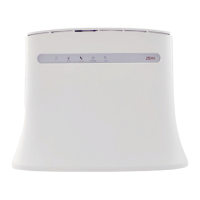
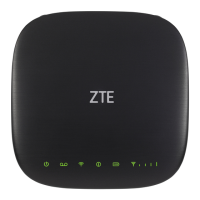
Visual description of the router's front and back panels, highlighting ports and indicators.

Indicators

Interface Description

Connecting Your Device

Switching on Your Device

Steps to power on the router and initiate the connection process.

Power Supply

About (U)SIM Card

Internet Access

Configuring Your PC

Detailed instructions for setting up a PC to connect to the router's internet service.

Wireless Connection (Optional)

Accessing the Internet

Operation Mode

Configure the WAN Connection

Steps to set up the Wide Area Network connection based on the chosen operation mode.

For 3 G Gateway

Voice

Making a Call

Procedures for initiating voice calls through the router.

Answering a Call

Instructions for receiving and managing incoming voice calls.

WebGUI Configuration

Accessing the Configuration Page

Guide to launching the web browser and entering the router's IP address.

Login

Process for authenticating and gaining access to the router's configuration settings.

SMS

Sending SMS

Reading SMS

Settings

3 G Settings

Band Select

How to choose specific network bands for optimal 3G signal reception.

Wi-Fi Settings

Station list

Displays a list of detected wireless network stations.

Basic

Advanced

Security

WPS

Firewall

MAC;IP;Port Filtering

Configuring rules to filter network traffic based on MAC addresses, IP addresses, or port numbers.

URL Filtering

Port Forwarding

DMZ

System Security

Advanced Management

Restore

PIN Manage

Router

Upgrade

Time & Date

Configuration

DHCP List

Status

Basic Status

Displays essential 3G network and system information.

Network Status

Shows detailed information about WAN and WLAN network connections.

Warning and Notice

Safety Precautions

Crucial safety guidelines to prevent hazards and ensure proper operation.

Cleaning and Maintaining

Limited Warranty

Limitation of Liability

Radio Frequency (RF) Energy(Only for America)

FCC Compliance(Only for America)

Disposal of Your Old Appliance

Troubleshooting

Voice Related Problems

Troubleshooting steps for issues with voice calls and phone connectivity.

Internet Related Problems

Others

The RSSI signal indicator is always blinking or does not light.

Troubleshooting steps for poor signal reception indicated by the RSSI light.

About the password

Information and solutions for issues related to the router's login password.

Zte MF29A Specifications

General IconGeneral
Device Type4G LTE Router
Wi-Fi Frequency2.4 GHz
Wi-Fi Standards802.11 b/g/n
Max Download Speed150 Mbps
Max Upload Speed50 Mbps

Related product manuals