Need help?
Do you have a question about the Zte MF286C and is the answer not in the manual?
An overview to begin using your MF286C device.
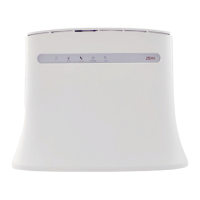
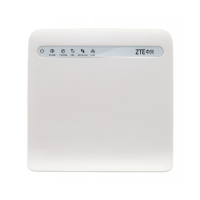
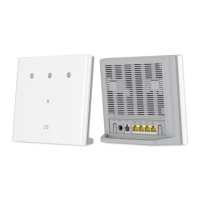
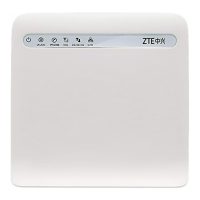
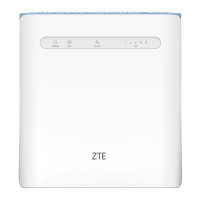
Shows the physical layout and ports of the device.
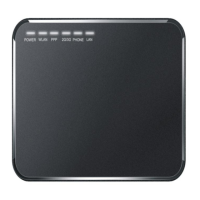
Explains the status of various LED indicators on the device.
Details device buttons and SIM card insertion procedure.
Instructions on how to connect the device.
Guides on setting up your PC's network protocol for the device.
Explains how to choose between different internet connection modes.
Solutions for issues with phone calls and audio.
Solutions for connectivity and speed issues.
Addresses common issues like password problems.
Important safety guidelines to follow while using the device.
Instructions on how to properly clean and maintain the device.
Details on radio frequency exposure limits and compliance.
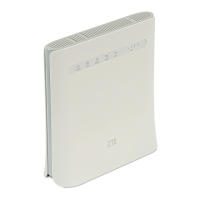
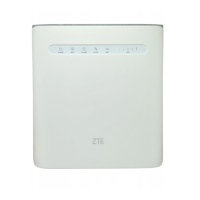
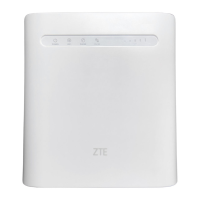
The MF286C is a versatile device designed to provide robust connectivity and communication features, serving as a central hub for internet access and telephone services. It is engineered to offer a seamless user experience, whether for home or small office environments, by integrating multiple functionalities into a single unit.
At its core, the MF286C functions as a wireless broadband router, enabling internet access through a (U)SIM card, which connects to 2G, 3G, or 4G mobile networks. This makes it ideal for locations where traditional wired broadband is unavailable or for users who require mobile flexibility. The device also supports a wired broadband mode, allowing connection via an Ethernet cable to a WAN/LAN1 port, providing an alternative for fixed-line internet access. This dual-mode capability ensures continuous connectivity, adapting to various network infrastructures.
Beyond internet provision, the MF286C integrates a telephone function, allowing users to make and receive calls using a connected handset. This feature leverages the mobile network connection, effectively turning the device into a fixed wireless terminal for voice communication. The device's indicators provide real-time status updates on power, Wi-Fi activity, phone status, and network signal strength, ensuring users are always informed about its operational state.
The Wi-Fi functionality supports both 2.4 GHz and 5.0 GHz bands, offering flexibility and potentially higher speeds for connected devices. It allows multiple clients to connect wirelessly, creating a local area network for sharing internet access. The device also incorporates WPS (Wi-Fi Protected Setup) for easy and secure connection of Wi-Fi clients, simplifying the setup process for less technically inclined users.
Setting up the MF286C involves a straightforward process. Users can choose between wireless broadband mode, which requires inserting a (U)SIM card, or cable broadband mode, which involves connecting an Ethernet cable to the WAN/LAN1 port. The device's default connection mode is automatic, simplifying initial configuration. For mobile network access, the (U)SIM card is inserted into a dedicated slot, with a clear indication for correct orientation. It is crucial to use a standard (U)SIM card, as micro-SIM, nano-SIM, or nonstandard cards are not supported and could damage the device.
Once powered on, the device initializes, and its LED indicators provide visual feedback on its status. The power indicator shows if the device is on and receiving external power. The Wi-Fi indicator blinks when data is being transmitted and remains solid when idle, or turns off if Wi-Fi is disabled or abnormal. The phone indicator shows if the phone is in use, ringing, or idle. The 3G/4G indicator displays network registration and data transfer status, with different colors and blinking patterns for 2G/3G and 4G networks. The SIG indicator provides a visual representation of signal strength, helping users position the device for optimal reception.
Accessing the device's web-based management interface is done through a web browser, typically by entering a default IP address. This interface allows users to configure various settings, including Wi-Fi network names (SSID), security modes, passwords, and operation modes. The interface also provides options to manage connected clients and view network status. For PC configuration, users need to ensure their computer is set to obtain an IP address and DNS server address automatically, facilitating seamless connection to the device's network.
The telephone function is activated by connecting a handset to the device. Users can then dial numbers and press the '#' key or wait a few seconds for automatic dialing. The device's signal strength is critical for reliable phone service, and users are advised to ensure a strong SIG indication.
The WPS button on the device simplifies Wi-Fi connections. By pressing the WPS button on both the MF286C and a WPS-enabled client device, a secure connection can be established without manually entering passwords. This feature enhances user convenience, especially for connecting new devices to the network.
Troubleshooting common issues is supported through the device's design and documentation. For instance, if there's no dial tone, users are advised to wait for the device to fully power on or check the signal strength. Problems with internet access often require checking configuration settings, waiting for initialization, or verifying service indicators. Wi-Fi connection issues can be resolved by ensuring the Wi-Fi function is active, selecting the correct SSID, and entering the correct password. The device's label provides default passwords and SSIDs, which are essential for initial setup and troubleshooting. If passwords are forgotten, the device can be restored to factory default settings using the RESET button.
Maintaining the MF286C involves simple yet important practices to ensure its longevity and optimal performance. The device should be placed in a well-ventilated environment to prevent overheating, and it should not be covered. It is designed for indoor use only, and connecting telephone extensions that run outside the building should be avoided to prevent lightning damage.
Cleaning the device should be done with an antistatic cloth, and chemical or abrasive cleansers should be avoided to prevent damage to the plastic case. It is recommended to turn off the device before cleaning.
Environmental considerations are also important. The device is designed to operate within a specific temperature range (-20°C to +55°C for operation, -40°C to +70°C for storage) and humidity range (5% to 95%). Exposure to direct sunlight or hot areas should be avoided, as high temperatures can shorten the lifespan of electronic components.
During thunderstorms, it is advisable to remove the mains power pack from the wall socket to protect the device from electrical surges. Users should also avoid unnecessarily removing the (U)SIM card, as it can be easily lost or damaged by static electricity.
The device is designed with safety in mind, adhering to FCC regulations for electromagnetic interference. Users are advised to keep the device at least 20 centimeters away from medical devices like hearing aids and pacemakers to prevent interference. Only original or ZTE-authorized accessories should be used to avoid affecting device performance or causing damage. Users should not attempt to dismantle the device, as it contains no user-serviceable parts. Contact with liquids or moisture should be avoided, and the device should not be immersed in any liquid.
In case of issues, the RESET button allows users to restore factory default configurations by pressing and holding it for about 3 seconds. This can be a useful troubleshooting step for persistent software-related problems or forgotten passwords. The WPS button can also be used to wake the device up, in addition to its primary function of simplifying Wi-Fi connections.
Overall, the MF286C is a robust and user-friendly device that provides comprehensive connectivity solutions with a focus on ease of use, reliability, and essential maintenance guidelines to ensure a long and efficient operational life.
 General
| Category | Network Router |
|---|---|
| LTE Category | Cat 6 |
| Download Speed | 300 Mbps |
| Upload Speed | 50 Mbps |
| Wi-Fi | 802.11 a/b/g/n/ac |
| Wi-Fi Bands | 2.4 GHz & 5 GHz |
| External Antenna Ports | 2 x SMA |
| Power Supply | 12V / 1.5A |
| USB | 1 x USB 2.0 |
| Antennas | Internal |
| LTE Bands | B1/B3/B7/B8/B20/B38/B40 |
| Ethernet Ports | 4 |
| SIM Card Slot | Yes |
| Phone Ports | 2 x RJ11 |

 To Next Page