EasyManua.ls Logo

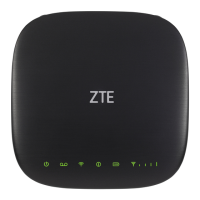
Zte MF279T - User Manual

Zte MF279T
36 pages
Print Icon
To Next Page IconTo Next Page
Loading...
1
User Guide
MF279T

Questions and Answers

  • T
    Tammy MclaughlinAug 19, 2025
    How to fix can't access the internet on Zte MF279T?
    • C
      Christopher RodriguezAug 19, 2025
      If you can't access the Internet using your Zte Network Router, ensure that the device is powered on and the Power light is solid green. For Wi-Fi connections, make sure your device is in the same area as your router and connected to the correct Wi-Fi network (e.g., ZTE MF279T/2.4GXXXX) using the correct password. If you're using an Ethernet connection, verify that the cable is securely plugged into both the router and your computer. Also, ensure the router is in an area with a sufficient network signal. If the Wi-Fi light is off or in sleep mode, restart the router, press the WPS button, or connect a charger to wake it up.
  • M
    Matthew SmithAug 21, 2025
    What to do if my Zte Network Router network does not appear in the wireless network list?
    • R
      Rachel SolisAug 21, 2025
      If your Zte Network Router network isn't showing up in the wireless network list, make sure the router is powered on. The power light should be solid green or blue if it's connected to a power outlet, or blinking green if it's running on battery. Try refreshing the network list on the device you're trying to connect. If that doesn't work, restart your router by turning it off and then back on again.
  • K
    Krista FullerAug 23, 2025
    How to access the MF279T Manager for Zte Network Router?
    • K
      kellycynthiaAug 25, 2025
      If you can't access the MF279T Manager, ensure you're trying to access it from a device connected to your Zte Network Router via Wi-Fi or Ethernet. Verify that you've entered the correct URL (http://telus.ztesmarthub or http://192.168.0.1) in your browser's address bar. Also, make sure you're using the correct login credentials, either "admin" or your custom login. If you've forgotten your custom login, you'll need to reset the device to its factory default settings by pressing and holding the RESET button with a ballpoint pen for five seconds, then log in using the default login "admin."
  • T
    Toni JamesAug 26, 2025
    Why can't I connect to my MF279T Home Base Zte Network Router?
    • A
      adkinsjamesAug 26, 2025
      If you're unable to connect to your Zte Network Router Home Base, first check that you're connecting to the correct Wi-Fi network name (SSID), such as ZTE MF279T/2.4GXXXX. If you're using an Ethernet connection, ensure the cables are securely attached. Also, verify that you've entered the correct Wi-Fi password, which can be found on the bottom of your device, or your customized password if you've changed it.
  • C
    claudiajohnstonAug 27, 2025
    What does a red signal strength indicator mean on my Zte Network Router?
    • B
      Brittany SpencerAug 28, 2025
      If you have a red signal strength indicator on your Zte Network Router, move the device to another area where the network signal is stronger, indicated by a Green or Blue Signal Strength light.
  • P
    Peter HallAug 30, 2025
    How to improve poor voice quality on Zte MF279T?
    • M
      martinnancyAug 30, 2025
      If you are experiencing poor voice quality with your Zte Network Router, use the phone cable included with the device. Ensure all connections are firmly in place. Move the router to an area with a strong network signal, indicated by a Blue or Green Signal Strength light. Increase the distance between the router and other electronic devices, including cordless base stations, Wi-Fi routers, and cell phones. Position the router near a window with a clear view of the sky, removing any obstructions to the wireless signal. Confirm that the home phone connected to the router is of good quality and in good working order. If the battery charge is low, connect the router to an AC power source to recharge.
  • J
    Jessica JonesSep 1, 2025
    Why my phone doesn't ring when a call comes in on Zte MF279T Network Router?
    • D
      diana74Sep 1, 2025
      If your phone doesn't ring when a call comes in on your Zte Network Router, and you recently transferred your landline number, ensure your router is not connected to your in-home phone wiring, as you will continue to receive calls on your previous service until the transfer is complete. Also, ensure your home phone is powered on and connected to the router. Finally, check if your router number is set to Call Forward; dial #21# to un-forward calls.
  • A
    Andrea JonesSep 3, 2025
    What to do if Blinking Red signal strength indicator on Zte MF279T Network Router?
    • J
      Jeffrey MurphySep 3, 2025
      If the signal strength indicator on your Zte Network Router is blinking red, it could be because the nano-SIM card is either missing or not installed correctly. To fix this, remove the bottom of the device and the battery. Locate the nano-SIM card slot and insert the card until it clicks and locks into place in the correct orientation. If the nano-SIM card is invalid or damaged, you'll need to take your router to your local AT&T store for a replacement.
  • P
    Pamela RodriguezSep 5, 2025
    Why do I hear an intermittent dial tone on Zte MF279T Network Router?
    • J
      Jordan HumphreySep 5, 2025
      If you hear an intermittent dial tone on your Zte Network Router, it means you have a new voicemail message waiting. Dial 1 from your home phone connected to the router to listen to your messages.
  • G
    Gerald SaundersSep 7, 2025
    How to fix no dial tone on Zte Network Router?
    • S
      Sandra HendersonSep 7, 2025
      If you are not getting a dial tone on your Zte Network Router, ensure that the device is receiving AC power and is not connected to an outlet controlled by a wall switch. Also, confirm that the router is powered on by sliding the ON/OFF button to the ON position until the Power light stays solid green. Check that your cordless phone has power and is properly connected to the router. Finally, move the router to an area with a sufficient network signal, indicated by a Blue or Green Signal Strength light.

Summary

Getting Started

In the Box

Lists the items included in the product package.

Getting to Know Your Device

Introduces the physical layout and components of the MF279T.

Indicators

Explains the function of each indicator light on the device.

How It Works

Device Installation

Before You Begin

Key considerations and placement advice before installation.

Installation Guide

Step-by-step instructions for setting up the device.

Turn on Your Device

Procedure for powering on the MF279T.

Connecting Your Phone

Steps for connecting a home phone to the MF279T.

Connect to the Internet

Select Your Internet Connection

Options for connecting devices via Wi-Fi or Ethernet.

Voicemail

Setup

Guide to setting up and configuring voicemail.

Retrieving Messages

How to access and manage voice messages.

MF279 T Manager

My router

Access device info and Wi-Fi settings via the manager.

Access device

View and manage connected wireless devices.

Using Your Device

Calling

Instructions for making and receiving calls.

Three-Way Calling

How to conduct conference calls.

Call Waiting

Managing incoming calls during an active call.

Call Forwarding

Setting up call forwarding rules.

Internet Access

Connect Other Devices

Steps to connect Wi-Fi and Ethernet devices.

Changing Wi-Fi Network Name and Password

Customize Wi-Fi network name and password.

Checking Your Voice and Data Usage

Monitor data consumption and usage details.

Helpful Tips

Adjusting Volume

How to adjust the device's volume levels.

Powering On;Off

Procedures for turning the device on and off.

Important Information

Power Outages

Information on device operation during power failures.

Back-up Battery

Details about the device's backup battery.

In-Home Wiring

Device Configuration

Wi-Fi Settings

Configure wireless network settings and security.

Network

Configure mobile network (WAN) connection settings.

Network Selection

Choose automatic or 4G-only network searching.

APN

Access Point Name settings for network connectivity.

Advanced Settings

Router

Configure router IP address, DHCP, and subnet mask.

Firewall

Set up firewall rules for network security.

Port Forwarding

Map external ports to internal devices.

Specifications

Troubleshooting

General

Common issues and solutions for the device.

Phone

Troubleshooting specific phone-related problems.

Internet

Solutions for internet access and connectivity issues.

Safety Instructions

FCC Regulations

IC

ISED Notice

Compliance information for Innovation, Science and Economic Development Canada.

ISED RF Exposure Statement

RF exposure compliance specific to Canadian regulations.

CTIA

Warranty

LIMITED WARRANTY

Details of the limited warranty terms and conditions.

LEGAL INFORMATION

Zte MF279T Specifications

General IconGeneral
CategoryNetwork Router
ModelMF279T
Connectivity4G LTE, Wi-Fi
Wi-Fi Standards802.11 b/g/n
Download SpeedUp to 150 Mbps
Upload SpeedUp to 50 Mbps
Antenna Ports2 x SMA
Wi-Fi Frequency2.4 GHz
LTE Category4
SIM Slot1 Micro SIM
Ethernet Ports2 x RJ45
Antenna2 x External

Related product manuals