EasyManua.ls Logo

Zte MF60 - User Manual

Zte MF60
48 pages
Print Icon
To Next Page IconTo Next Page
Loading...
Confidential and Proprietary Information of ZTE CORPORATION 1
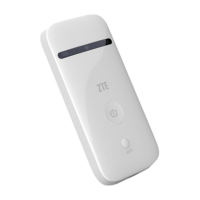
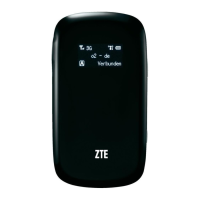
ZTE MF60
3G Global Mobile Hotspot
User Manual
ZTE CORPORATION
NO. 55, Hi-tech Road South, ShenZhen, P.R.China
Postcode: 518057
Tel: (86) 755 26779999
URL: http://www.zte.com.cn
E-mail: mobile@zte.com.cn

Other manuals for Zte MF60

Questions and Answers

  • C
    Christine MiddletonJul 26, 2025
    What to do if Zte Wireless Router client connected to the device can not access the Internet?
    • Y
      ydavidJul 26, 2025
      If the client connected to your Zte Wireless Router can't access the internet, ensure your SIM card is working. Try changing your location for a better signal. Also, check the WAN connection mode setting. If problems persist, contact your service provider to confirm your APN settings.
  • J
    joshua26Aug 3, 2025
    How to recover forgotten password for Zte Wireless Router?
    • G
      Glenn DavisAug 4, 2025
      If you've forgotten your Zte Wireless Router password, check the label on the battery compartment for the Wi-Fi password. The default password for the webGUI configuration page is 'Admin'. If you changed the webGUI password and forgot it, you'll need to restore the device to its factory default settings.
  • P
    Patrick FloresAug 11, 2025
    Why can't I establish a Wi-Fi connection between my Zte Wireless Router device and client?
    • T
      Taylor SweeneyAug 11, 2025
      If you're having trouble establishing a Wi-Fi connection between your Zte Wireless Router and your client device, make sure the Wi-Fi LED is blue and blinking. Refresh the network list and select the SSID named 'MF60_XXXXXX'. Check your IP address settings to ensure your client is set to obtain an IP address automatically in the Internet Protocol (TCP/IP) properties. Finally, verify that you're typing the correct network key when connecting to the device.
  • T
    tracimitchellAug 18, 2025
    How to fix USB connection issues between Zte Wireless Router and PC?
    • J
      jmendezAug 18, 2025
      To fix USB connection issues between your Zte Wireless Router and PC, you may need to install the software. Run the installation program located in My Computer > Portable Hotspot. If the device driver is abnormal, reinstall the software, uninstalling it first.

Summary

Legal Information

Getting Started

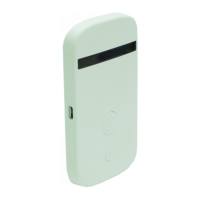
Device Appearance

Shows the physical appearance of the device and its components.

Indicators

Explains the icons displayed on the device's LED screen.

Hardware Installation

Instructions for installing SIM and battery.

Inserting SIM Card and Battery

Step-by-step guide for inserting the SIM card and battery.

Inserting microSD Card

Instructions for inserting the microSD card.

Switching On;Off Your Device

How to turn the device on and off.

Charging Your Device

Procedures for charging the device's battery.

microSD Card Operations

How to use and uninstall the microSD card.

About SIM Card

Important information and tips for using the SIM card.

Working Mode

USB Mode

Connects the device to a PC or laptop via USB cable for internet access.

Wi-Fi Mode

Connects the device to a PC or laptop wirelessly via Wi-Fi.

Mixed Mode

Uses both USB and Wi-Fi connection methods simultaneously.

Operation and Function

Connecting to the Internet

Guides on establishing internet connectivity via USB or Wi-Fi.

WebGUI Configuration

Accessing and logging into the device's web interface for management.

Device Settings

Configuring 3G, Wi-Fi, firewall, and advanced device parameters.

Phonebook and SMS

Managing contacts and sending/receiving text messages.

Warning and Notice

Safety and Usage Guidelines

Important safety precautions, usage tips, and battery handling.

Legal and Regulatory Information

Covers warranty, liability limitations, FCC, and RF energy compliance.

Troubleshooting

Connection Issues

Solutions for USB and Wi-Fi connection problems.

Internet Access Problems

Steps to resolve issues when the client cannot access the internet.

Password Recovery

Guidance on recovering or resetting Wi-Fi or WebGUI passwords.

Technical Parameters

Glossary

Zte MF60 Specifications

General IconGeneral
Wi-FiYes
Data networkHSPA+
Battery capacity1500 mAh
Mobile network generation3G
Device typeCellular wireless network equipment
Weight and Dimensions IconWeight and Dimensions
Depth53.7 mm
Width99.7 mm
Height13.9 mm
Weight75 g

Related product manuals