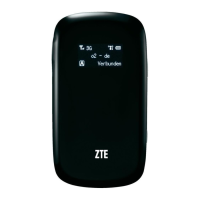
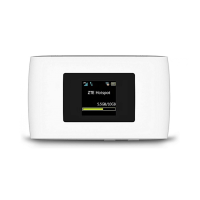
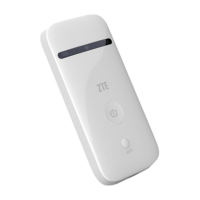
This document is a quick guide for the ZTE MF65, an AIS 3G Pocket WiFi device, designed to provide portable internet access. The device allows multiple clients to connect and surf the internet simultaneously.
Function Description
The ZTE MF65 functions as a mobile Wi-Fi hotspot, enabling users to connect to the internet via a 3G mobile network. It supports two primary connection modes: 3G Mode and AP Station Mode.
In 3G Mode, the device uses a (U)SIM card to access the internet. Once the client is successfully connected to the device, internet access can be configured in either Automatic or Manual mode. The default setting is Automatic, where the device automatically connects to the internet, allowing connected clients to surf directly. For Manual mode, users need to log into the webGUI configuration page, navigate to "Settings > 3G Settings > Network Select > WAN Connection Mode," choose "Manual," and then click "Connect" or "Disconnect."
In AP Station Mode, the device connects to another WLAN device (such as a hotspot device or wireless router) via Wi-Fi to access the internet. This mode is used when the WLAN device itself is already connected to the internet. To set up AP Station Mode, users must log into the webGUI configuration page, select "Settings > AP Station," and then configure the WLAN and WLAN mode settings, ensuring "WLAN On" and "Wi-Fi Prior" are selected before clicking "Apply." The device can then connect to the WLAN device by either inputting the WLAN device information directly in the WLAN Setting area and clicking "Apply," or by clicking "More" to select the listed WLAN device and then clicking "Connect."
The device features LED indicators for Network, Wi-Fi, and Battery status, providing visual cues about its operational state. The Network indicator shows whether the device is registered to the mobile network, connected and transferring data, or if there's an error (e.g., no SIM card, no network service). The Wi-Fi indicator shows if Wi-Fi is active, if WPS is active, or if Wi-Fi is off/in sleep mode. The Battery indicator shows if the battery is low, charging, at a middle/high level, or if the device is in standby/not charging/battery not inserted.
Connecting to the device can be done via Wi-Fi or USB cable. For Wi-Fi connection, users power on the device, wait for initialization, and then use their client's Wi-Fi application to search for available wireless networks. They select the device's SSID, input the password (found on the device label), and connect. For USB cable connection, users connect the device to their PC, power it on, and the operating system should automatically detect and install the necessary hardware. If automatic installation doesn't occur, users can manually run the installation program from "My Computer > ZTEMODEM."
Usage Features
The ZTE MF65 is designed for ease of use and portability. It supports multi-clients, allowing several devices to connect and share the internet connection simultaneously. The device's webGUI configuration page, accessible via http://192.168.0.1 or http://m.home, allows for detailed parameter modification, with the default password being "admin."
The device includes a WPS button for simplified Wi-Fi Protected Setup, making it easier to connect compatible devices without manually entering long passwords. It also features a Micro USB Port for charging and connecting to a PC, and a microSD Card Slot, indicating potential for expandable storage or file sharing capabilities, though specific functions related to the microSD slot are not detailed in this excerpt.
For PC configuration, especially for Windows XP, users are guided to set their Internet Protocol (TCP/IP) settings to "Obtain an IP address automatically" and "Obtain DNS server address automatically" to ensure proper connectivity. This ensures that the client device automatically receives the necessary network configurations from the ZTE MF65.
Maintenance Features
Proper maintenance ensures the longevity and safe operation of the ZTE MF65.
General Device Care:
- Avoid using the device in enclosed environments or areas with poor heat dissipation to prevent excessive heat and automatic shutdown. If overheating occurs, cool the device in a well-ventilated place before normal use.
- Do not touch the inner antenna area if unnecessary, as it can affect performance.
- Keep the device out of reach of children.
- Avoid exposing the device to extreme temperatures or humidity. The recommended operating temperature range is 0°C to +35°C, and humidity range is 5% to 95%.
- Handle the device carefully; do not drop, bend, or strike it to prevent damage.
- The device is not waterproof; keep it dry and store it in a shady, cool place.
- Avoid sudden temperature changes, which can cause dew inside the device. If this occurs, do not use it until it dries.
- Only qualified technicians should perform repairs; unauthorized dismantling is not recommended.
Battery Care:
- Do not short-circuit the battery, as this can cause excessive heat and fire.
- Do not store the battery in hot areas or dispose of it in fire to avoid explosion.
- Do not disassemble or modify the battery.
- If the battery is not used for a long period, remove it from the device and store it in a cool, dry place.
- Never use damaged or worn-out chargers or batteries.
- Return wear-out batteries to the provider or an appointed recycle place; do not dispose of them in household rubbish.
- Warning: If the battery is broken, keep away from it. If battery contents contact skin, wash immediately with abundant fresh water and seek medical help if necessary.
Troubleshooting and Support:
The manual provides troubleshooting steps for common issues:
- Cannot establish USB connection: Ensure the software is installed (run from "My Computer > ZTEMODEM"). If the driver is abnormal, reinstall the software after uninstalling the previous version.
- Cannot establish Wi-Fi connection: Verify Wi-Fi function is active, refresh the network list and select the correct SSID, check client IP address settings (should be automatic), and ensure the correct Wi-Fi password (network key) is entered.
- Client cannot access the Internet: Confirm the (U)SIM card is available, try changing location for better signal, check WAN Connection mode settings, and contact the service provider to confirm APN settings.
- Client cannot access the Internet in AP Station mode: Ensure the other WLAN device is already connected to the Internet and that its subnet is different from the ZTE MF65.
- Cannot visit the webGUI configuration page: Enter the correct address (http://192.168.0.1 or http://m.home), use only one network adapter in the PC, and do not use any proxy server.
- Password issues: The Wi-Fi connection password is on the device label. The default webGUI password is "admin." If the password was changed and forgotten, the device needs to be restored to factory default settings.
Warning and Notice:
- Be aware of electromagnetic interference with other electronic devices, especially in vehicles. Consult manufacturers if necessary.
- Operating the device may interfere with medical devices like hearing aids and pacemakers. Keep the device more than 20 centimeters away from such devices when on, and turn it off if necessary. Consult a physician or medical device manufacturer.
- Observe usage limitations in places with explosive gases or products (e.g., oil warehouses, chemical factories); turn off the device if required.
- Electronic transmitting devices are forbidden in aircrafts, petrol stations, and hospitals. Observe all warning signs and switch off the device in these conditions.


 To Next Page


 General
 Weight and Dimensions