EasyManua.ls Logo

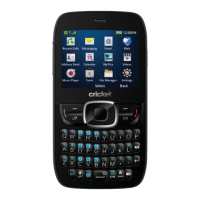
Zte REEF - User Manual

Zte REEF
177 pages
Print Icon
To Next Page IconTo Next Page
Loading...
1
REEF
User Manual

Table of Contents

Questions and Answers

  • G
    Gregory JenkinsAug 13, 2025
    Why does my Zte REEF Cell Phone battery have shortened standby time?
    • G
      Gregory PattersonAug 13, 2025
      A Zte Cell Phone's standby time can be shortened due to several factors. The standby time depends on your service provider's system configuration. Also, depleted batteries or high-temperature environments will shorten battery life, so use a new battery. If the phone cannot connect to the network, it will continuously search for a base station, consuming battery power. Change your location to one with network access, or temporarily turn off your phone.
  • C
    Chelsea JohnsonAug 16, 2025
    What to do if my Zte REEF crashes, reboots, freezes, or won't power on?
    • M
      Melanie SanchezAug 16, 2025
      If your Zte Cell Phone is crashing, rebooting, freezing, or won't power on, it could be due to incompatible third-party software. Uninstall any recently installed software that may be causing the problem. You can also try upgrading the phone software or resetting the phone to its factory status.
  • H
    hsanchezAug 20, 2025
    What to do if my Zte Cell Phone cannot turn on?
    • G
      Gabriel BlackAug 20, 2025
      If your Zte Cell Phone cannot be turned on, the battery power has likely been depleted. Recharge the phone’s battery.
  • S
    smithgrantAug 25, 2025
    Why does my Zte REEF Cell Phone have poor reception?
    • J
      Jamie PittsAug 25, 2025
      Poor reception on your Zte Cell Phone can occur if the network signal is weak due to your location (e.g., basement, near tall buildings), because wireless transmissions can not effectively reach it. Move to a location where the network signal can be properly received. Also, the network might be busy during peak times; avoid using the phone at such times, or try again after a short wait. Finally, you may be too far from a base station. In this case, you can request a service area map from your service provider.
  • M
    Mark NelsonAug 27, 2025
    What to do if my Zte REEF battery is not charging?
    • M
      Michael Ramirez IIAug 28, 2025
      If your Zte Cell Phone battery isn't charging, it could be due to several reasons. The battery or charger might be damaged, in which case you should contact the dealer. The phone's temperature may be too low (below 0 °C) or too high (above 45 °C); adjust the charging environment accordingly. Also, check the connectors to ensure they are properly connected, as poor contact between the battery and charger can prevent charging.
  • A
    Andrew BanksAug 31, 2025
    What to do if my Zte REEF Cell Phone has echo or noise during calls?
    • K
      Kendra GarciaAug 31, 2025
      Echo or noise during calls on your Zte Cell Phone may be due to poor network link quality or poor local telephone line quality. End the call and dial again, as you may be switched to a better-quality network link or phone line.
  • T
    Thomas LawrenceSep 4, 2025
    What to do if my Zte REEF is unable to connect to the network?
    • J
      Jessica RuizSep 4, 2025
      If your Zte Cell Phone is unable to connect to the network, you may be outside the network’s service area. Check the service area with your service provider. Alternatively, the signal may be poor. Move to an open space or closer to a window if you are inside a building.
  • A
    Albert MitchellSep 8, 2025
    What to do if I am unable to enter information into the phonebook of my Zte REEF?
    • D
      Debbie JonesSep 8, 2025
      If you are unable to enter information into your Zte Cell Phone's phonebook, the phonebook’s memory is likely full. Delete unnecessary data from the contacts.

Summary

Getting Started

Installing the microSD Card and Battery

Guides users on how to install or replace the phone's battery and microSD card.

Charging the Battery

Provides instructions and warnings for charging the phone's battery safely and effectively.

Setting Up Your Phone

Guides users through the initial phone activation and setup process, including carrier activation.

Activating Your Phone

Details the steps to activate the phone after initial setup, ensuring it's ready for use.

Extending the Battery Life

Offers tips and advice on how to conserve battery power for longer usage.

Locking;Unlocking the Screen and Keys

Describes how to lock the phone to prevent accidental use and unlock it.

Personalizing

Protecting Your Phone With Screen Locks

Details setting up screen locks like PIN, pattern, or face unlock for security.

Protecting Your Phone With Encryption

Explains how to encrypt phone data for enhanced security, requiring a PIN/password on power-on.

Knowing the Basics

Connecting to Networks and Devices

Connecting to Mobile Networks

Details how to enable or disable mobile data access for internet connectivity.

Connecting to Wi-Fi

Guides on turning on Wi-Fi and connecting to available wireless networks.

Connecting to Bluetooth Devices

Provides instructions for enabling and disabling Bluetooth connectivity on the phone.

Connecting to Your Computer via USB

Provides steps to connect the phone to a PC using a USB cable for data transfer.

Phone Calls

Placing and Ending Calls

Covers how to initiate and terminate phone calls using the dialer or contacts.

Answering or Rejecting Calls

Details how to answer or decline incoming calls, and reject with a message.

Calling Emergency Numbers

Instructions for making emergency calls, including when the screen is locked.

Managing Multi-party Calls

Covers features like call waiting and setting up conference calls.

People

Adding a New Contact

Step-by-step guide to adding new contacts to the phone.

Email

Setting Up the First Email Account

Step-by-step process for configuring the initial email account.

Writing and Sending an Email

Covers composing and sending new emails, including attachments.

Adding and Editing Email Accounts

Guides on adding more email accounts and managing existing ones.

GmailTM

Writing and Sending a Message

Composing and sending Gmail messages, including attachments.

Messaging

Sending a Text Message

Step-by-step guide to composing and sending text messages.

Sending a Multimedia Message

How to send messages with attachments like images or videos.

Calendar

Creating an Event

Steps to add new events, meetings, or appointments to the calendar.

Hangouts

Starting a Hangout

Guides on initiating new chats or video calls with contacts.

Browser

Open a Web Page or Search the Web

Guides on navigating to websites or performing web searches.

Downloading Files

How to save images or links from web pages.

Maps, Navigation and Local

Activating Location Services

How to enable location services for maps and other location-based apps.

Searching for a Location

Guides on how to find specific places or addresses on Google Maps.

Getting Directions to Your Destination

How to get turn-by-turn directions for travel by various modes.

Searching for Local Places

How to find local businesses and attractions using Google Local.

Google Now, Voice Search, and Voice Dialer

Searching by Speaking

How to use voice commands for searching the web and phone.

Camera

Capturing a Photo

Guides on how to take still photographs using the phone's camera.

Customize Camera Settings

How to adjust various camera settings like self-timer, ISO, and white balance.

Recording a Video

Instructions on how to record video clips using the phone's camcorder.

Gallery

Music

Copying Music Files to Your Phone

How to transfer music files from a computer or download from the internet.

Playing Music

How to listen to songs, control playback, and access options.

Video Player

Playing and Controlling Videos

How to play videos, control playback, adjust brightness/volume, and capture frames.

Sound Recorder

Recording a Voice Memo

How to record, pause, cancel, and stop voice memos.

More Apps

Alarm

How to set new alarms, configure options, and use the bed clock feature.

Chrome

Using Google Chrome as the web browser, including sync features.

Play Store

Downloading and Installing Apps

Guides on installing apps from the Play Store, including payment and permissions.

Settings

Wireless & Networks Settings

Manages Wi-Fi, Bluetooth, Airplane mode, mobile networks, data usage, and VPN connections.

Device Settings

Configures sound, display, date/time, and language/input options.

Location Services

Activates location services for maps and Google apps, and checks location & Google search settings.

Security

Manages screen lock, face matching, pattern visibility, automatic lock, and power button lock.

Backup and Reset

Backs up data, restores settings, and performs factory data resets.

Activate This Device

Guides on activating the phone with the carrier.

Troubleshooting

Zte REEF Specifications

General IconGeneral
BrandZte
ModelREEF
CategoryCell Phone
LanguageEnglish

Related product manuals