EasyManua.ls Logo

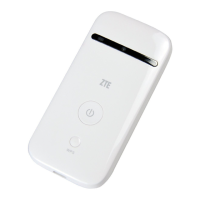
Zte MF65M - User Manual

Zte MF65M
31 pages
Print Icon
To Next Page IconTo Next Page
Loading...
MF65M
Quick Start Guide
Conguration page: http://mi.orange.cm
Password: admin

Other manuals for Zte MF65M

Questions and Answers

  • J
    Jeffrey ButlerSep 3, 2025
    What to do if the client connected to Zte Wireless Access Point cannot access the Internet?
    • B
      Breanna AndersonSep 4, 2025
      If the client connected to the device cannot access the Internet, ensure that your (U)SIM card is available. You may also need to change the location to find a place with a good signal. Checking the settings of the WAN connection mode is also recommended. Finally, contact your service provider to confirm your APN settings.
  • M
    Miguel HopkinsSep 18, 2025
    How to establish a Wi-Fi connection between Zte Other and a client?
    • P
      Patricia YatesSep 18, 2025
      If you're unable to connect your Zte device to a client via Wi-Fi, first, ensure that the Wi-Fi function is enabled. Then, refresh the network list and select the correct SSID. Check the IP address settings to ensure your client can automatically obtain an IP address. Finally, verify that you're entering the correct network key (Wi-Fi password).
  • R
    rachel03Sep 16, 2025
    What to do if the client cannot access the Internet in Internet Wi-Fi mode on Zte Other?
    • J
      Jacqueline StewartSep 16, 2025
      If the client can't access the Internet in Internet Wi-Fi mode, verify that the WLAN device is connected to the Internet and ensure that your device and the WLAN device are on different subnets.
  • D
    Dawn HoltSep 14, 2025
    Why the connection between my Zte Other and a PC through a USB cable cannot be established?
    • L
      linda92Sep 14, 2025
      If you can't establish a USB connection between your Zte device and a PC, install the software, and run the installation program in the path of My Computer. If the driver is abnormal, reinstall the software after uninstalling it.
  • A
    Ana AllenSep 12, 2025
    How to fix Pocket WiFi Plus configuration page cannot be visited for Zte Other?
    • M
      Michael BrandtSep 12, 2025
      If you're having trouble accessing the Pocket WiFi Plus configuration page, ensure you're entering the correct address, which is usually http://192.168.1.1 or http://www.smartbrosettings.net. Also, make sure you're only using one network adapter on your PC and that you are not using a proxy server.
  • A
    Amy GrahamSep 12, 2025
    What to do if the client connected to Zte Other cannot access the Internet?
    • L
      Lindsey ColemanSep 12, 2025
      If a client connected to your Zte device can't access the internet, make sure your (U)SIM card is working. Try moving to a location with a stronger signal. Also, verify the settings of the WAN connection mode, and check your APN settings with your service provider.
  • N
    Natasha MyersSep 9, 2025
    What to do if the connection between my device and a PC through a USB cable cannot be established using Zte Wireless Access Point?
    • G
      Gregory WallaceSep 9, 2025
      If the connection between your device and a PC via USB cable isn't working, install the software by running the installation program located in My Computer > ZTEMODEM. If the device driver is abnormal, reinstall the software, remembering to uninstall it first.
  • D
    Diane AtkinsSep 7, 2025
    How to access the 3G Mobile Hotspot configuration page of Zte Wireless Access Point?
    • J
      John HayesSep 7, 2025
      If you're having trouble accessing the 3G Mobile Hotspot configuration page, make sure you're entering the correct address, which is usually http://192.168.0.1 or http://ufi.ztedevice.com. Also, ensure that you are only using one network adapter in your PC and that you are not using any proxy server.
  • K
    Kelly JohnsonSep 5, 2025
    How to establish Wi-Fi connection between my device and a client using Zte Wireless Access Point?
    • L
      Lindsey DavisSep 6, 2025
      To establish a Wi-Fi connection between your device and a client, first ensure that the Wi-Fi function is enabled. Then, refresh the network list and select the correct SSID. Check the IP address and make sure your client can automatically obtain one. Finally, ensure you're entering the correct network key (Wi-Fi password) when connecting.
  • W
    Walter NunezAug 20, 2025
    What to do if the client connected to Zte MF65M Cell Phone can not access the Internet?
    • J
      Jessica LeachAug 21, 2025
      If your client cannot access the internet when connected to the Zte Cell Phone, ensure your (U)SIM card is working. Also, try moving to a location with better signal reception. Check your WAN connection mode settings and confirm your APN settings with your service provider.

Summary

Getting to Know Your Device

Appearance Overview

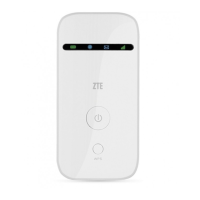
Details the physical components of the device, including indicators, buttons, and slots.

Network and Wi-Fi Status Indicators

Explains the meaning of different LED statuses for network connectivity and Wi-Fi activity.

SMS and Battery Status Indicators

Describes LED indicators for SMS messages and battery status, including charging and low power.

Connection Scenario Diagram

Illustrates how the device creates a Wi-Fi zone to share internet with multiple devices.

Installing Your Device

SIM Card Installation

Instructions for opening the device and correctly inserting the (U)SIM card.

microSDHC Card Installation

Procedure for inserting a microSDHC card into its dedicated slot.

Battery Installation and Cover Closure

Steps for inserting the battery and securely closing the device's back cover.

Connecting to Your Device

Wi-Fi Connection Setup

Steps to power on the device and initiate a Wi-Fi connection from a client device.

Select Wi-Fi Network Name (SSID)

Guide on selecting the correct Wi-Fi network name and starting the connection process.

Enter Wi-Fi Password and Connect

Instructions for entering the Wi-Fi password and confirming successful client connection.

USB Cable Connection

How to connect the device to a PC using a USB cable for internet access.

Device Wi-Fi Credentials

Locate Default SSID and Password

Information on finding the device's default Wi-Fi SSID and password on its label.

Accessing the Configuration Page

Web Browser Configuration Access

Steps to open a web browser and navigate to the device's IP address for settings.

Changing Wi-Fi Network Settings

Modify SSID and Password

Procedure to log into the configuration page and update the Wi-Fi network name and password.

Accessing the Internet

Automatic Internet Mode

Explanation of the automatic mode for client internet access via the device.

Manual Internet Mode Configuration

Steps to configure manual WAN connection settings for internet access.

Setting Data Usage Limits

Configure Data Limit and Warning

Guide on setting data usage limits and alerts through the Web UI interface.

Configuring Your PC for Wi-Fi

Access Network Connection Properties

Steps to access network properties by right-clicking the Network icon.

Modify Adapter Settings

Navigate to change adapter settings within the PC's network control panel.

Select Wireless Network Properties

Access the properties window for the Wireless Network Connection.

Internet Protocol Version 4 (TCP;IPv4) Properties

Select and access the TCP/IPv4 properties within the network connection settings.

Set Automatic IP and DNS Configuration

Configure the PC to obtain IP and DNS server addresses automatically.

Warning and Notice

Owner Precautions and Advisories

Advisories for owners regarding interference, medical devices, and hazardous environments.

General Safety and Usage Precautions

Safety warnings for device use in specific locations, heat, children, and hot surfaces.

User Recommendations and Handling

Recommendations for users on accessories, environment, and careful device handling.

Battery Safety and Maintenance

Safety instructions for battery usage, charging, storage, and disposal.

Warranty Limitations and User Remedies

Clarifies warranty limitations, user remedies, and statutory warranty provisions.

Limited Warranty Information

Warranty Exclusion Criteria

Details conditions that void the product's limited warranty, such as misuse or unauthorized repairs.

Limitation of Liability

Liability Restrictions for Damages

Specifies limitations on ZTE's liability for indirect, incidental, or consequential damages from product use.

Legal Information

Copyright and Publication Details

Provides copyright information, rights reserved, and publication details for the manual.

Troubleshooting Guide

USB Connection Troubleshooting

Recommended actions for resolving issues when connecting the device to a PC via USB.

Wi-Fi Connection Troubleshooting

Solutions for common problems encountered when connecting clients via Wi-Fi.

Internet Access Troubleshooting

Steps to resolve issues preventing clients from accessing the internet through the device.

Configuration Page Access Troubleshooting

Recommended actions if the Mobile Hotspot configuration page is inaccessible.

Zte MF65M Specifications

General IconGeneral
BrandZte
ModelMF65M
CategoryCell Phone
LanguageEnglish

Related product manuals