EasyManua.ls Logo

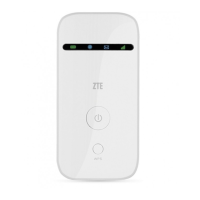
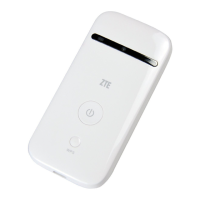
Zte MF83M - User Manual

Zte MF83M
28 pages
Print Icon
To Next Page IconTo Next Page
Loading...
1
ZTE MF83M
Quick Guide

Questions and Answers

  • R
    Rachel AustinAug 1, 2025
    What to do if the client connected to Zte MF83M can not access the Internet?
    • B
      Brian CampbellAug 1, 2025
      If your client, connected to the Zte Cell Phone, cannot access the Internet, ensure your (U)SIM card is working. Try changing your location for a better signal. Also, verify the WAN Connection mode setting and confirm your APN settings with your service provider.
  • V
    Veronica TuckerAug 6, 2025
    How to establish a USB connection between Zte MF83M Cell Phone and PC?
    • S
      shawnashleyAug 6, 2025
      To establish a USB connection between your Zte Cell Phone and PC, you may need to install the software by running the installation program located in My Computer > ZTEMODEM. If the device driver is abnormal, reinstall the software, uninstalling it first.
  • K
    Karen AyersAug 11, 2025
    How to establish a Wi-Fi connection between Zte Cell Phone and client?
    • A
      adriennevillaAug 11, 2025
      To establish a Wi-Fi connection between your Zte Cell Phone and a client, ensure the Wi-Fi function is active. Refresh the network list and select the correct SSID. Check the IP address settings to ensure your client obtains an IP address automatically in the Internet protocol (TCP/IP) properties. Finally, make sure you're typing the correct network key (Wi-Fi password).
  • M
    Margaret LongAug 15, 2025
    What to do if I can not visit the webGUI configuration page of Zte Cell Phone?
    • J
      jennifer52Aug 16, 2025
      If you cannot visit the webGUI configuration page for your Zte Cell Phone, make sure you are entering the correct address (default is http://192.168.0.1 or http://m.home). Ensure that only one network adapter is active on your PC and that you are not using a proxy server.
  • G
    George GriffinAug 21, 2025
    What to do when client cannot access the Internet in AP Station mode on Zte MF83M Cell Phone?
    • R
      Robert Walsh MDAug 21, 2025
      When using AP Station mode on your Zte Cell Phone, and the client cannot access the Internet, ensure the other WLAN device is already connected to the Internet. Also, verify that the subnet of your device and the other WLAN device are different.
  • S
    Stacey PhillipsAug 26, 2025
    What is the default password for Zte MF83M?
    • G
      geoffrey50Aug 26, 2025
      For the Wi-Fi connection password, check the label on the Zte Cell Phone device. The default password for the webGUI configuration page is 'admin'. If you've changed the password and forgotten it, you'll need to restore the device to its factory default settings.

Summary

LEGAL INFORMATION

Getting to Know Your Device

Appearance

Overview of device components including buttons, ports, and slots.

Indicators

Connection Scenario

3 G Mode

Instructions for accessing the internet using a (U)SIM card.

Internet Wi-Fi Mode

Steps to connect to the internet via Wi-Fi using the device.

Installing Your Device

Connecting to Your Device

Via Wi-Fi

Guide to establishing a Wi-Fi connection between the device and a client.

Via USB Cable

Instructions for connecting the device to a PC using a USB cable.

Accessing the Internet

3 G Mode

How to access the internet in Automatic or Manual mode via 3G.

Internet Wi-Fi Mode

Steps to configure and connect to the internet using the device's Wi-Fi.

Configuring Your PC

Warning and Notice

To the Owner

Safety precautions and usage guidelines for device owners.

Using Your Device

Guidelines for proper usage, handling, and care of the device.

Using Battery

Safety and handling instructions for the device's battery.

Limited Warranty

Limitation of Liability

Specific Absorption Rate (SAR)

Troubleshooting

Zte MF83M Specifications

General IconGeneral
LTE Download SpeedUp to 150 Mbps
LTE Upload SpeedUp to 50 Mbps
CameraNo
Network4G LTE
4G LTE BandsB1/B3/B7/B8/B20
3G UMTS BandsB1/B8
2G GSM Bands850/900/1800/1900 MHz
3G Download SpeedUp to 42 Mbps
Wi-Fi802.11 b/g/n
USBUSB 2.0
DisplayNo

Related product manuals