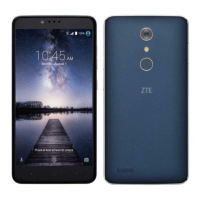
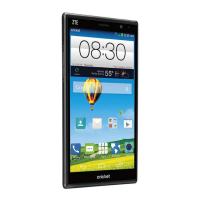
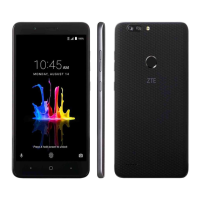
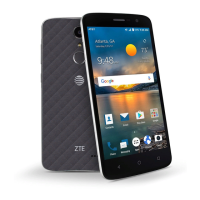
Need help?
Do you have a question about the Zte Z958 and is the answer not in the manual?
Download, verify, and prepare the update.zip package for the device.
Ensure sufficient battery power and avoid device operations during the upgrade.
Differentiate between normal and forced upgrade scenarios based on device state.
Steps to download, copy, and initiate the normal upgrade via SD card.
Steps to perform a forced upgrade using the SD card in recovery mode.
This document outlines the process for upgrading the ZTE Z958 device using an SD card, detailing both normal and forced upgrade methods, as well as essential preparatory and post-upgrade steps.
The primary function described is the upgrade of the ZTE Z958 device's system software. This involves installing a new software package, typically named update.zip, to enhance system stability, introduce new features, or fix bugs. The upgrade process is designed to be performed by the user, either through a normal update procedure accessible via the device's settings menu or a forced upgrade method for devices that are unable to boot properly. The document also implicitly describes data backup and restoration as crucial complementary functions to the upgrade process, ensuring user data integrity.
Preparation for Upgrade:
Before initiating any upgrade, several preparatory steps are crucial to ensure a smooth and successful process. Users must first download the correct update.zip package that matches their specific device model from the ZTE handset website. It is imperative that the downloaded file is indeed update.zip and not modified in name or extension. If the downloaded package is compressed, it must be unzipped to obtain the update.zip file. This file then needs to be copied to the root directory of a micro SD card, which must have a minimum capacity of 1GB. The document strongly emphasizes verifying that the update.zip file on the SD card corresponds to the device model.
Another critical preparatory step is backing up all user data and applications using a third-party PC tool. This is a safeguard against potential data loss during the upgrade. Furthermore, the device must have at least 20% battery power. If the battery level is insufficient, the device should be charged. However, the document advises against performing an SD card upgrade while the device is actively charging to prevent data loss or upgrade failure. During the upgrade process itself, users are explicitly instructed not to perform any other operations on the device.
Normal Upgrade Method:
The normal upgrade method is the primary and recommended approach when the device can start properly and the "Settings" menu is accessible. After preparing the update.zip file on the SD card, users navigate through the device's menu: "Settings" > "About phone" > "System updates" > "Storage card updates." Upon selecting the upgrade package, the device will prompt the user to confirm the update, often suggesting data reservation. If the update.zip file is not found or the SD card is missing, an error message will be displayed, guiding the user to ensure the package is correctly placed. Once confirmed, the user clicks "UPDATE NOW," and the device automatically powers off, reboots, and displays a "Storage Card Update" screen, showing the progress of the installation. A normal upgrade is expected to complete within 2-3 minutes. If the device does not reboot or respond within three minutes, the user should attempt the upgrade process again.
Forced Upgrade Method:
The forced upgrade method is designed for situations where the device cannot start properly or enter a standby state. For a powered-off device, users must simultaneously press and hold both the volume up key and the power key until the device vibrates. This action forces the device into "Recovery mode." In this mode, the volume keys are used to navigate through menu options, and the power key is used to confirm selections. Users then select "apply update from sdcard" from the recovery menu. The device will then display the contents of the SD card, from which the user selects the update.zip file. Confirming this selection with the power key initiates the upgrade process, which involves finding, opening, verifying, and installing the update package. This process also typically takes about two minutes.
Post-Upgrade Actions: After a successful upgrade, the device automatically reboots. Once it starts properly, it is highly recommended to manually restore the device to its original factory default settings. This is done by navigating to "Settings" > "Backup & reset" > "Factory data reset." This step is advised to enhance system stability post-upgrade. If data was backed up prior to the upgrade, it can then be restored.
Troubleshooting and Error Handling:
The document provides clear guidance for troubleshooting common issues. If the normal upgrade process does not complete within 2-3 minutes or the device fails to reboot, users are instructed to repeat the upgrade process. If the device still cannot be started after repeated attempts, users are advised to contact ZTE Support Hotline for assistance. The system also provides explicit error messages, such as "Can't find update package on storage card," to help users identify and rectify issues related to the update.zip file's placement or the SD card's presence.
System Stability Enhancement: A key maintenance feature is the recommendation to perform a factory data reset after a successful upgrade. This action, while requiring data restoration, is presented as a method to enhance the overall system stability of the device, ensuring the new software integrates seamlessly and operates optimally.
Data Integrity: The strong emphasis on backing up data before any upgrade highlights a crucial maintenance feature focused on data integrity. By advising users to back up their data and applications, the document ensures that personal information is protected against potential loss during the software update process. The optional step of restoring data post-upgrade completes this cycle, ensuring that the user's device returns to its previous state with all personal content intact, but with updated system software.
Software Version Control:
While not explicitly stated as a feature, the process inherently supports software version control by allowing users to install specific update.zip packages. This implies that ZTE provides different software versions, and users can maintain their devices with the latest or desired stable release. The document's instruction to download the "correct" package for the device model reinforces the importance of matching software versions to hardware for proper functionality.
 General
| Display | 5.5 inches |
|---|---|
| RAM | 2 GB |
| Internal Storage | 16 GB |
| Rear Camera | 8 MP |
| Front Camera | 2 MP |
| Battery | 3000 mAh |
| Display Resolution | 720 x 1280 pixels |
| Network | GSM / HSPA / LTE |
| CPU | Quad-core 1.4 GHz Cortex-A53 |

 To Next Page