EasyManua.ls Logo

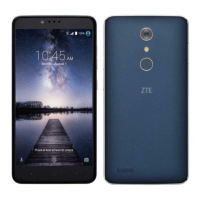
Zte Z981 - User Manual

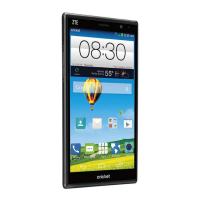
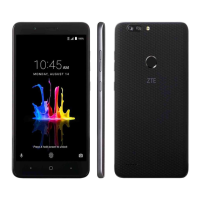
Zte Z981
122 pages
Print Icon
To Next Page IconTo Next Page
Loading...
1
Z981
User Manual and Safety Information

Table of Contents

Questions and Answers

  • S
    Stephen TranAug 13, 2025
    What to do if my Zte Cell Phone battery is not charging?
    • S
      Steven LloydAug 13, 2025
      If your Zte Cell Phone battery isn't charging, it might be due to a damaged battery or charger; in this case, contact the dealer. Also, ensure the phone's temperature is between 0 °C and 45 °C while charging. Check all connectors to ensure they are properly connected.
  • G
    gparsonsAug 17, 2025
    How to unblock PIN code on Zte Z981 Cell Phone?
    • L
      Louis HarperAug 17, 2025
      If you've entered an incorrect PIN code three times on your Zte Cell Phone, the PIN code will be blocked. Contact your service provider for assistance. If they provide the nano-SIM card’s PUK code, use that to unlock the nano-SIM card.
  • M
    myerscrystalAug 20, 2025
    Why does my Zte Cell Phone have poor reception?
    • S
      Sarah CooperAug 20, 2025
      Poor reception on your Zte Cell Phone can occur if the network signal is weak due to your location (e.g., basement, near tall buildings). Move to a location where the network signal can be properly received. Reception issues can also arise if the network is busy, so avoid using the phone during peak times or try again later. If you are too far from a base station, request a service area map from your provider.
  • C
    Crystal WheelerAug 25, 2025
    Why is my Zte Cell Phone unable to connect to the network?
    • C
      Christopher MaciasAug 25, 2025
      If your Zte Cell Phone is unable to connect to the network, the nano-SIM card might be invalid, so contact your service provider. Alternatively, you may be outside the network's service area; check with your provider. Poor signal strength can also be the issue; try moving to an open space or closer to a window.
  • C
    Christopher SpearsAug 28, 2025
    Why does my Zte Cell Phone have shortened standby time?
    • M
      monicacarpenterAug 28, 2025
      A shortened standby time on your Zte Cell Phone can be related to your service provider's system configuration. If you are in an area with a weak signal, temporarily power off the phone. A depleted battery or high temperatures can also shorten battery life, so contact the dealer to change a new battery. If the phone can't connect to the network, it will use more power searching for a signal; change your location or turn off the phone temporarily.
  • J
    juliepeckAug 31, 2025
    What does nano-SIM card error mean on Zte Cell Phone?
    • T
      Teresa DuncanSep 1, 2025
      If your Zte Cell Phone displays a nano-SIM card error, the card may be malfunctioning or damaged. Take the nano-SIM card to your service provider for testing.
  • K
    Kenneth BennettSep 5, 2025
    How to clean debris on the nano-SIM card contacts of Zte Z981?
    • K
      Karen MillerSep 5, 2025
      If there is debris on the nano-SIM card contacts of your Zte Cell Phone, use a soft, dry cloth to clean the nano-SIM card contacts.
  • S
    stevenhaneySep 8, 2025
    Why am I unable to select certain features on my Zte Cell Phone?
    • A
      Aaron CarneySep 8, 2025
      If you are unable to select certain features on your Zte Cell Phone, your service provider may not support these features, or you have not applied for services that provide these features. Contact your service provider.

Summary

Getting Started

Getting to Know Your Phone

Learn about the phone's physical components and layout.

Installing SIM and microSD Cards

Step-by-step guide to insert SIM and memory cards.

Charging the Battery

Instructions on how to charge the device's battery.

Setting Up for the First Time

Initial configuration steps after purchase or reset.

Locking;Unlocking Screen and Keys

Secure your device by locking and unlocking the screen.

Personalizing Your Device

Protecting Your Phone With Screen Locks

Set up patterns, PINs, or passwords for security.

Fingerprints

Set up and use fingerprint recognition for security and convenience.

Connecting to Networks and Devices

Connecting to Mobile Networks

Manage cellular data, roaming, and network types.

Connecting to Wi-Fi

Set up and connect to Wi-Fi networks.

Connecting to Bluetooth Devices

Pair and connect with Bluetooth accessories.

Using microSD Card

Manage storage by using the microSD card as portable or internal.

Sharing Mobile Data Connection

Use phone's data via USB tethering or Wi-Fi hotspot.

Phone Calls

Placing and Ending Calls

How to make and terminate phone calls.

Accounts and Email

Adding or Removing Accounts

Manage Google, Exchange, and other accounts.

Setting Up First Email Account

Add and configure your initial email account.

Browser and Camera

Capturing a Photo

Take pictures using the phone's camera.

Recording a Video

Capture video clips with the device's camcorder.

Using Manual Camera Mode

Adjust camera settings like ISO, white balance, and exposure.

Customizing Camera;Camcorder Settings

Fine-tune camera and video recording options.

Gallery, Music, and Radio

Setting Default Ringtone

Assign a song as the default ringtone for incoming calls.

Sound Recorder and More Apps

Recording a Voice Memo

Use the sound recorder to capture audio notes.

Settings and Configuration

Wireless and Networks

Manage Wi-Fi, Bluetooth, and cellular network connections.

Wi-Fi Settings

Configure Wi-Fi connections, including advanced options.

Bluetooth Settings

Turn Bluetooth on/off and manage paired devices.

Cellular Network Settings

Control data usage, network type, and access points.

Data Usage Management

Monitor and restrict mobile data consumption.

Tethering & Mobile Hotspot

Share your phone's data connection with other devices.

Display Settings

Adjust brightness, wallpaper, sleep time, and other screen options.

Sound & Notification Settings

Configure volumes, ringtones, and notification behaviors.

Security Settings

Set up screen locks, fingerprint, and other security features.

Device Location Services

Enable or disable location tracking for apps.

Storage Management

View and manage internal and external storage space.

Battery Information

Check battery level, usage, and enable power saving.

Backup and Reset

Back up data and restore factory settings.

Troubleshooting and Safety

General Safety Precautions

Important safety guidelines for device usage.

Product Handling Guidelines

Recommendations for safe handling and care of the device.

Distraction While Driving

Safety warnings about using the phone while operating a vehicle.

Electrical Safety

Precautions related to power supply and accessories.

Explosive Environments

Safety guidelines for use in potentially explosive areas.

Zte Z981 Specifications

General IconGeneral
Display Size6.0 inches
Resolution1080 x 1920 pixels
ProcessorQualcomm MSM8952 Snapdragon 617
RAM2 GB
Internal Storage32 GB
Expandable StoragemicroSD, up to 256 GB
Main Camera13 MP
Front Camera5 MP
Battery Capacity3000 mAh
Operating SystemAndroid 6.0.1 (Marshmallow)
SIMNano-SIM
NetworkGSM / HSPA / LTE
ColorsBlack

Related product manuals