EasyManua.ls Logo

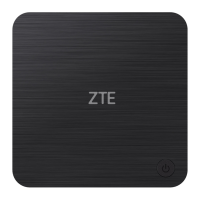
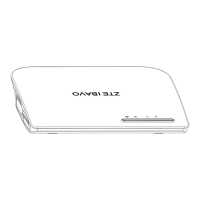
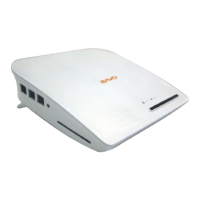
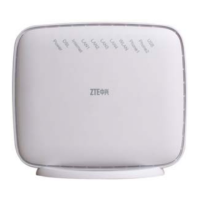
Zte ZXV10H108L - User Manual

Zte ZXV10H108L
16 pages
Print Icon
To Next Page IconTo Next Page
Loading...
NO.55, Hi-Tech Road South,Shenzhen, P.R.China
Postcode:518057
Technical Support Website: http://support.zte.com.cn
Customer Support Center:
E-mail: support@zte.com.cn
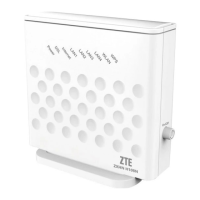
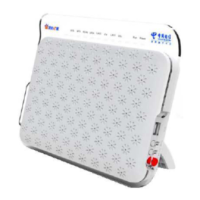
ZXV10 H108L
Home Gateway
User Manual
Version 1.0

Questions and Answers

  • C
    Christopher RobinsonAug 1, 2025
    What to do if my PC is unable to access the network with Zte ZXV10H108L?
    • B
      Bailey HamiltonAug 1, 2025
      If your PC can't access the network, first check if you can successfully ping the IP address of the Zte Gateway (which is 192.168.1.1 by default) from your PC. If you can't, examine the Ethernet connection and ensure the indicator status is normal. It's advisable to configure your IP address and DNS server address to be obtained automatically. Also, try disabling any running firewall or security software, and disable the proxy server of your web browser. Finally, verify that the indicator status is normal.
  • P
    Patricia DanielsAug 6, 2025
    How to fix WLAN connection issues with Zte Gateway?
    • M
      Mackenzie TorresAug 6, 2025
      To resolve WLAN connection problems, ensure that the WLAN RF is switched on and the WLAN indicator is lit. Verify that your wireless network card is correctly configured. It's also important to check that the network name, encryption mode, and encryption key stored on your PC match the settings of your Zte Gateway.
  • C
    Christopher WrightAug 11, 2025
    How to turn on Zte ZXV10H108L if the power indicator is off?
    • J
      Jasmine Hall DDSAug 11, 2025
      If the power indicator is off after switching on your Zte Gateway, use a standard power adapter, such as the one delivered with the device. Ensure that the adapter is properly connected to both the Gateway and the power socket.
  • G
    Gabriella MendezAug 15, 2025
    Why is the DSL indicator flashing slowly on my Zte ZXV10H108L Gateway?
    • M
      Mark StewartAug 15, 2025
      A slowly flashing DSL indicator suggests that your Zte Gateway failed to connect with the operator's DSLAM system. Ensure that your Gateway is correctly connected. If a telephone is installed before the splitter, verify that the splitter is correctly installed.
  • C
    Christina PerryAug 21, 2025
    What to do if the LAN indicator is off on my Zte ZXV10H108L Gateway?
    • H
      hbaldwinAug 21, 2025
      If the LAN indicator is off after connecting the Ethernet cable, ensure that the Ethernet cable, your PC, and the Zte Gateway are all correctly connected, and that both your PC and the Gateway are switched on.
  • E
    evan58Aug 26, 2025
    What to do if the DSL indicator is off on Zte ZXV10H108L?
    • E
      Erin HendricksAug 26, 2025
      If the DSL indicator is off after connecting the telephone line, make sure that you are using the standard telephone line (delivered with the device) and that all devices are correctly connected. Check whether the cables are properly plugged in. Allow 60 seconds for the Zte Gateway to establish a connection to the operator.

Summary

Legal Information

Safety Instructions

Introduction

Product Overview

Overview of the H108L Home Gateway's role in home networking and its purpose.

Introduction to Indicators

Explanation of front panel indicators and their respective status meanings.

Introduction to Sockets and Buttons

Description of rear and side panel sockets and buttons on the H108L device.

Installation

Installing Device

Guidance on placing the device for optimal heat dissipation and signal strength.

Setting Preparations

Steps to prepare the PC, including checking settings and configuring TCP/IP.

Configuring Wireless Connection

Instructions for connecting the PC to the WLAN network with a wireless card.

Restoring Default Settings

Procedure to restore the device to its factory default settings.

WEB Configuration

Login;Logout

How to access and exit the web-based configuration interface of the H108L.

Creating WAN Connection

Steps to configure a WAN connection, including PPPoE, PPPoA, Static, DHCP, and Bridge.

WLAN Configuration

Settings for basic WLAN parameters like SSID, mode, channel, and band width.

WLAN Security Configuration

Configuration of wireless security using WPA-PSK, WPA2-PSK, or WEP encryption.

Troubleshooting

Specification

Zte ZXV10H108L Specifications

General IconGeneral
ModelZXV10 H108L
Wireless SpeedUp to 150Mbps
QoSYes
LAN Ports4
Wireless StandardIEEE 802.11b/g/n
SecurityWEP, WPA, WPA2
Supported ProtocolsDHCP, DNS, PPPoE, NAT
ADSL StandardsITU G.992.1 (G.dmt), ITU G.992.2 (G.lite), ITU G.992.3 (G.ads l), ITU G.992.5 (G.ads l2+)
Firewall SecuritySPI firewall

Related product manuals