3.1 Configuration
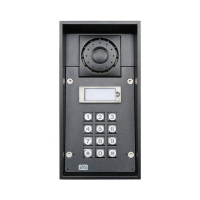
Use a PC equipped with any web browser to configure :2N IP Force
®
Launch your web browser (Internet Explorer, Firefox, etc.).
Enter the IP address of your intercom ( , e.g.).http://192.168.1.100/
Log in using the user name and password.Admin 2n
You have to know the IP address of your device to log in to the integrated web server.
By default, is switched into the dynamic IP address mode, i.e. it obtains 2N IP Force
®
the IP address automatically if a properly set DHCP server is available in your LAN. If
no such DHCP server is available, you can operate in the static IP 2N IP Force
®
address mode.
If your device remains inaccessible (you have forgotten the IP address, or the LAN
configuration has changed, for example), change the LAN settings using the buttons
on the device.
IP Address Retrieval
Take the following steps to retrieve the IP address:2N IP Force
®
Connect (or, if connected, disconnect and reconnect) to the power 2N IP Force
®
supply.
Wait for the second sound signal .
Press the first quick dial button 5 times.
2N IP Force
®
will read its IP address.
If the address is 0.0.0.0, it means that the intercom has not obtained the IP
address from the DHCP server.


 To Next Page