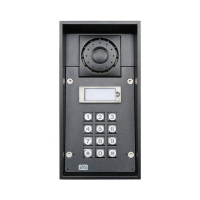
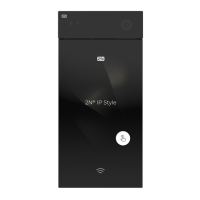
Set-up of a 2N door station with a PEAKnx touch panel
10
network as the PEAKnx touch panel. To do this, enter the following URL in your brow-
ser:
ж
http://x.x.x.x:31228
ж
Where x.x.x.x must be replaced by the local IP address of your PEAKnx touch
panel. This is displayed in the lower part of the YOUVI Dashboard App.
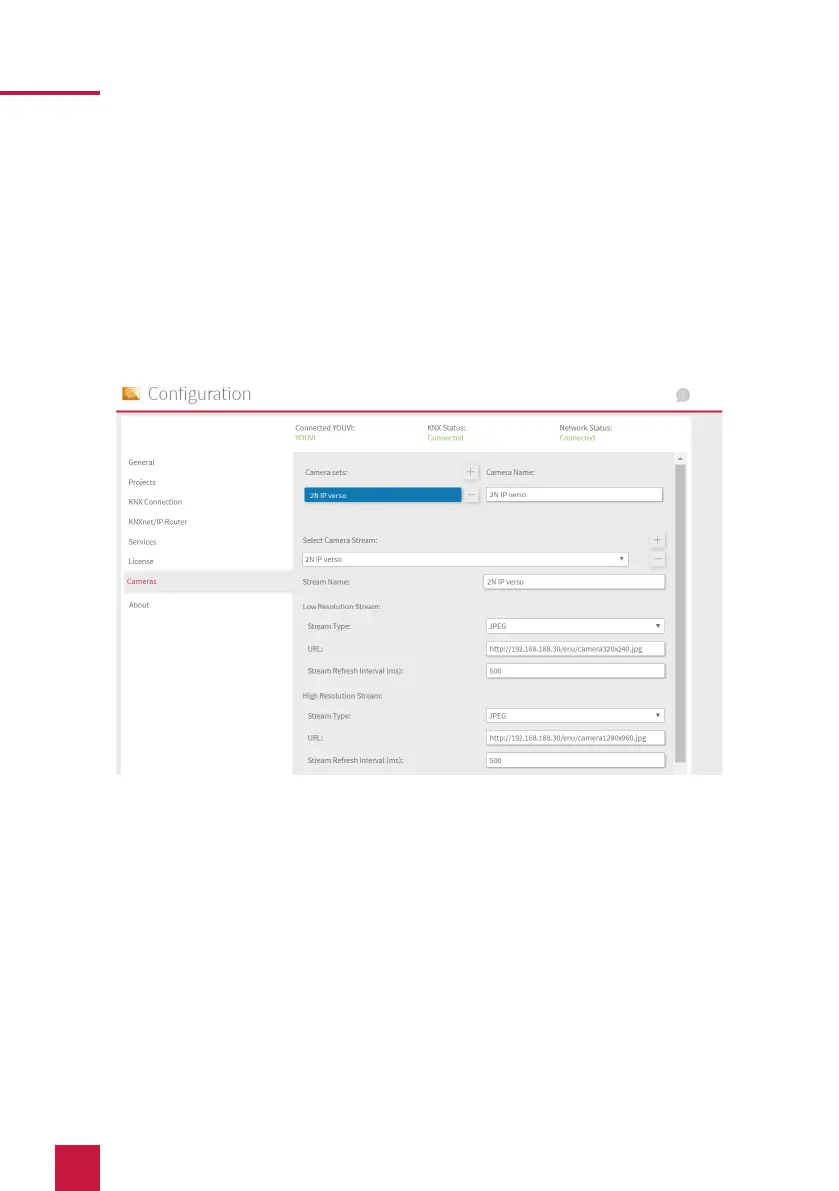
3. From the menu on the left, select “Cameras”.
4. Add a new camera set using the “+” symbol and type in a suitable name.
5. Click the “+”-Symbol next to “Select Camera Stream” to create a new camera stream.
6. Stream Name: Enter an appropriate name of your preference.
7. Low Resolution Stream, URL: Enter the link of the camera stream from your door
station with a resolution of 320 x 240 pixels.
ж
The JPEG-Stream link consists of the IP address of the door station and the
ending “/enu/camera{resolution}.jpg”, for example:
http://192.168.188.30/enu/camera320x240.jpg
ж
An RTSP stream is entered in the following format:
rtsp://192.168.188.30:544/
8. Stream Type: Depending on the license, select “JPEG” or “RTSP”.
9. Refresh interval (for JPEG streams): Enter 500 ms, for example.
10. High Resolution Stream: Proceed analogously. Now change the resolution in the link
to 1280 x 960 pixels (JPEG).


 To Next Page