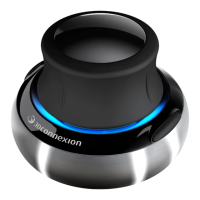
3Dconnexion SpaceMouse Wireless | 3
QuickStart Guide
Desktop Setup
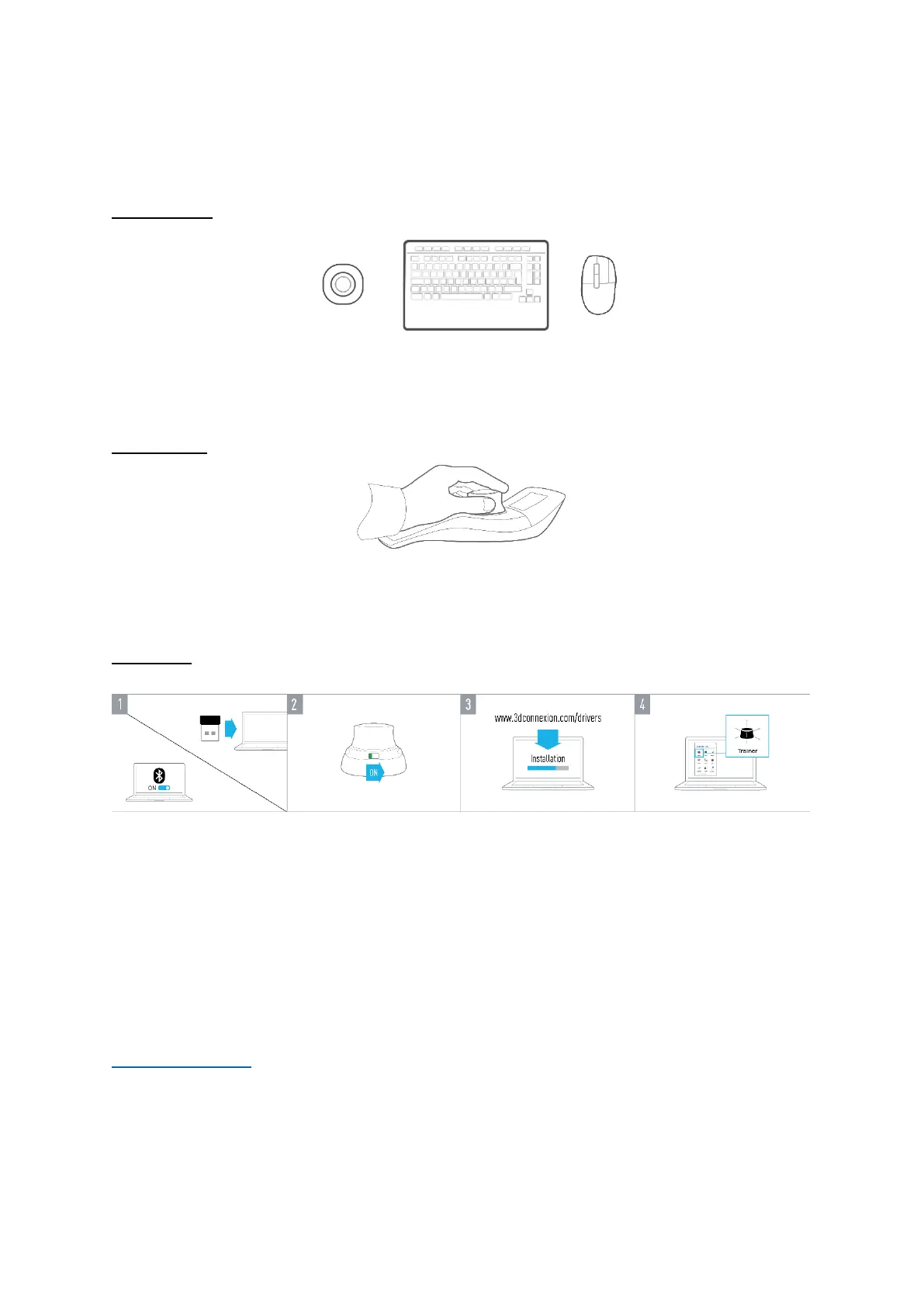
Place the SpaceMouse Wireless on the opposite side of the keyboard to your standard mouse. One hand engages the 3D mouse
to position your model: rotating, panning and zooming. The other hand uses the standard mouse to select, create and edit.
Hand Position
Position your hand as shown. The contoured controller cap will guide your fingers into the perfect position for precise and
effortless control.
Installation
1. Connect USB Receiver
Connect the included 3Dconnexion Universal Receiver to your computer.
2. Turn on the SpaceMouse Wireless
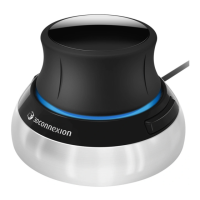
Turn on the power switch located on the back of your SpaceMouse Wireless.
3. Download and install the latest 3Dconnexion software
Make sure you have the latest 3Dconnexion software (3DxWare) installed. The latest version can be downloaded at
3dconnexion.com/drivers.
4. Learn how to use your SpaceMouse Wireless
Open 3Dconnexion Home and launch the Trainer to get help taking the first steps with your SpaceMouse Wireless.


 To Next Page