3Dconnexion SpaceMouse Wireless | 6
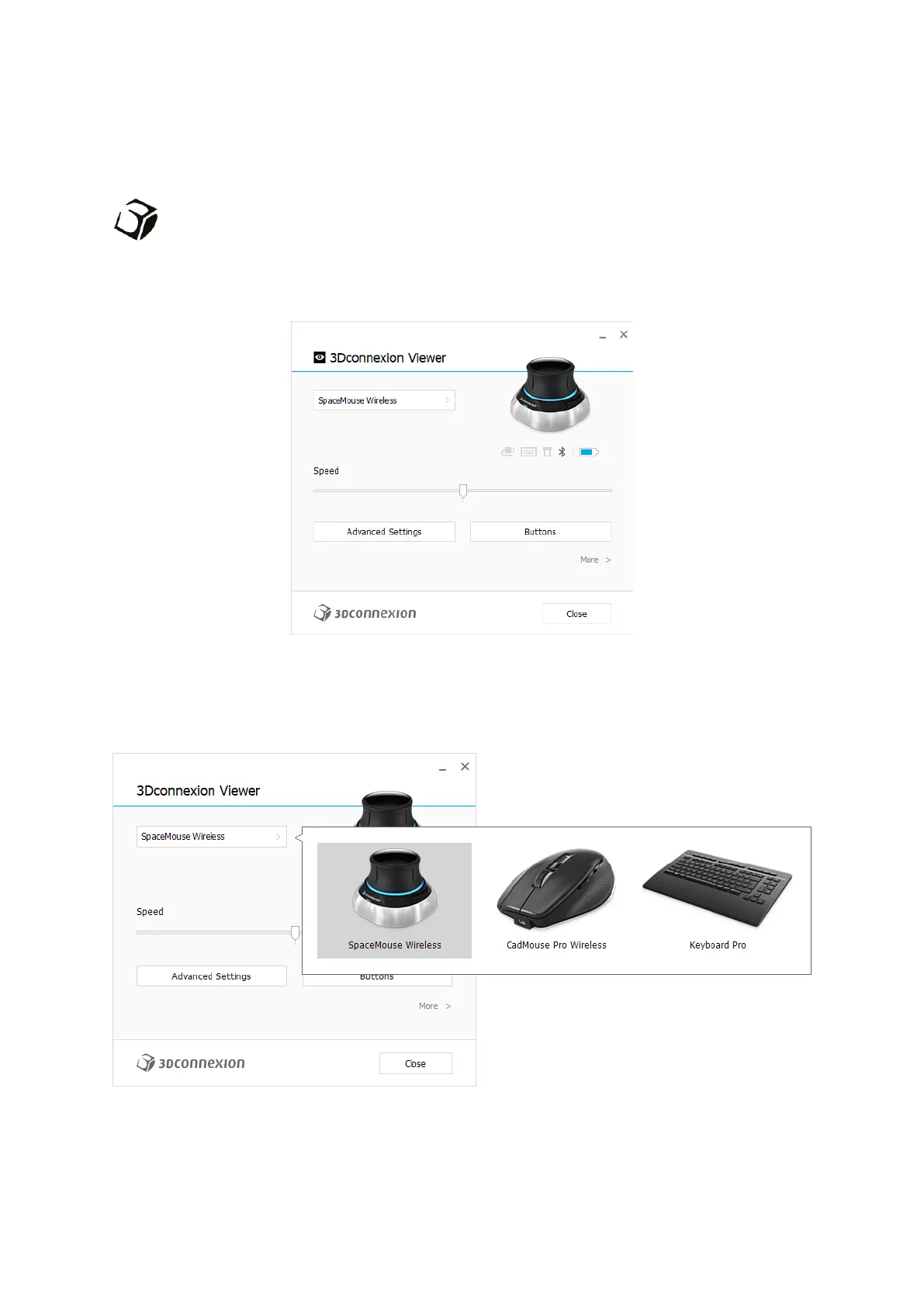
3Dconnexion Settings
You can access the 3Dconnexion Settings panel via 3Dconnexion Home (on your desktop), the icon in your
notification area (systray), or the Windows start menu. The name of the active application is displayed at the top of
the panel. Any setting change is relevant to this application only. The current connection mode, as well as the
battery level are displayed by the icons below the product image.
Speed
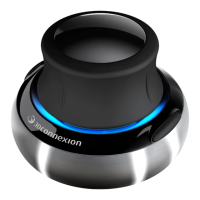
This slider sets the overall speed for your device. In other words, it changes the amount of force or torque that needs to be
applied to the SpaceMouse cap to move an object, scene, or image.
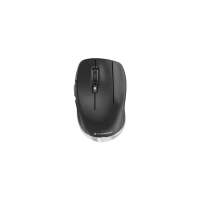
If multiple 3Dconnexion devices are connected, you can select the desired product to configure by clicking on the flyout button
at the top left of the panel.


 To Next Page