3Dconnexion SpaceMouse Wireless | 5
Connect your SpaceMouse Wireless
The SpaceMouse Wireless can be connected via the included 3Dconnexion
Universal Receiver, the 3Dconnexion Keyboard Pro, Bluetooth, or USB cable.
Note: Since your SpaceMouse Wireless is factory paired with the Universal Receiver, you must first remove the Universal
Receiver from your computer, before you can pair it with the Keyboard Pro.
Pairing via Bluetooth:
Switch on your device and make sure it starts blinking blue. Now open the Bluetooth settings on your PC, make sure Bluetooth
is activated, click on ”Add device”, select “Bluetooth”, and select the SpaceMouse device from the list.
Pairing via the 3Dconnexion Keyboard Pro:
Access the Windows start menu and launch the 3Dconnexion Pairing tool. Now press Add device and follow the instructions
of the 3Dconnexion Pairing tool to connect your SpaceMouse Wireless with your Keyboard Pro.
Charge your SpaceMouse Wireless
When the status LED of your SpaceMouse Wireless turns red, it has less than 10% battery power left and should be charged.
Connect your SpaceMouse Wireless to a charging port of your computer by using the included USB cable. As long as the
SpaceMouse Wireless is charging, the status LED will pulse green, and it will turn solid green when it is fully charged.
Status LED
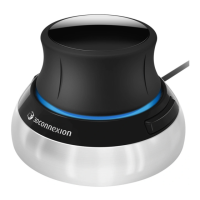
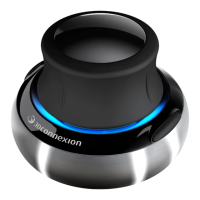
The SpaceMouse Wireless features a status LED that shows the battery status as well as the connection status.
Battery status:
Immediately after turning on the device or after wake-up from sleep, the LED will show the current charge level:
- Green The SpaceMouse Wireless is sufficiently charged.
- Red The SpaceMouse Wireless has less than 10% charge and requires charging.
Pairing and connection status:
After the battery status is displayed, the device will show the current connection and pairing mode.
- White (steady) Successfully connected in 3Dconnexion wireless mode.
- White (pulsing) Ready for 3Dconnexion wireless connection.
- Blue (steady) Successfully connected in Bluetooth mode.
- Blue (pulsing) Ready for Bluetooth connection.
After the device has been successfully connected, the LED turns off.
LED ring
The LED ring on the SpaceMouse Wireless gives you additional information on the connection status.
- Lighting up followed by dim off The SpaceMouse Wireless is successfully paired



 To Next Page