The „Signal Loss“ alarm
25
automatically informs
you in case of loss of
connection if the alarm is
activated.
You can then set your
personal alarm limit.
Proceed in the same way
with the second alarm.
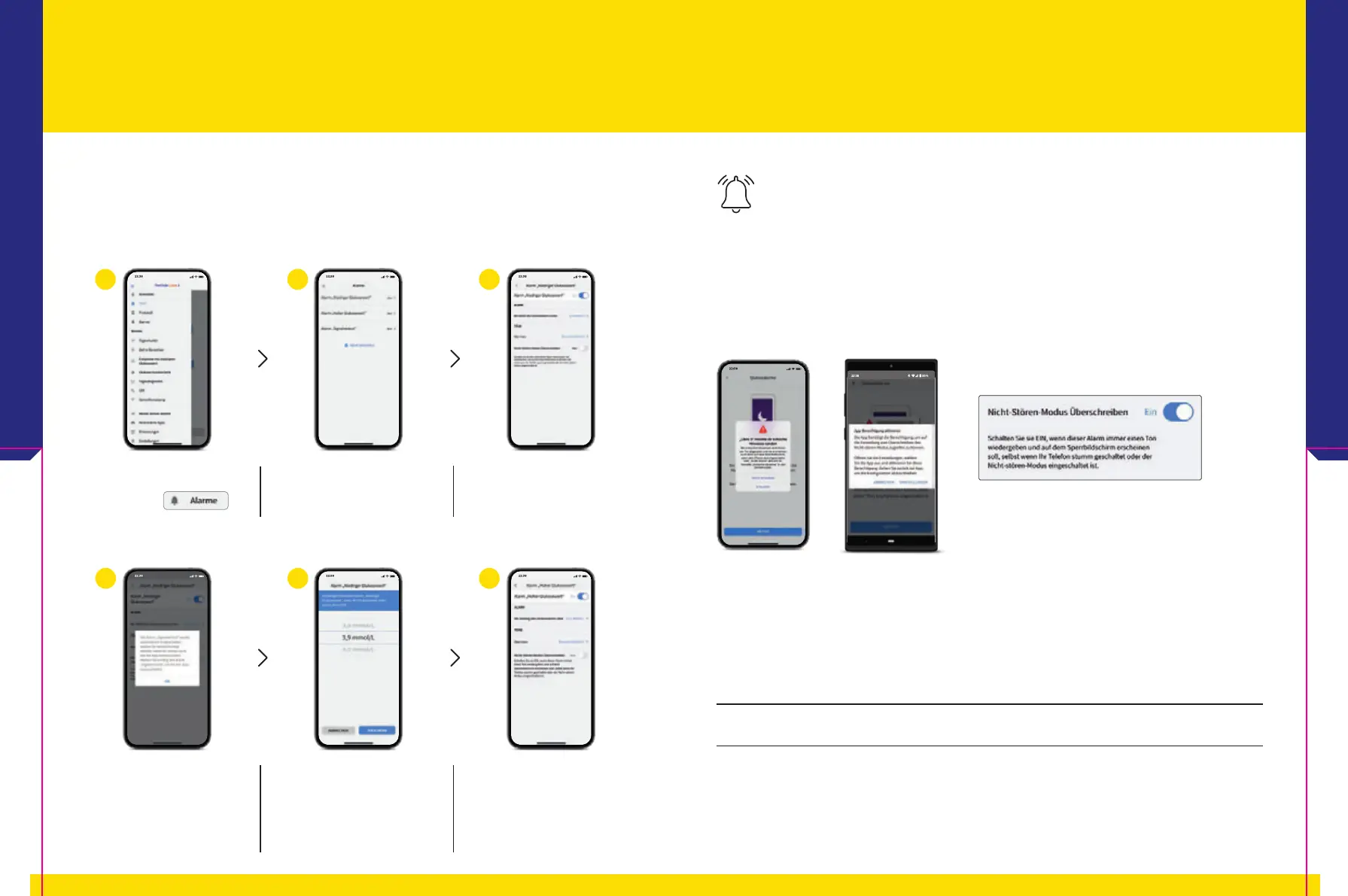
Tap the „Alarms“ item in
the menu.
Select the desired alarm. Tap the slider or slide it to
the right to turn on the
alarm.
You Decide Whether and How You Want to Use the
Alarms
12
With optional glucose alarms, you can choose when you want to be alerted. Turn the
alarms on and off as needed.
It‘s that easy:
1
4
2
5
3
6
Note: There may be other permissions generated by the iOS or Android system that are not shown here.
If you do not want a sound to be played every time, deactivate the Critical Alerts again.
Sound and vibration settings
The volume and vibration settings follow the settings of your smartphone. They should
therefore be set so that you can hear them in order not to miss any alarms.
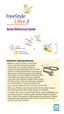
Grant the app
5
permission to access Do Not Disturb mode as well as Critical
Alerts so that you receive an alarm
12
even when your smartphone
5
is muted or in
Do Not Disturb mode.
Do Not Disturb mode prevents you from receiving alarms, unless the app
notifications are set to override this mode.
You can also select to override Do Not Disturb
mode only for individual alarms in the alarms
settings.
Permit Access – the Do Not Disturb Mode and
Critical Alerts
The App
5
28 29







 To Next Page