EasyManua.ls Logo

Abit LG95C - User Manual

Abit LG95C
24 pages
Print Icon
To Next Page IconTo Next Page
Loading...
LG-95Z V2.0
LG-95C
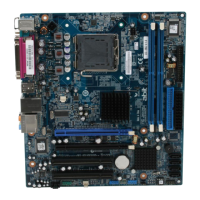
Motherboard
Intel Socket 775
Installation Guide

Questions and Answers

  • D
    Deborah JamesJul 31, 2025
    How to fix Abit Motherboard when it hangs during BIOS update?
    • A
      Amanda VazquezJul 31, 2025
      If your Abit Motherboard hangs when updating the BIOS or when incorrect CPU parameters are set, always clear the CMOS jumper before booting up again.
  • J
    Jeffrey KimAug 7, 2025
    What to do if Abit Motherboard fails to boot after assembly?
    • M
      Mrs. Brittany WestAug 7, 2025
      If your Abit Motherboard fails to boot after assembly, begin by confirming that all key components meet the motherboard's specifications. If the issue persists, remove unnecessary add-on devices, leaving only the CPU, VGA card, DRAM, and power supply connected, then reboot. If it still won't start, test with a different brand/model of VGA card, then a different memory module, and finally, try another CPU and power supply. If the system then boots successfully, reinstall the previously removed cards and devices one at a time until the system fails to start again, identifying the problematic component.
  • A
    Alexander RobertsAug 23, 2025
    What to do if Abit Motherboard fails to boot after power off?
    • J
      James PayneAug 23, 2025
      If your Abit Motherboard fails to boot up after a mechanical power-off, please wait 30 seconds between each power On/Off cycle.
  • S
    Steven FrancisNov 13, 2025
    What to do if Abit Motherboard fails to boot after overclocking?
    • S
      Samantha MckeeNov 13, 2025
      If your Abit Motherboard fails to boot after overclocking or applying non-standard settings in the BIOS, try the following steps: 1. Switch off the power supply unit and then switch it on again after one minute. If there is no power switch, disconnect the power cord for one minute and then reconnect it. 2. Press and hold the key while powering on the system. If it works, release the key and press the key to enter the BIOS setup to correct the settings. Repeat these procedures up to three times if needed. 3. If the issue persists, open the chassis cover and locate the CCMOS jumper near the button battery. Change the jumper position from the default 2-3 to 1-2 for one minute to discharge the CMOS data, then put it back to the 2-3 position. Afterward, close the chassis, switch on the ...

Summary

Copyright and Warranty Notice

1. Hardware Setup

1.1 Specifications

Core technical details of the motherboard, including CPU, chipset, memory, graphics, LAN, audio, and SATA.

1.2 Choosing a Computer Chassis

Guidelines for selecting a suitable computer chassis for motherboard installation.

1.3 Installing Motherboard

Step-by-step instructions and diagrams for securely mounting the motherboard in a computer chassis.

1.4 Checking Jumper Settings

Instructions for understanding and setting motherboard jumpers, including CMOS clearing and battery replacement.

1.5 Connecting Chassis Components

Details on connecting essential chassis components like power supply, front panel connectors, and fans to the motherboard.

1.6 Installing Hardware

Procedures for installing key hardware components like CPU and DDR2 memory modules onto the motherboard.

1.7 Connecting Peripheral Devices

Guide to connecting various internal and external peripheral devices, including storage drives, USB, and audio.

1.8 Connecting Rear Panel I;O Devices

Explains the function and connection of rear panel I/O ports like PS/2, VGA, LAN, USB, and Audio.

2. BIOS Setup

3. Driver & Utility

4. Appendix

4.1 Specifications (Traditional Chinese)

Detailed hardware specifications for the motherboard in Traditional Chinese.

4.2 Specifications (Simplified Chinese)

Detailed hardware specifications for the motherboard in Simplified Chinese.

4.3 Troubleshooting and Technical Support

Common troubleshooting steps, Q&A, and guidance on obtaining technical support for the motherboard.

4.4 Contact Information

Contact details and addresses for Universal ABIT offices worldwide for support and inquiries.

Abit LG95C Specifications

General IconGeneral
BrandAbit
ModelLG95C
CategoryMotherboard
LanguageEnglish

Related product manuals