EasyManua.ls Logo

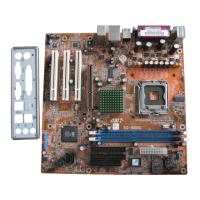
Abit SG-72 - User Manual

Abit SG-72
64 pages
Print Icon
To Next Page IconTo Next Page
Loading...
SG-72
Socket 478 System Board
User’s Manual
4200-0396-01
Rev. 1.00

Questions and Answers

  • J
    Joshua CurtisJul 30, 2025
    What to do if Abit SG-72 Motherboard hangs when updating BIOS?
    • B
      Becky GoldenJul 30, 2025
      If your Abit Motherboard system hangs while updating the BIOS or when you set the wrong CPU parameters, you should always clear the CMOS jumper before booting up again. This will reset the BIOS to its default settings.
  • R
    Rita NashAug 13, 2025
    What to do if my Abit SG-72 won't boot after overclocking?
    • J
      Joseph TaylorAug 13, 2025
      If your Abit Motherboard fails to boot after overclocking or using non-standard BIOS settings, try the following: 1. Turn off the power supply (or disconnect the power cord), wait one minute, and then turn it back on. While booting, press and hold the key, then press the power button. If successful, release and press to enter BIOS setup and correct the settings. 2. If the first step doesn't work, power down and open the computer case. Find the CCMOS jumper near the battery. Change the jumper from position 1-2 to 2-3 for one minute to clear the CMOS data, then return it to 1-2. 3. As a last resort, repeat step 2, but also remove the ATX power connectors from the motherboard and take out the button battery while discharging the CMOS.

Summary

Chapter 1. Introduction

1-1. Features & Specifications

Details system hardware and component specifications.

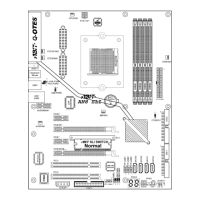
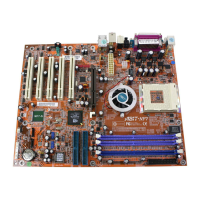
1-2. Layout Diagram

Visual representation of motherboard components and connectors.

Chapter 2. Hardware Setup

2-1. Install The Motherboard

Instructions for physically mounting the motherboard into the computer chassis.

2-2. Install Pentium 4 CPU and Heatsink Supporting-Base

Step-by-step guide for installing the CPU and its cooling solution.

2-3. Install System Memory

Guide for installing RAM modules into the motherboard slots.

2-4. Connectors, Headers and Switches

Details on various motherboard connectors and their functions.

2-5. FAN Connectors

Information on connecting system fans to motherboard headers.

2-6. CMOS Memory Clearing Header

Instructions for clearing CMOS settings using the dedicated jumper.

2-7. BIOS Protection Header

Explanation of the jumper for enabling/disabling BIOS write protection.

2-8. Front Panel Switches & Indicators Header

Guide to connecting case switches and LEDs to the motherboard.

2-9. Floppy Disk Drive Connector

Details on connecting the floppy disk drive cable.

2-10. IDE Connectors

Instructions for connecting hard drives and other IDE devices.

2-11. Internal Audio Connectors

Information on connecting internal audio devices like CD-ROM drives.

2-11. Accelerated Graphics Port Slot

Details on the AGP slot for graphics cards.

2-12. Additional USB Port Headers

Guide for connecting internal USB expansion headers.

2-13. Additional COM2 Port Header

Information on connecting an additional serial port extension bracket.

2-14. Front Panel Audio Connection Header

Connecting front panel audio jacks to the motherboard.

2-15. Chassis Speaker Connection Header

Connecting the motherboard to the computer case's built-in speaker.

2-16. Back Panel Connectors

Overview of rear I/O ports and their functions.

Chapter 3. BIOS Setup

3-1. Standard CMOS Features

Configuration of basic system settings like date, time, and IDE devices.

3-2. Advanced BIOS Features

Advanced system configuration options for CPU and boot devices.

3-3. Advanced Chipset Features

Settings for controlling chipset features like DRAM timing.

3-4. Integrated Peripherals

Configuration of on-board devices like IDE, PCI, and SuperIO.

3-5. Power Management Setup

Options for configuring system power saving modes and ACPI.

3-6. PnP;PCI Configurations

Settings for Plug and Play and PCI slot configurations.

3-7. PC Health Status

Monitoring system temperatures, voltages, and fan speeds.

3-8. Frequency;Voltage Control

Adjusting CPU clock ratio, frequency, and voltage.

Chapter 4. Driver Installation

4-1. Setup Items

List of drivers and utilities available on the included CD.

Appendix A. Troubleshooting (Need Assistance?)

Q & A

Frequently asked questions and solutions for common hardware issues.

Appendix B. How to Get Technical Support

Getting Technical Support

Procedures and resources for obtaining technical assistance for ABIT products.

Abit SG-72 Specifications

General IconGeneral
BrandAbit
ModelSG-72
CategoryMotherboard
LanguageEnglish

Related product manuals