Copying or Moving Objects
xt boxes. 1. Select one or several digital ink strokes, lines or te
2. Do one of the following:
z To move the selected objects, click the Cut button on the
Standard too
lbar.
z To copy the selected objects, click the Copy button on the
Standard toolbar.
Do one of the following:
3.
aste
z If you want to copy or move the selected objects to another page
in this or another e-Book file, switch to the page. Click the P
button
on the Standard toolbar. The Selection box will be
around the pasted objects. You can move the pasted objects to a new
locatio
n.
ct
z If you want to copy or move the selected obje s to the same
page, click the Paste button
on the Standard toolbar. The
Selection box will be around the pasted objects. You can move
the pasted ob
jects to a new location.
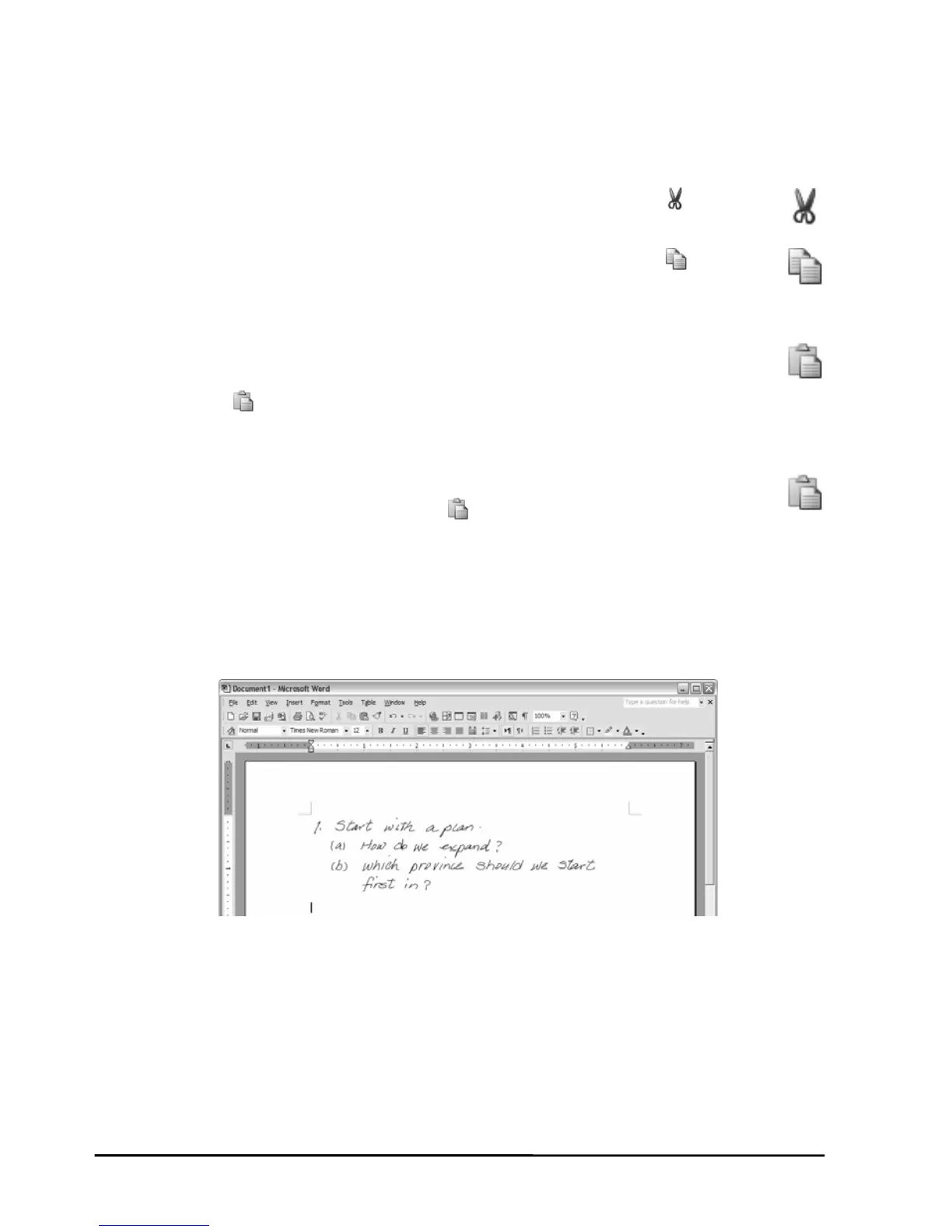
opy or move the selected objects to another file for other
as Outlook e-mail message, Word file or Excel file,
.
Changing the Color and Width of Objects
ral digital ink strokes or lines.
of the selected
t d
Note! By selecting a text box, you can not change the color of text in the
z If you want to c
programs such
switch to the file. Click the Paste command in the program
1. Select one or seve
2. Click a color button on the Color toolbar to switch the color
objects. Click a width bu ton on the Width toolbar to change the wi
the selected objects.
th of
20


 To Next Page