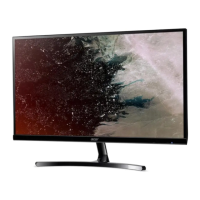
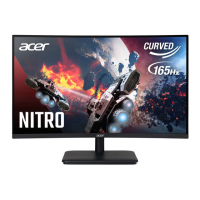
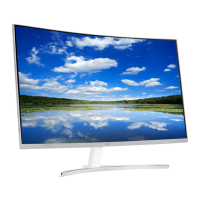
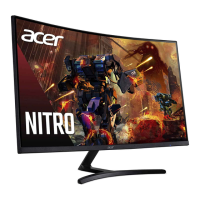
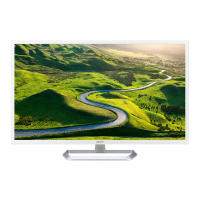
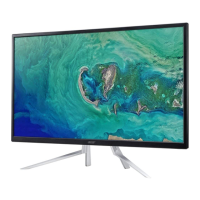
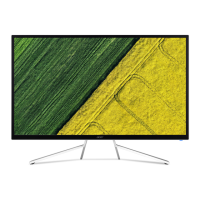
This document serves as the User's Guide for the Acer LCD Monitor, model EA220Q, providing comprehensive information for its safe and effective operation, maintenance, and troubleshooting.
The Acer LCD Monitor EA220Q is designed for video and visual display of information obtained from electronic devices. It functions as a standard LCD monitor, offering a visual interface for computers and other compatible equipment.
Usage Features:
The monitor supports a plug-and-play functionality through the Display Data Channel (DDC) protocol, specifically DDC2B, which allows it to automatically communicate its capabilities, such as supported resolutions and timing, to the host system for easier installation.
For power management, the monitor is shipped with power-saving features enabled. It activates a Sleep mode within 15 minutes of user inactivity and can wake from Sleep mode by pushing the power button. The power LED indicates the monitor's status: green when powered on and orange when in power-saving mode. The recovery time from power-saving mode to "on" is approximately 3 seconds.
The monitor offers a range of user controls accessible via an On-Screen Display (OSD) menu. These controls include a power button for turning the monitor on/off, a MENU/Confirm button to access and confirm OSD selections, and Up/Down buttons (labeled </> or 4/3) for navigating OSD options and adjusting values. When the OSD is not displayed, the Up/Down buttons can be used to switch to brightness mode or signal source respectively. A Mode/Exit button (labeled 5) allows users to exit the OSD or display mode options when the OSD is not active.
The OSD menu provides extensive customization options for picture quality, color settings, performance, and system configurations.
- Picture Quality Adjustments: Users can adjust Brightness (0-100) to balance light and dark shades, Contrast (0-100) to set the degree of difference between light and dark areas, Black Boost, Low Blue Light, ACM, and Super Sharpness. For VGA signals, Auto Config, H.Position, V.Position, Focus, and Clock settings are available.
- Color Settings: The monitor allows adjustments for Gamma, Color Temperature, R Gain, G Gain, B Gain, R Bias, G Bias, B Bias, Modes, sRGB Mode, Grayscale Mode, 6-axis Hue, and 6-axis Saturate.
- Performance Settings: Users can configure Over Drive, FreeSync, and Refresh Rate Num.
- OSD Settings: The OSD itself can be customized with Language selection, OSD Timeout, Transparency, and OSD Lock. The OSD Lock feature prevents accidental changes and can be unlocked by pressing the MENU button for more than 3 seconds.
- System Settings: This section includes options for Input selection, Auto Source, Wide Mode, Hot Key Assignment, DDC/CI, HDMI Black Level, and Quick Start Mode.
- Information Setting: This displays the Main Source, Resolution, H/V Frequency, Mode, Series Number, and offers options to Reset All Settings or Exit.
The monitor supports both VGA and HDMI input connectors, with detailed pin assignments provided for each. It also supports various standard timing tables for different resolutions and refresh rates, from 640x480 at 60Hz to 1920x1080 at 100Hz (for HDMI).
Maintenance Features:
Cleaning the monitor requires careful adherence to specific guidelines:
- Always unplug the monitor before cleaning to prevent electric shock.
- Use a soft cloth to wipe the screen and the cabinet's front and sides, avoiding harsh chemicals or abrasive materials that could damage the display or casing.
For connecting and disconnecting the device, users are advised to:
- Ensure the monitor is securely attached to its base before connecting the power cord to the AC power outlet.
- Turn off both the LCD monitor and the computer before connecting or unplugging any cables.
- If the system has multiple power sources, disconnect all power cords from the power supplies.
The power outlet for the monitor should be easily accessible and located close to the operator, allowing for quick disconnection of power if needed.
The manual also emphasizes the importance of using the supplied power supply cord set. If replacement is necessary, the new cord must meet specific requirements: detachable type, UL listed/CSA certified, type SPT-2, rated 7 A 125 V minimum, VDE approved or equivalent, and a maximum length of 4.5 meters (15 feet).
The guide provides extensive information on safety and comfort. It highlights normal characteristics of LCD monitors, such as potential flicker during initial use, slight uneven brightness, and the possibility of a few non-functional pixels (blemishes of 0.01% or less). It also notes that afterimages may remain if the same image is displayed for hours, which can be resolved by changing the image or turning off the monitor for a few hours.
Warnings include not using the product near water, on unstable surfaces, or blocking ventilation openings. Users are cautioned against pushing objects into cabinet slots or spilling liquid onto the product. To prevent damage, the monitor should not be placed on vibrating surfaces or used in vibrating environments.
For safe listening, users are advised to gradually increase volume, avoid high volumes for extended periods, and turn down the volume if they cannot hear people speaking nearby.
The manual also addresses potentially explosive environments, instructing users to switch off the device in such areas and obey all signs and instructions.
To promote comfortable use, the guide offers tips for finding a comfortable viewing angle, using a footrest, and adjusting sitting height. It recommends refraining from fixed postures, avoiding slouching, and taking regular breaks to stand and walk. For vision care, users are advised to rest their eyes frequently, take breaks to look at distant points, blink often, keep the display clean, position the head higher than the display's top edge, adjust brightness/contrast, and eliminate glare by positioning the display away from windows or light sources, minimizing room light, using a task light, or changing the viewing angle. Using a glare-reduction filter or display visor is also suggested.
Good work habits are encouraged, including taking short breaks, performing stretching exercises, breathing fresh air, and exercising regularly.
Troubleshooting:
A troubleshooting section helps users self-diagnose common problems. For issues like the power indicator not being on, solutions include checking power connections. If the monitor is not plug-and-play, users are advised to check PC compatibility and the VGA signal cable pins. Dull images or screen flickering can be resolved by adjusting brightness/contrast or checking for external interference and loose cable connections. If the power indicator is on but no image is displayed, users should check computer power, graphics card connection, monitor signal cable connection, and verify computer operation. Missing colors may indicate a loose signal line or bent cable pins. Screen positioning issues can be resolved by adjusting CLOCK and PHASE or using the AUTO hotkey. "Signal cable not connected" messages require checking and tightening the signal cable, and inspecting for damaged pins. An "Overclock-Go to Standby" message indicates an inappropriate monitor mode, requiring a computer restart.
Acer is committed to environmental protection and recycling. The manual provides links to Acer's sustainability website for information on recycling IT equipment and WEEE regulations. It also includes an LCD pixel statement, clarifying that a few misfiring pixels are normal and do not constitute a malfunction.



 To Next Page
 General